Sign Out of Old Devices
Sold the old laptop? Traded in the phone? Your accounts may still be signed in on them — email, cloud storage, streaming, the lot. A signed-in device is an open door that survives the sale. Every major service lets you remotely sign out devices you no longer own. Here is the sweep.
TL;DR / Quick Fix
Quick fix: open each important account's security settings and use 'sign out of all devices,' or remove old ones individually. Change passwords on any account that stayed signed into a device you no longer control. Do this the day you sell or give away a device, not the week after.
Follow these steps
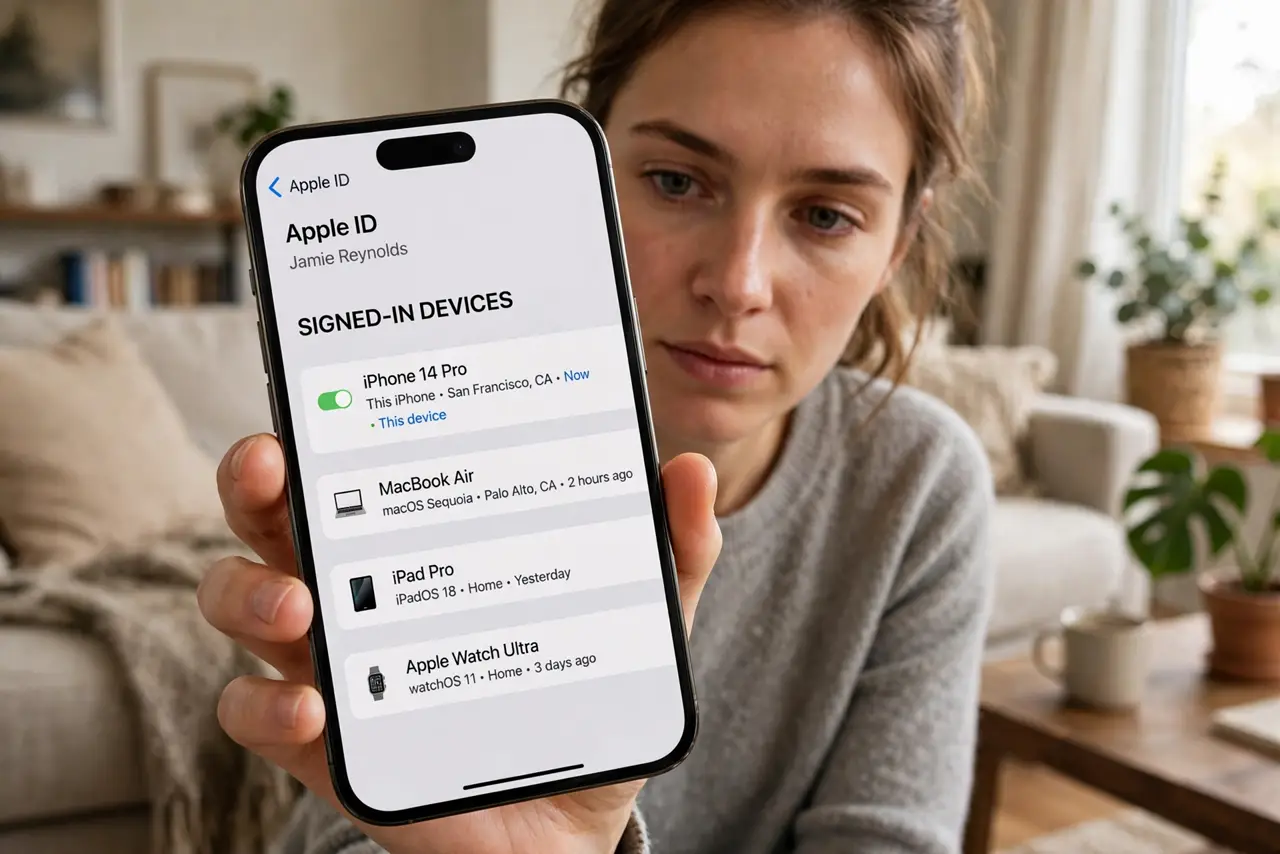
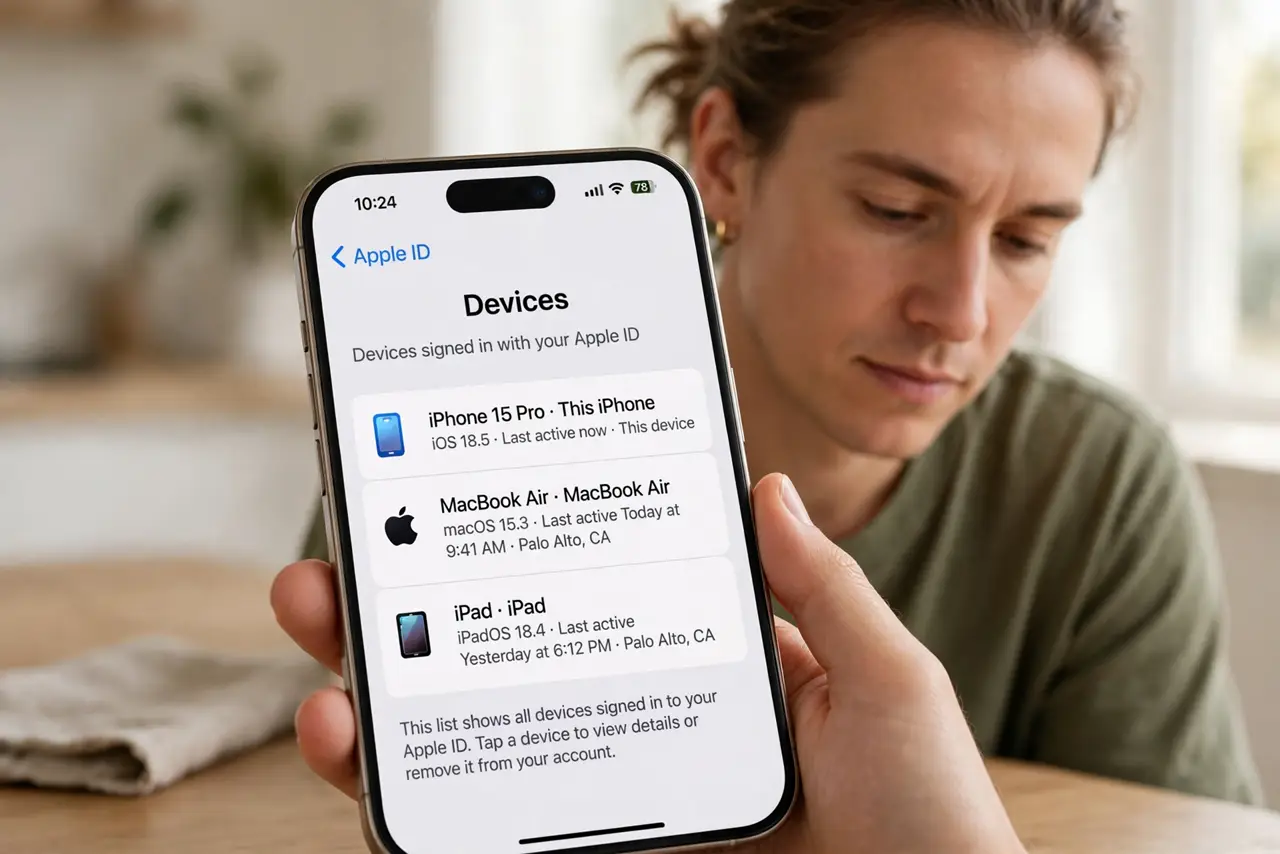
- List where you are signed in. Start with Google, Apple, and Microsoft account pages — each shows every signed-in device. Then check banking, email, and social apps individually.
- Remove devices you no longer own. Use 'sign out' or 'remove device' on each stale entry. For a clean sweep, 'sign out of all devices' is faster — you will just log back in on the ones you keep.
- Change passwords where it matters. If a sold device stayed signed into email or banking, change those passwords now. A remote sign-out plus a new password closes the door twice.
- Check app-specific sessions too. Streaming, messaging, and shopping apps keep their own sessions. Open each app's settings and sign out old phones, TVs, and browsers — see signing out fully for the same habit on shared machines.
- Revoke trusted-device status. Some services mark devices 'trusted' to skip verification. Remove the trust flag on old devices so a future login from them triggers checks.
- Make it a sale-day ritual. Before the device leaves your hands: sign out, then factory-reset. The reset alone is not instant or guaranteed — sign out first, reset second.
What NOT to do
- Do not rely on factory reset alone. Resets can fail or be skipped by the next owner — remote sign-out works regardless.
- Do not forget smart TVs and streaming sticks. They stay signed into your accounts for years on a forgotten HDMI port.
- Do not leave 'remember me' sessions on sold browsers. A signed-in browser profile is a signed-in everything — see the 'remember me' risk.
- Do not skip the change-password step for email. Email resets everything else; it deserves the belt-and-suspenders treatment.
Frequently asked questions
How do I see all devices signed into my Google account?
Open your Google Account > Security > Your devices. Each entry shows the device and last activity — remove anything you do not recognize or no longer own.
I sold a phone still signed in — what now?
Sign out remotely from the account's device list, change the account password, and enable two-factor if it was off. Do it today.
Does 'sign out everywhere' log me out too?
Yes — including your current device. Keep your password manager handy so logging back in takes minutes, not an afternoon.