A Shared Drive Link Expires Unexpectedly
You share a file, and days later the recipient says the link no longer works. Many cloud drives add an expiry date to shared links by default, or a link can break when the file moves.
TL;DR / Quick Fix
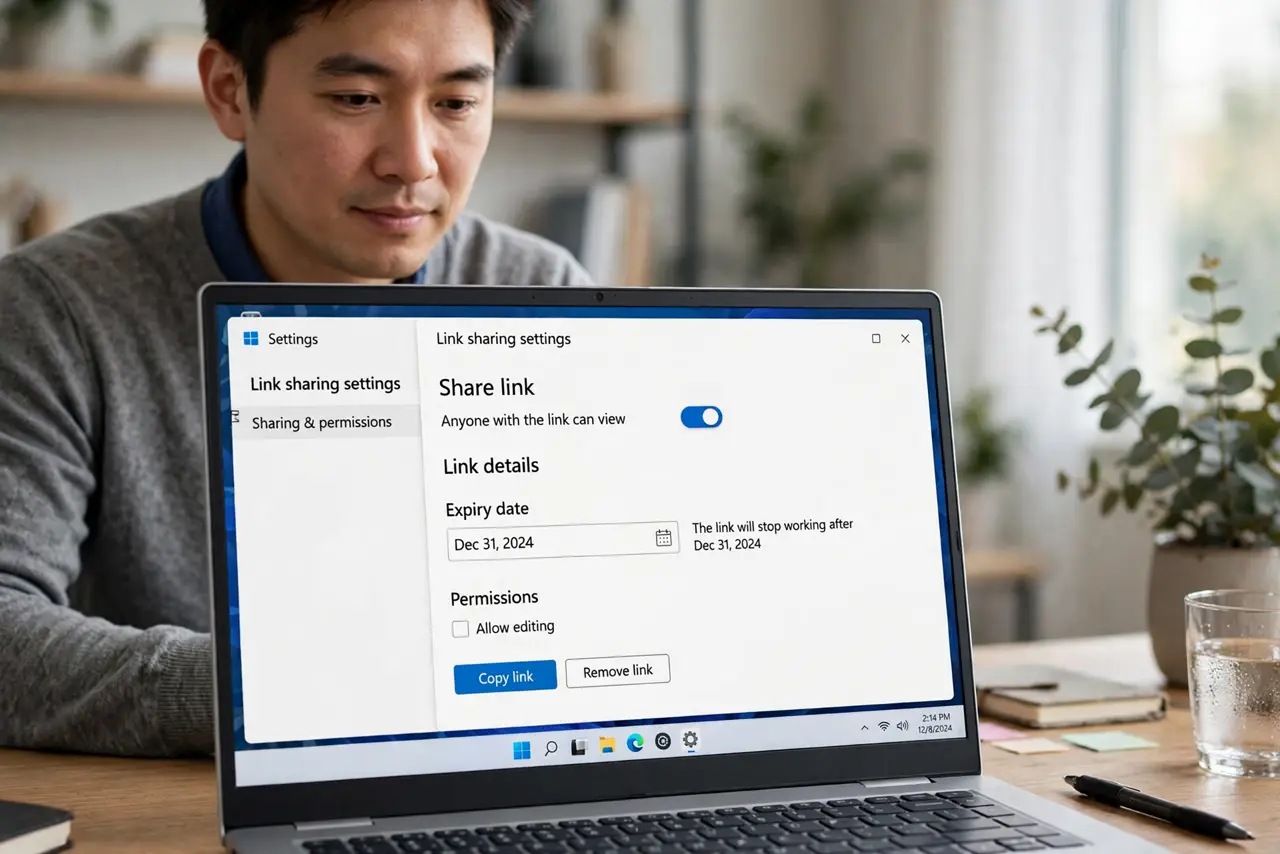
Quick fix: open the file's sharing settings and check whether the link has an expiry date set. Extend or remove the expiry, save the change, then resend the fresh link and confirm the recipient can open it before they need it.
Follow these steps
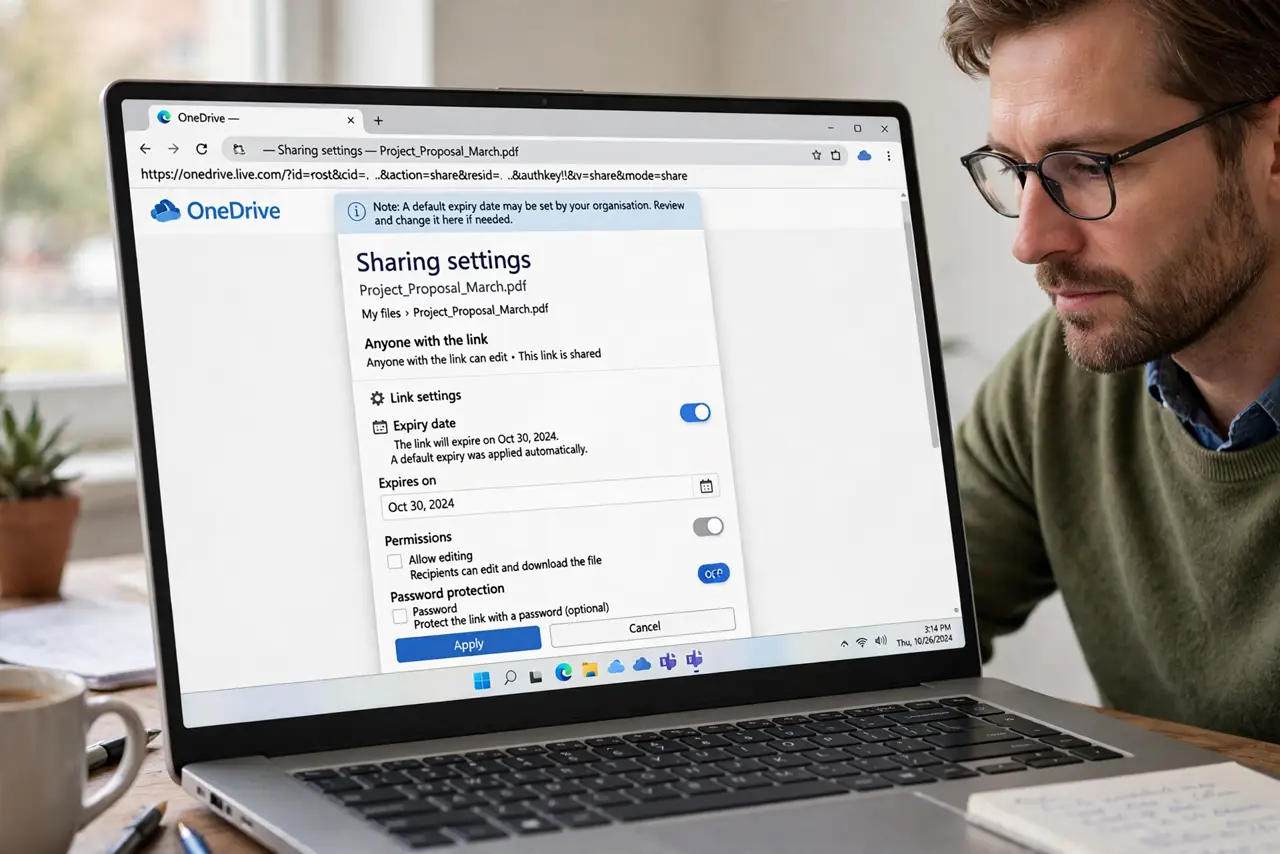
- Open the link's sharing settings. Open the file in your cloud drive and look at its sharing settings. The expiry date, if any, appears there, and a default expiry may have been applied without you noticing.
- Extend or remove the expiry. Change the expiry to a later date, or turn expiry off for links that should live long. Save the setting, because some services require a save before the change applies.
- Copy the link again after the change. An old copied link may still carry the old expiry. Copy the fresh link from the sharing panel and use that one in your message to the recipient.
- Check whether the file moved. If you moved the file to another folder after sharing, the old link can break. Re-share the file from its new location and send the new link.
- Check whether you revoked the link. Look for a revoke or remove link option in the settings. A link turned off by you or by an admin shows the same expired message to the recipient.
- Ask the recipient to clear a cached page. If the recipient still sees an expired page after your fix, ask them to reload or open the link in a private window. A cached error page can hide the now-working link.
What NOT to do
- Do not assume the recipient did something wrong. Check the link's expiry and settings first, since most unexpected expiries come from the sharing side, not the opening side.
- Do not resend the same old link. If that link expired, sending it again changes nothing, so copy a fresh link after fixing the settings.
- Do not turn off expiry for every link forever. Expiry is a safety feature, so only remove it for links that truly need to live long.
- Do not move shared files without telling recipients. A move can break links, so re-share and resend the link after any move.
Frequently asked questions
Why did my shared link expire?
Because the sharing settings gave it an expiry date, which many services add by default when you create a link.
Can a moved file break its link?
Yes. Moving the file after sharing can invalidate the old link, so re-share it from the new location.
The recipient still sees expired after I fixed it. Why?
Their browser may show a cached error page. Ask them to reload or open the link in a private window.