The IF Function? Basics
The IF function is the spreadsheet's way of making decisions: if something is true, do this, otherwise do that. Pass or fail, over budget or under, in stock or out — IF turns raw data into answers. It has three parts: the test, the true result, and the false result. Get those three straight and IF becomes the most useful function you know.
TL;DR / Quick Fix
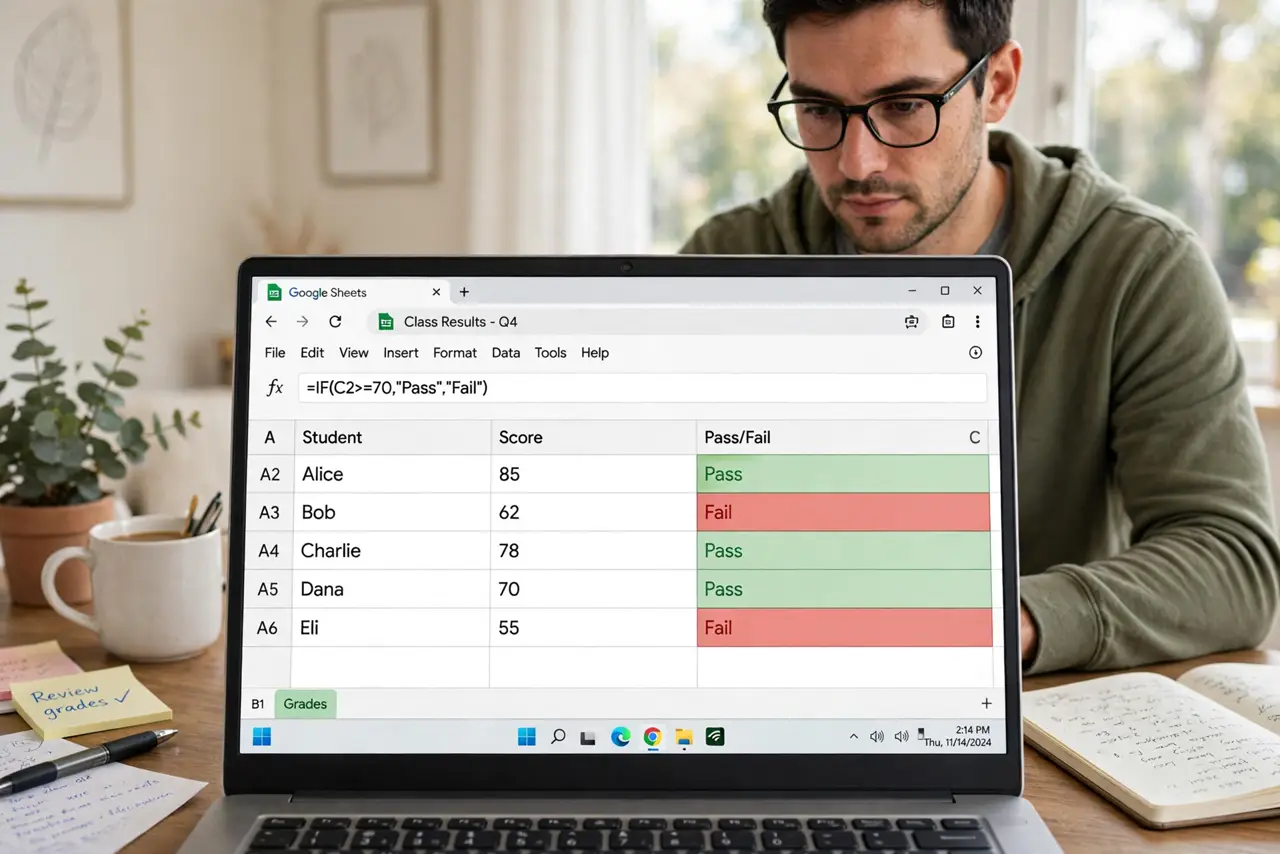
Quick fix: type =IF( then your test like A2>=60, the value if true in quotes like "Pass", and the value if false like "Fail", then close the parenthesis. Example: =IF(A2>=60,"Pass","Fail"). Copy the formula down the column. Nest IFs for more outcomes, but keep nesting shallow — three deep is plenty.
Follow these steps
- Learn the three parts. IF always takes: 1) a logical test, 2) what to show if true, 3) what to show if false. =IF(A2>=60,"Pass","Fail") reads as: if A2 is 60 or more, show Pass, otherwise show Fail. Say it in English first, then write it.
- Write your first IF. Click a cell and type =IF(B2>100,"Over","OK"). Press Enter. Copy it down the column by dragging the fill handle — the references adjust row by row automatically.
- Compare text carefully. Text comparisons need exact matches: =IF(C2="East","Yes","No") fails if the cell says "east" or "East " with a trailing space. Clean your data first or the logic lies to you.
- Nest IFs for three or more outcomes. For grades: =IF(A2>=90,"A",IF(A2>=80,"B","C")). Each nested IF handles the next band down. Keep nesting to two or three levels — deeper nests become unreadable, and that is when a lookup approach or helper column wins.
- Combine with AND and OR. =IF(AND(A2>=60,B2>=60),"Pass","Fail") requires both conditions. OR passes if either is true. These two tiny functions multiply what IF can express.
- Handle errors gracefully. Wrap risky formulas: =IFERROR(A2/B2,"—") shows a dash instead of an ugly error when B2 is empty. Clean output matters when others read your sheet — compare with how SUMIF behaves on messy data.

What NOT to do
- Do not nest IFs five deep. Deep nests are unreadable and unfixable — use a lookup table or helper column instead.
- Do not forget quotes around text results. Unquoted Pass is read as a broken name reference, not the word Pass.
- Do not compare text with sloppy data. Trailing spaces and case differences silently break text tests — clean first.
- Do not leave raw errors in shared sheets. Wrap divisions and lookups in IFERROR so readers see clean output.
Frequently asked questions
Can IF return numbers instead of text?
Yes — =IF(A2>100,A2*0.1,0) calculates a 10 percent bonus when sales exceed 100. The true and false results can be numbers, formulas, or cell references.
Why does my IF always return FALSE?
Your test is probably comparing text with hidden spaces or different capitalization. Check the cell contents character by character.
What is the difference between IF and IFS?
IFS tests multiple conditions without nesting: =IFS(A2>=90,"A",A2>=80,"B",TRUE,"C"). It is cleaner than nested IFs when your app supports it.