Pivot Tables? Plain Basics
You have a spreadsheet with a thousand rows of sales and someone asks 'what sold best by region last quarter?' Manually filtering and summing would take all afternoon. A pivot table answers in seconds: it groups, counts, and sums your data automatically, with no formulas to write. It looks intimidating; it isn't. Here is your first pivot table.
TL;DR / Quick Fix
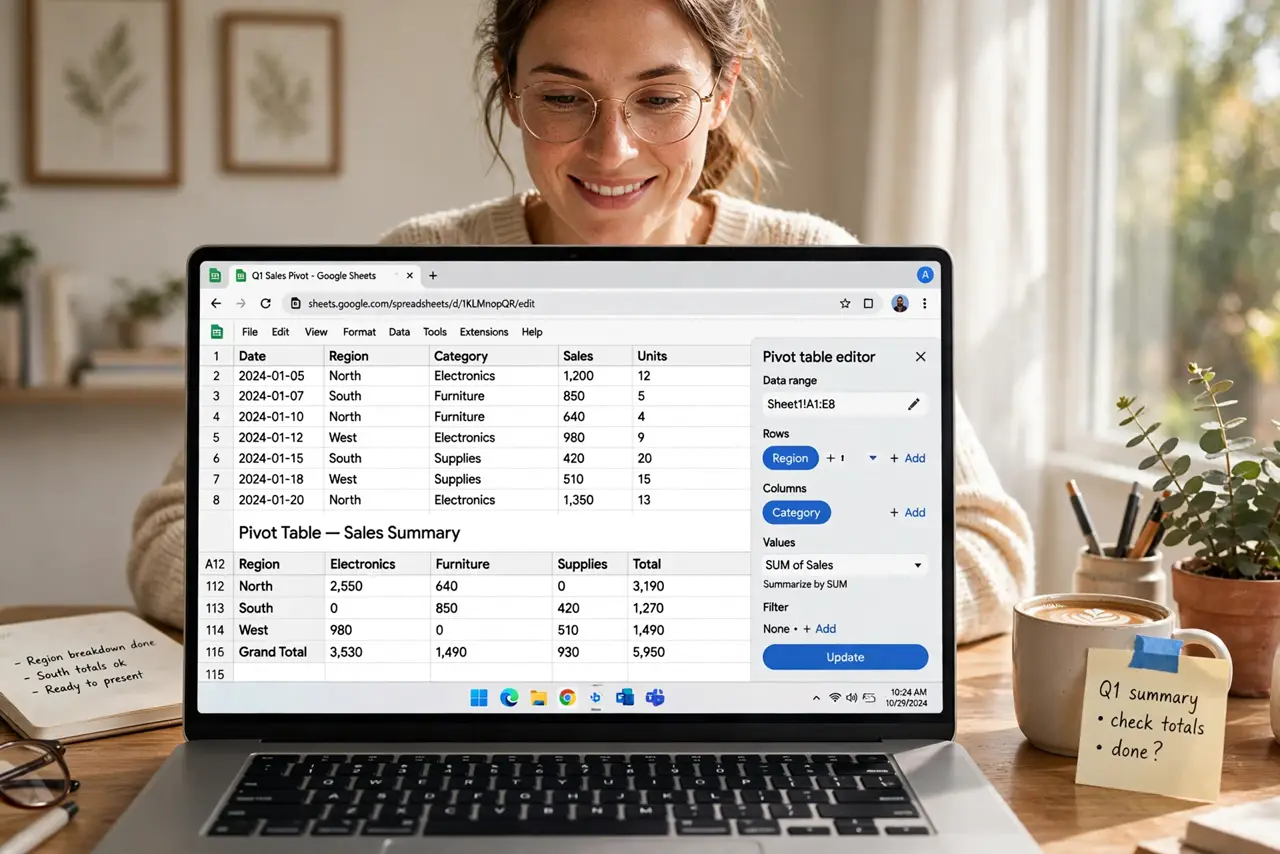
Quick fix: in Google Sheets, select your data and go to Insert → Pivot table. Drag fields to build it: Rows for categories, Values for numbers to sum. Try Region in Rows and Sales in Values for instant totals by region. No formulas needed — rearrange by dragging fields around.
Follow these steps
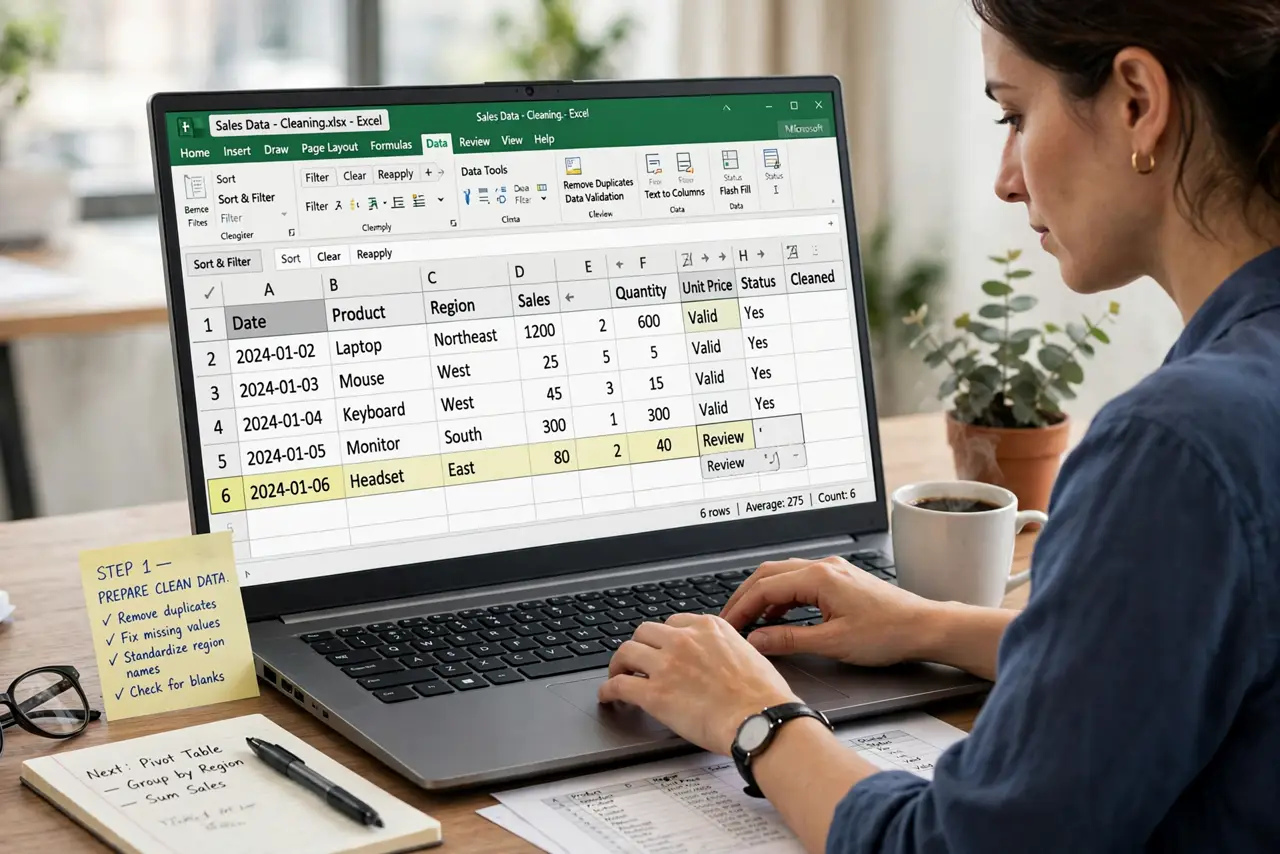
- Prepare clean data. Pivots need tidy input: one header row, no blank rows inside the data, consistent labels ('NYC' and 'New York' count as different). Five minutes of cleanup saves an hour of confusing results. This is the unglamorous step that makes everything work.
- Insert the pivot table. Select any cell in your data → Insert → Pivot table → New sheet (recommended — keeps the source clean). An empty pivot editor opens on the side. You're one drag away from insight.
- Add Rows: your categories. In the editor, click Add next to Rows and pick a category like Region or Salesperson. The pivot instantly lists each unique value. This is the 'group by' — the question you're asking.
- Add Values: your numbers. Click Add next to Values and choose the number column, e.g., Sales — it defaults to SUM. Now you have totals per category. Switch SUM to COUNT or AVERAGE from the dropdown for different questions.
- Add Columns or Filters to slice further. Drag Quarter into Columns to split each region's total by quarter. Add Filters for interactive slicing — a filter on Year lets viewers toggle years. Each addition is reversible; experiment freely.
- Refresh your thinking, not the data. Pivots update when source data changes (automatic in Sheets; refresh in Excel). But a pivot never edits your source — it's a lens, not a hammer. Break the layout fearlessly; the data is safe.
What NOT to do
- Do not build on messy data. Merged cells, blank rows, and inconsistent labels produce garbage pivots — clean first.
- Do not fear breaking it. The pivot is a view; dragging fields around can't harm your source data. Experiment.
- Do not sum text columns. SUM on a text field gives nonsense — use COUNT for text, SUM for numbers.
- Do not present a pivot without checking totals. Spot-check one group manually — a mislabeled column can silently corrupt everything.
Frequently asked questions
What's the difference from filters?
Filters hide rows; pivots aggregate them. A filter shows you the 200 NYC rows; a pivot tells you NYC totaled $50,000. Different questions, different tools.
Can I make charts from a pivot?
Yes — select the pivot output and insert a chart. Pivot charts update with the pivot, making them great for dashboards.
Why are my numbers wrong?
Almost always the source data: text stored as numbers, duplicate labels, or blank rows splitting the range. Fix the source, and the pivot fixes itself.