Protect Ranges in Sheets?
Shared spreadsheets die by a thousand accidental edits — someone sorts one column, someone else overwrites the formulas, and the monthly report quietly corrupts. Protecting ranges locks specific cells or sheets so only the right people can change them, while everyone else can still view and use the rest. It is the difference between a shared tool and a shared disaster.
TL;DR / Quick Fix
Quick fix: select the cells to lock, go to Data then Protect sheets and ranges, and set who can edit. Lock formula columns and header rows; leave input cells open. Protection prevents accidents, not determined sabotage — pair it with clear communication.
Follow these steps
- Select what to lock. Highlight the formula columns, header rows, or finished data that should never change by hand. Protect the machinery of the sheet, not the inputs people need to fill.
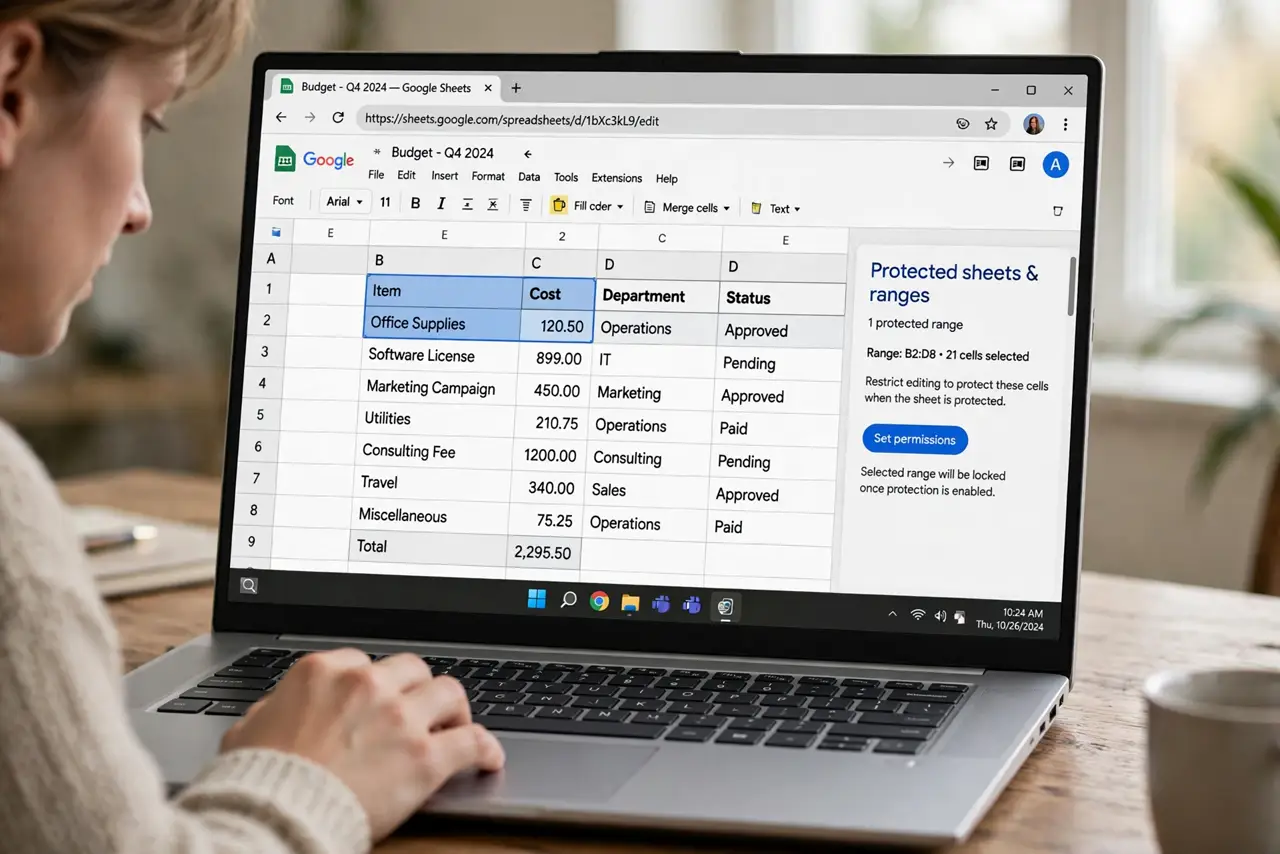
- Open Protect sheets and ranges. Go to Data, then 'Protect sheets and ranges.' A sidebar appears where you name the protection and choose the range — name it clearly, like 'Formulas — do not edit.'
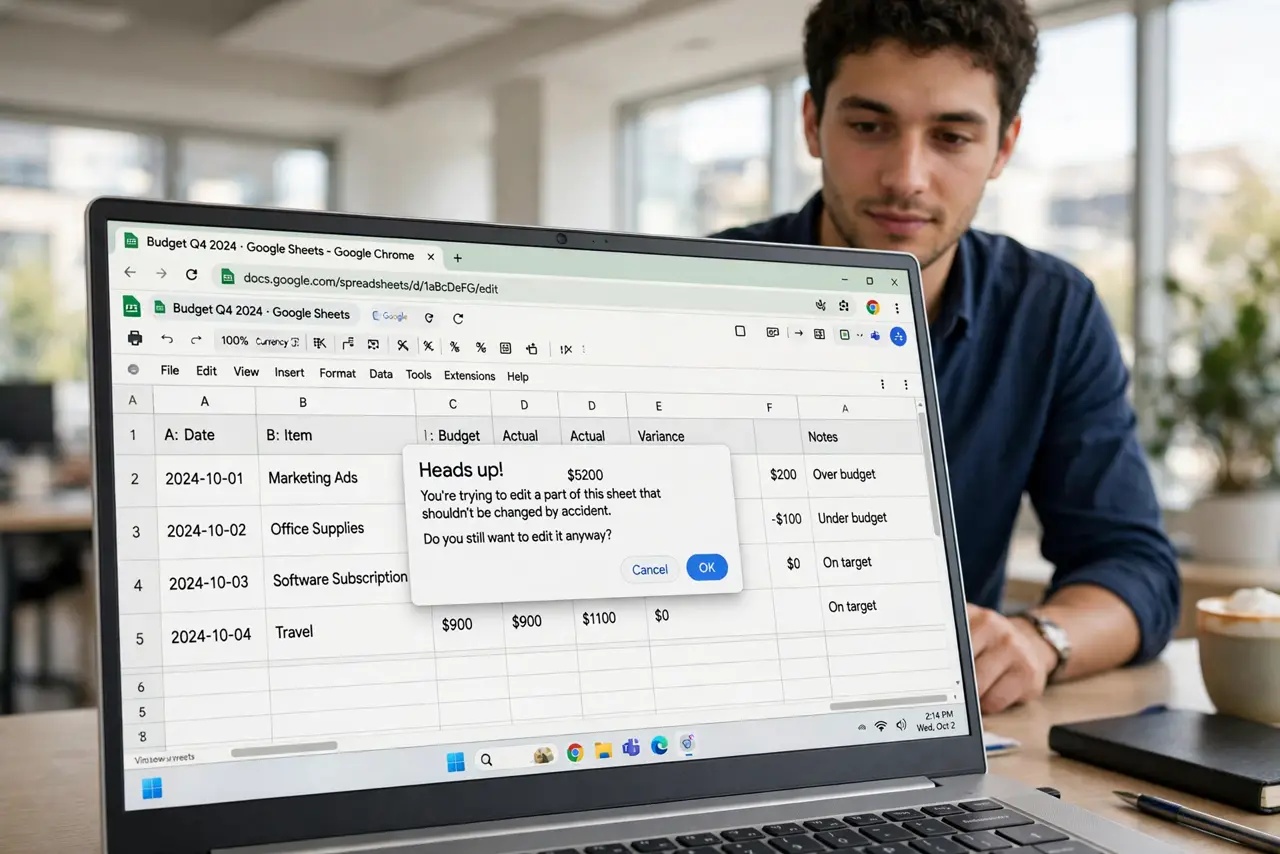
- Choose who can edit. Set permissions to 'Only you' or a custom list of editors. Everyone else gets a polite warning when they try to change a protected cell — the friction is the point.
- Protect whole sheets when appropriate. For a finished monthly tab, protect the entire sheet except the input cells. It is faster than protecting twenty ranges and harder to mess up.
- Warn, do not just block. Add a description explaining why the range is locked and who to ask for changes. A locked cell with no explanation breeds resentment and workarounds.
- Review protections periodically. People change roles; protections do not update themselves. Every few months, check that the editor lists still match reality.
What NOT to do
- Do not protect the input cells too. A sheet nobody can fill in is a dead sheet — lock the formulas and headers, free the inputs.
- Do not use protection as access control for secrets. Editors can copy the sheet and unprotect the copy — protection stops accidents, not determined people.
- Do not protect without telling the team. Surprise locks feel hostile; a one-line note about what is locked and why keeps everyone cooperative.
- Do not forget you protected something. Future you will be confused by the warning too — good protection names pay off.
Frequently asked questions
Can people still sort and filter a protected sheet?
Yes, if you allow it — filtering does not change cell values, so it works fine on protected ranges. Sorting changes order, so it needs edit rights on the sorted range.
Someone needs one cell changed in a protected range. Now what?
Either add them as an editor of that protection, or make the change yourself. Do not unprotect the whole range for a one-cell fix and forget to re-lock it.
Does protection work in the mobile app?
Yes — protected ranges are respected on mobile. Setting up the protections themselves is easier on a computer.