Sparklines? Basics
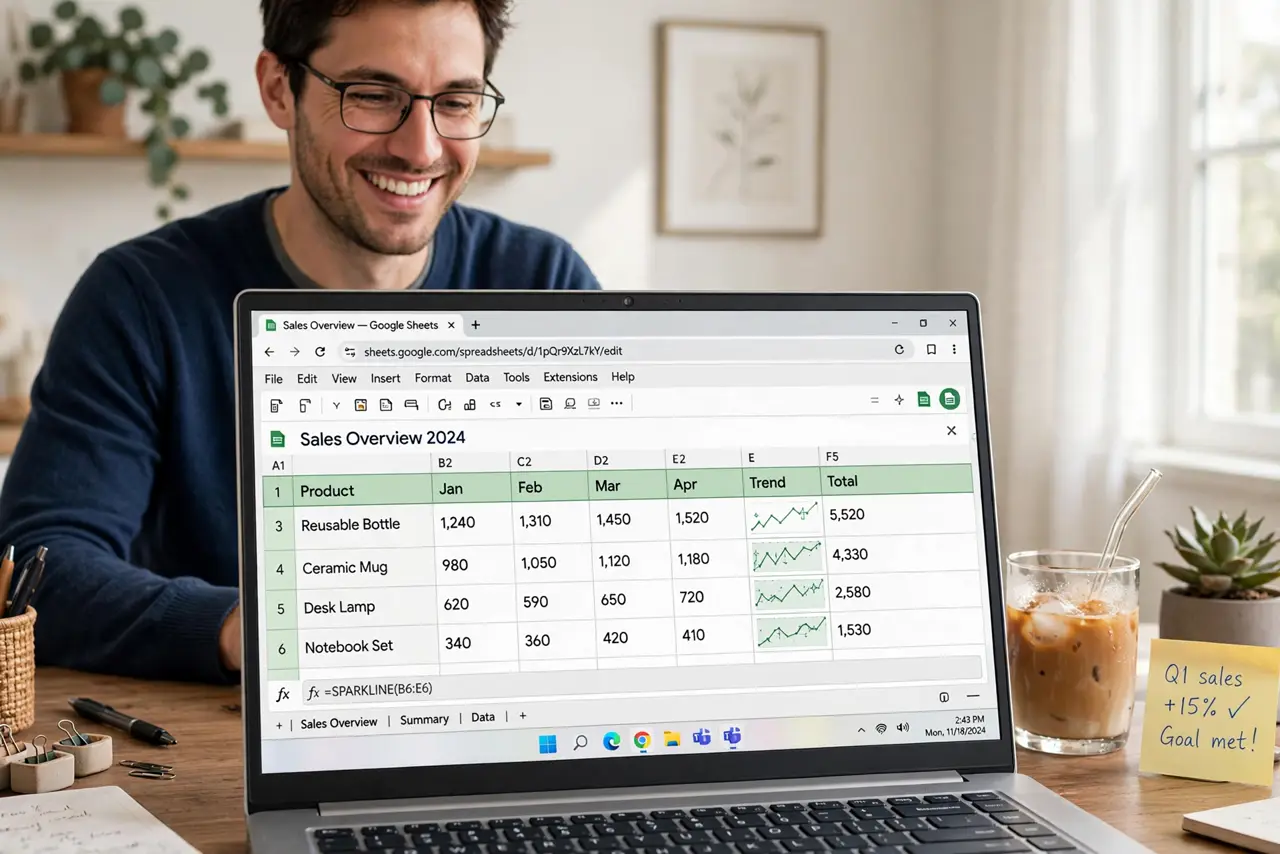
Sparklines are tiny charts that live inside a single cell — a miniature trend line next to your numbers, no chart object needed. They turn a column of monthly figures into instant visual trends, row by row. One function, one cell, done. If full charts feel like overkill for a simple trend, sparklines are your answer.
TL;DR / Quick Fix
Quick fix: in Google Sheets type =SPARKLINE( then your data range, like =SPARKLINE(B2:M2), and press Enter — a mini line chart appears in the cell. Copy it down for every row. Add options like {"charttype","column"} for bars or colors. They update automatically when data changes.
Follow these steps
- Write your first sparkline. Click an empty cell next to your data row and type =SPARKLINE(B2:M2), adjusting the range to your numbers. Press Enter — a tiny line chart appears in the cell, showing the row's trend at a glance.
- Copy it down the column. Drag the fill handle down. Each row gets its own sparkline from its own data — twelve months of sales become twelve instant trend pictures. This is where sparklines beat full charts for dense tables.
- Try column style. For bar-like visuals use =SPARKLINE(B2:M2,{"charttype","column"}). Columns suit comparisons of individual values; lines suit trends over time. One option changes the whole feel.
- Add color. Options like {"charttype","line";"color","green"} recolor the line. Use color meaningfully — green for growth metrics, red for costs — not decoratively.
- Handle blanks and zeros. Empty cells break the line's flow. Decide whether blanks mean zero or missing: fill true zeros where appropriate, and keep genuinely missing data blank so the gap shows honestly.
- Size the cells for readability. Sparklines scale to the cell. Widen the column and raise the row height slightly and the mini chart becomes genuinely readable — cramped cells make them decoration.

What NOT to do
- Do not use sparklines for precise values. They show trends, not numbers — keep the actual figures in the next column.
- Do not mix scales carelessly. Each sparkline scales to its own row by default, so identical-looking lines can mean very different magnitudes.
- Do not cram them into tiny cells. A sparkline in a 20-pixel cell is visual noise — give it room to breathe.
- Do not forget they are formulas. Sorting or deleting source columns breaks them like any other formula.
Frequently asked questions
What is the difference between a sparkline and a chart?
A sparkline lives inside one cell and shows one row's trend; a chart is a separate object with axes and labels. Sparklines are for dense dashboards, charts for presentations.
Can I make bar sparklines?
Yes — add the charttype column option: =SPARKLINE(B2:M2,{"charttype","column"}). It draws mini bars instead of a line.
Do sparklines update automatically?
Yes. They are formulas, so editing the source data redraws them instantly — no refresh needed.