Smart Bulb Won't Connect
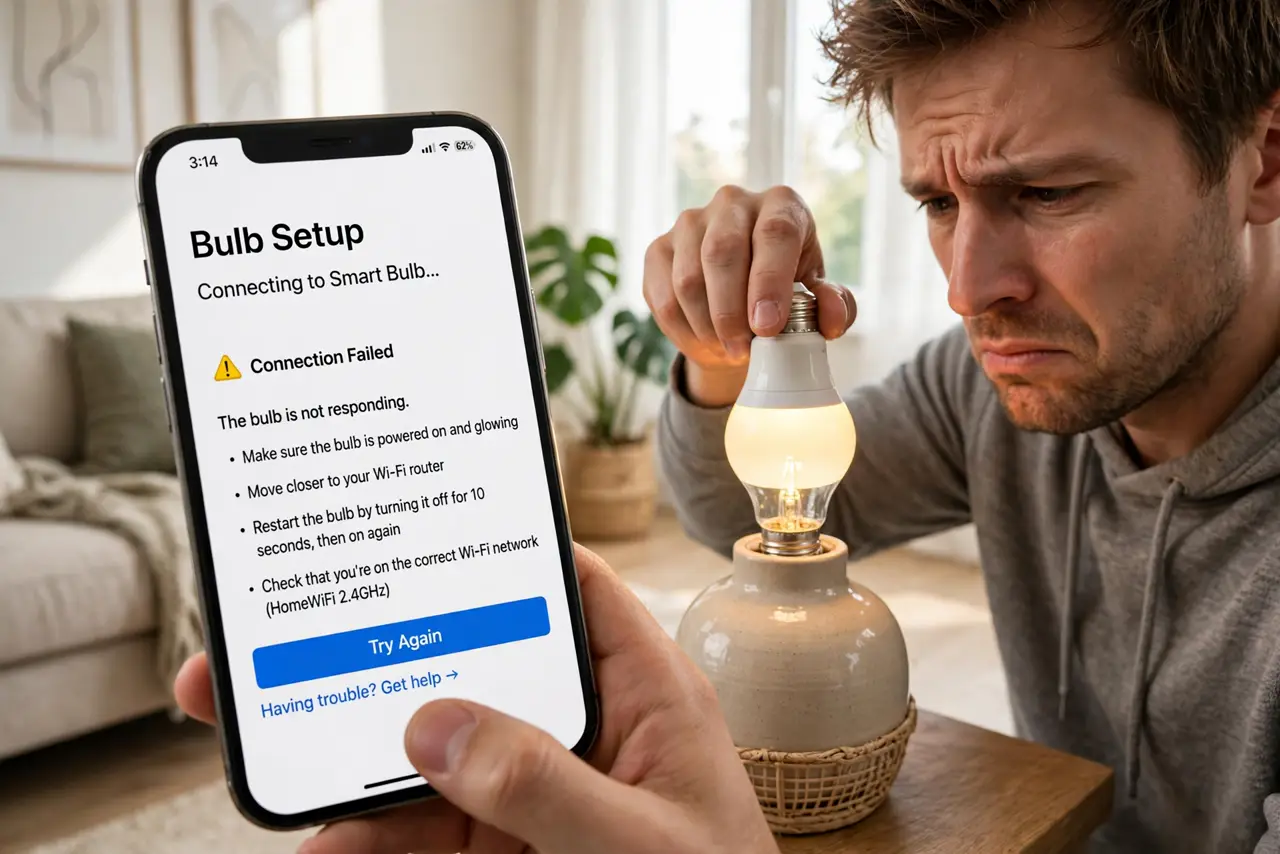
The new smart bulb blinks, the app spins, and then — nothing. Setup failed. Almost every smart bulb on the market only speaks 2.4 GHz Wi-Fi, while your phone cheerfully connects to 5 GHz and the two never meet. Fixing that one mismatch solves most 'won't connect' cases in minutes.
TL;DR / Quick Fix
Quick fix: most smart bulbs only join 2.4 GHz networks — enable your router's separate 2.4 GHz band, then reset the bulb with the on-off pattern in its manual. Stand near the router during setup and keep the bulb's app updated. If it still fails, reboot the router before retrying.
Follow these steps
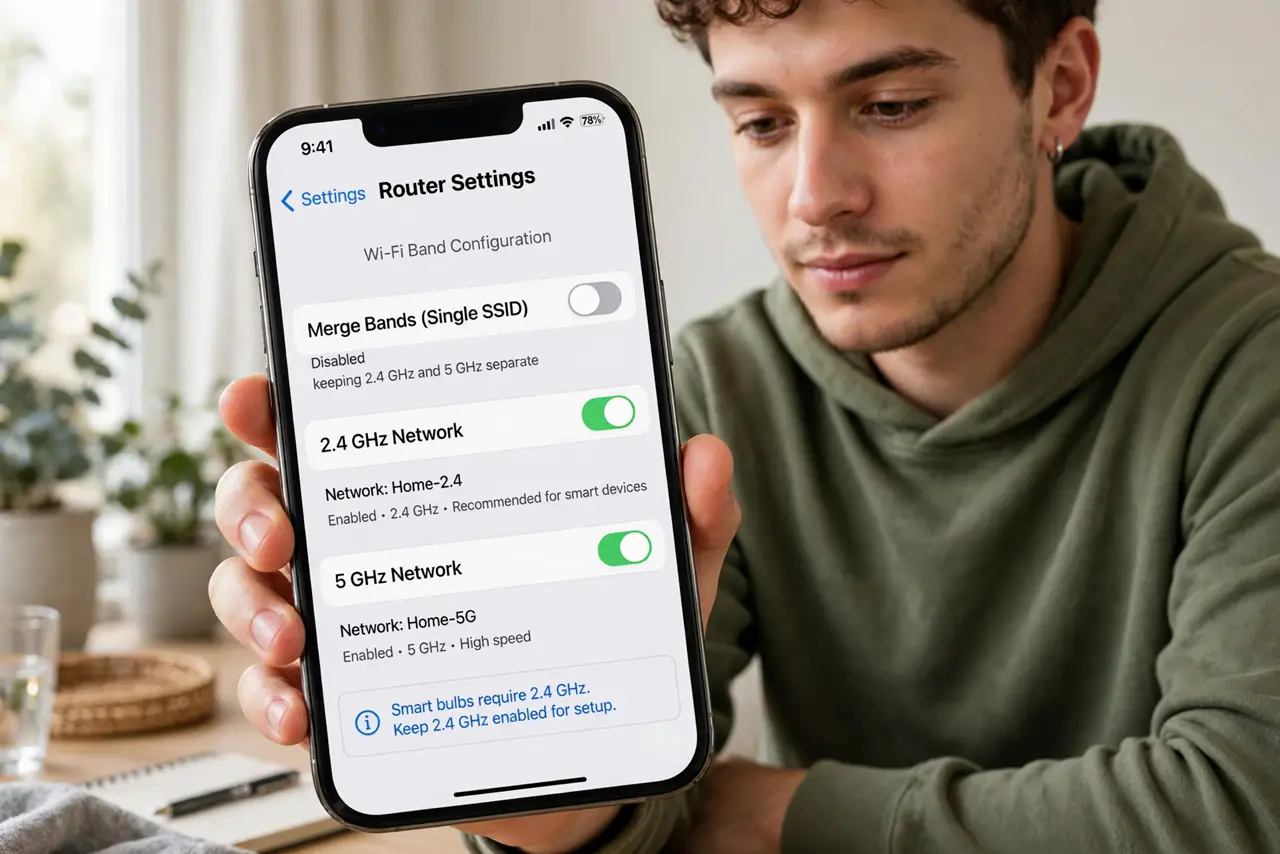
- Confirm your Wi-Fi band. Smart bulbs need 2.4 GHz. Open your router settings and make sure the 2.4 GHz network is enabled — many routers merge bands under one name, which confuses setup. A separate 2.4 GHz network fixes most cases.
- Move the bulb near the router. Do the first setup with the bulb in a lamp close to the router. Weak signal during pairing is a classic silent failure — move it to its final spot after it works.
- Reset the bulb properly. The manual lists an on-off pattern (often 3-5 quick toggles) that puts the bulb in pairing mode — usually a rapid blink. Skip this and the app will never find it.
- Restart the router. A stale router session blocks new smart devices surprisingly often. Power-cycle the router, wait two minutes, then try pairing again.
- Check for AP isolation. Some routers block devices from seeing each other for 'security.' If the bulb connects to Wi-Fi but the app cannot find it, disable AP or client isolation for your home network.
- Update the bulb's app. An outdated app can fail against current bulb firmware. Update it, and if pairing worked before a router change, re-run setup with the new network name.
What NOT to do
- Do not set up the bulb from across the house. Pair next to the router, then move it — signal at pairing time decides success.
- Do not keep retrying without resetting the bulb. Each failed attempt needs a fresh pairing mode, or the app searches for a bulb that isn't listening.
- Do not use a 5 GHz-only network name. The bulb physically cannot see it, and no amount of retrying changes physics.
- Do not ignore the manual's blink pattern. Different brands use different reset sequences — guessing wastes more time than reading.
Frequently asked questions
Why does the bulb connect but the app can't find it?
Usually AP isolation or the phone being on a different band. Put the phone on the same 2.4 GHz network during setup.
Can I use smart bulbs without the internet?
Most need Wi-Fi for app control, but many remember their last state and work as normal bulbs with the wall switch.
Do smart bulbs work with dimmer switches?
Mostly no — smart bulbs dim themselves and fight old dimmers, causing flicker. Keep them on full-power switches.