Smart Devices Only See 2.4 GHz? Fix It
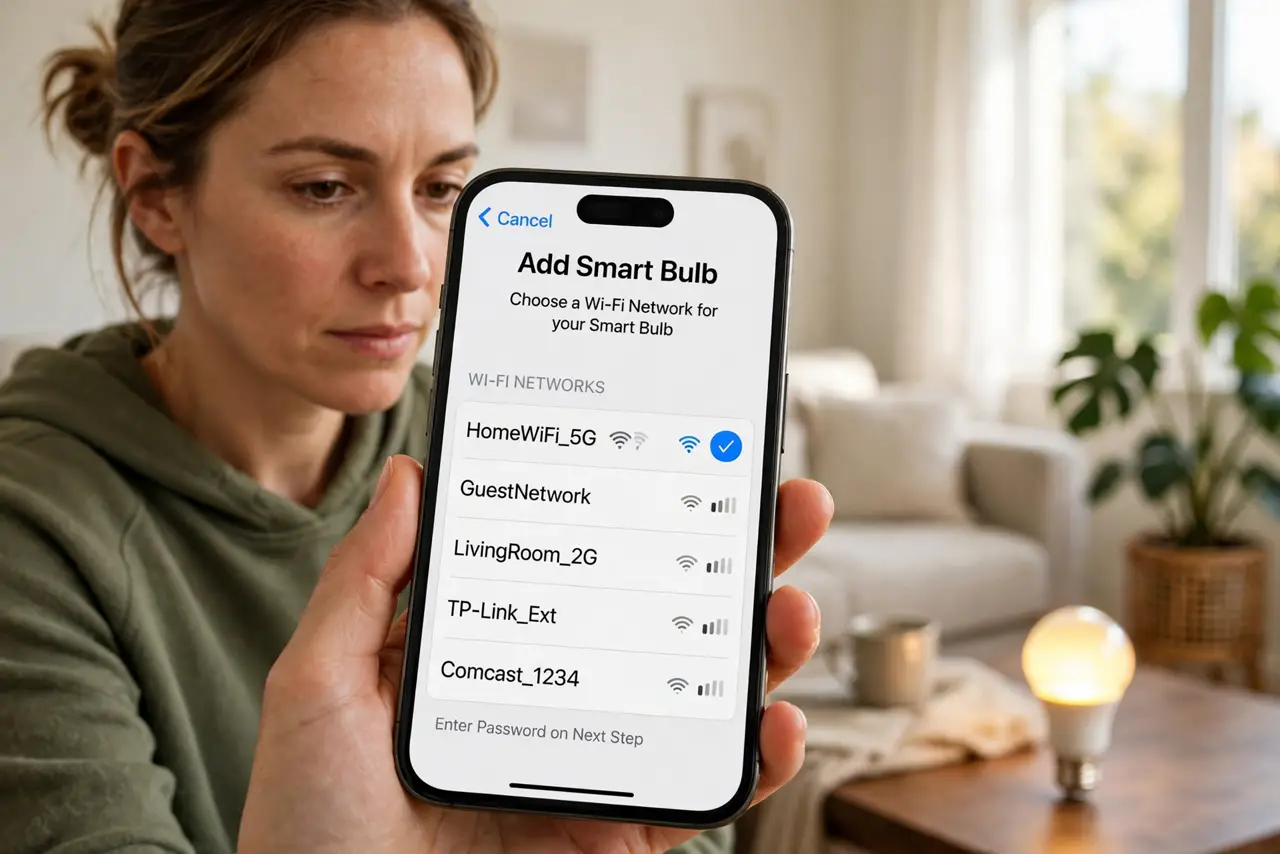
The smart bulb's app scans for Wi-Fi and your network isn't there — because the bulb only speaks 2.4 GHz and your phone is on 5 GHz. This mismatch kills more smart-home setups than any other single cause. The fix is getting your phone onto 2.4 GHz temporarily during setup, then letting everything live where it belongs.
TL;DR / Quick Fix
Quick fix: during setup, join your phone to the 2.4 GHz network — the gadget only configures from the band it understands. If the router merges both bands under one name, split them or use its setup mode. After setup, your phone can return to 5 GHz.
Follow these steps
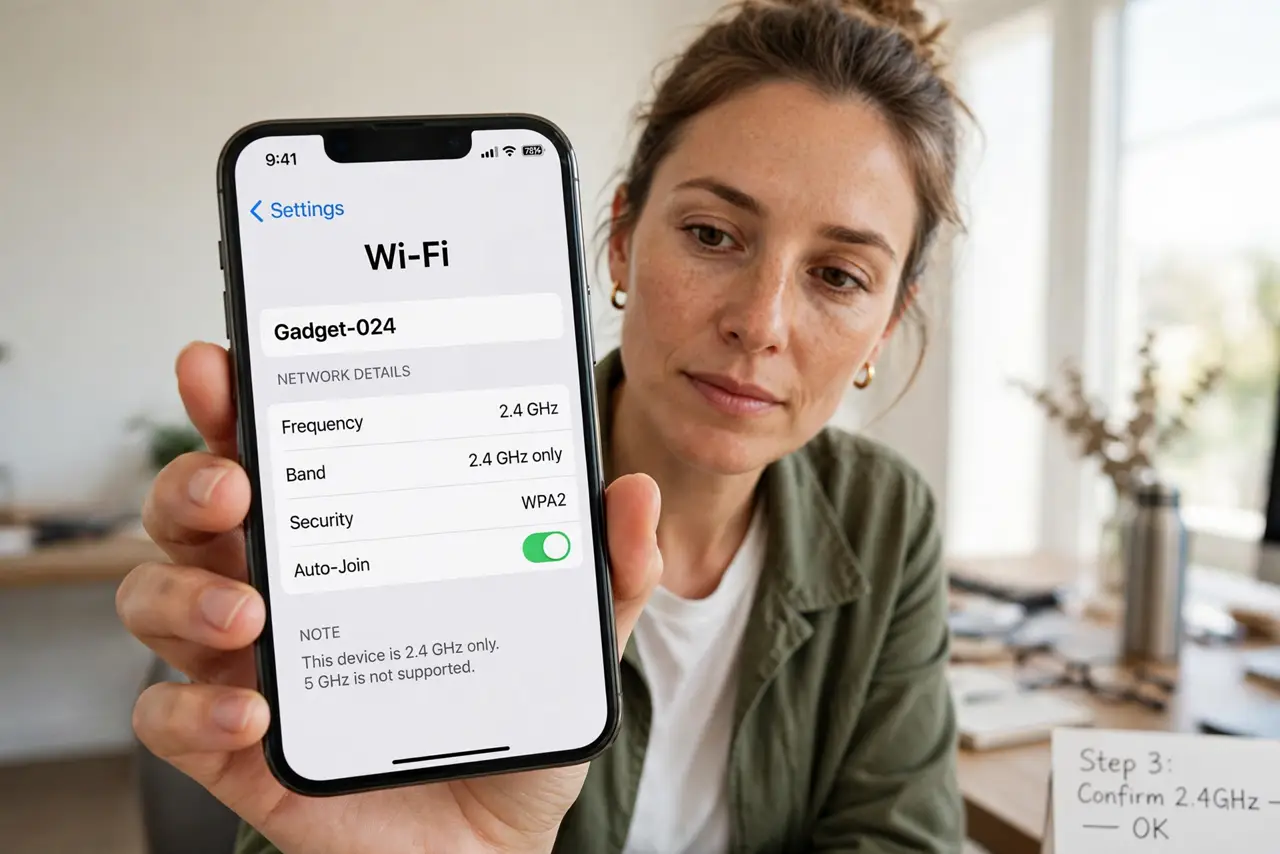
- Confirm the gadget is 2.4 GHz only. Check the manual or box — most bulbs, plugs, and budget cameras list 2.4 GHz only. This is normal, not a defect.
- Join your phone to 2.4 GHz for setup. The app passes your phone's current network to the gadget. If the phone is on 5 GHz, setup fails — switch bands first.
- Split merged network names if needed. One name for both bands confuses setup apps. Separate the names so you can pick 2.4 GHz deliberately.
- Move closer to the router during setup. Weak signal plus band confusion is a double failure. Set up within a few meters, then install the gadget in place.
- Check for a router setup or IoT mode. Some routers offer a temporary 2.4 GHz-only setup SSID. Use it, then disable it when done.
- Verify control works from 5 GHz after. Once configured, your phone on 5 GHz controls the 2.4 GHz bulb fine — the router bridges the bands. Test before walking away.
What NOT to do
- Do not return the gadget as defective. 2.4 GHz-only is standard for cheap smart devices — the setup process is the issue.
- Do not disable 5 GHz permanently for this. Your laptops and TVs deserve the fast band; only the setup moment needs 2.4 GHz.
- Do not set up gadgets on a neighbor's open network. They will lose connection the moment that network vanishes.
- Do not skip the post-setup test. Confirm the app controls the gadget from your normal network before mounting it somewhere awkward.
Frequently asked questions
Why are smart devices 2.4 GHz only?
Range and cost. 2.4 GHz chips are cheaper and reach farther — perfect for a bulb that sips data. Speed doesn't matter to a light switch.
Will my phone on 5 GHz still control the bulb?
Yes. Once set up, the router bridges the bands — your phone and the bulb talk through the router regardless of band.
The app still can't find my network — now what?
Check for special characters in the Wi-Fi name or password — some gadgets choke on them — and confirm the 2.4 GHz radio is actually enabled.