Turn Off Smart TV Microphone Listening
Many smart TVs listen for voice commands — and their microphones can pick up living-room conversations. Turning off the listening features you do not use keeps the TV a display, not an eavesdropper.
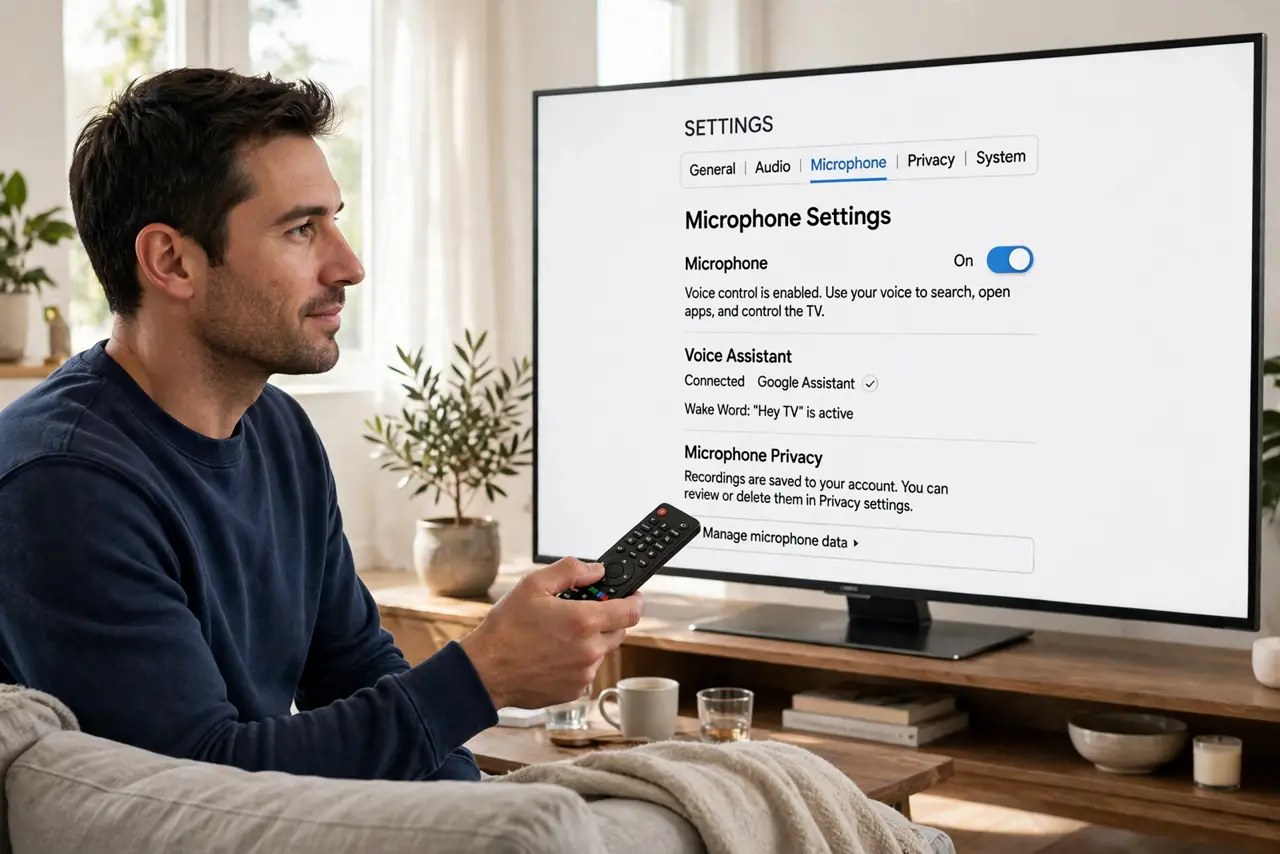
TL;DR / Quick Fix
Quick fix: open the TV settings, find voice, microphone, or privacy options, and turn off always-listening and voice data collection. Then decline the voice agreement if offered, mute the remote's mic today, and recheck after every software update without fail.
Follow these steps
- Find the voice and microphone settings. Open the TV's settings and look under voice, microphone, privacy, or general. Makers bury these options, so check every settings submenu once.
- Turn off always-listening. Disable any always-listening or hands-free voice wake feature. The TV then only listens when you press the remote's mic button, instead of all day.
- Decline voice data collection agreements. If the TV shows a voice privacy agreement, decline or opt out. Agreeing often permits storing and reviewing your voice clips.
- Mute or cover the remote's mic. Use the remote's mute switch if it has one, or store the remote mic-down when not in use. A physical barrier beats a software toggle for peace of mind.
- Check the voice history auto-delete habit too. If a smart speaker sits in the same room, set its voice history to auto-delete as well. One listening device secured while another records everything misses the point.
- Recheck after TV software updates. Updates can re-enable listening features or add new agreements. Glance at the microphone settings after each major update.
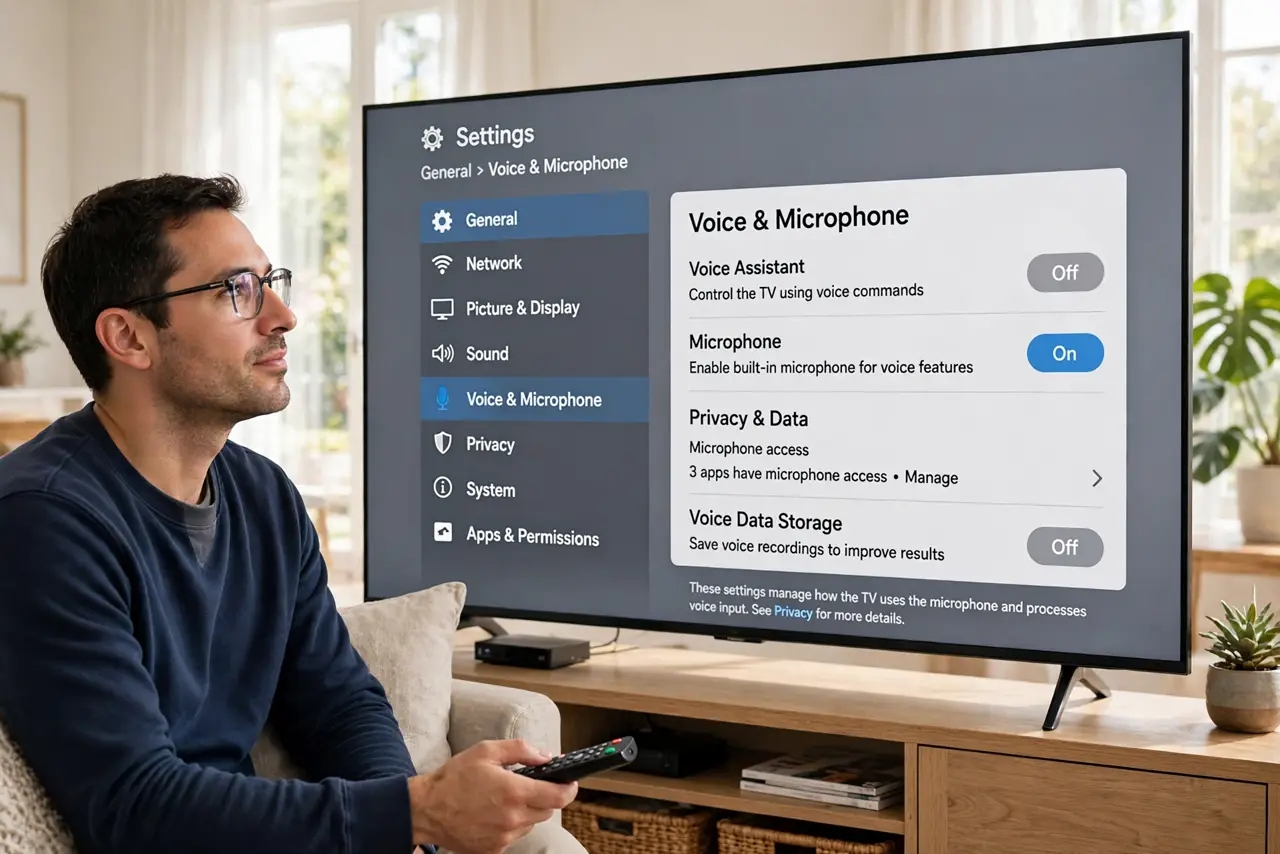
What NOT to do
- Do not assume the TV only listens after the wake word. False triggers capture living-room talk, so turning off always-listening is the real fix.
- Do not accept every agreement during TV setup. The voice privacy agreement is optional on most TVs, and declining it costs you nothing but voice control.
- Do not forget the remote's microphone. The remote listens when its button is pressed, so a stuck or curious button press still records.
- Do not leave voice features on just in case. If you never use voice control, turning it off loses nothing and gains privacy.
Frequently asked questions
Does my smart TV record conversations?
It can capture audio through false wake-word triggers when always-listening is on, which is why the setting matters.
Will turning this off break the TV?
No. The TV works fully with the remote; you only lose hands-free voice commands you probably never used.
What about the camera on some TVs?
Cover it or disable it in settings too, since the same always-watching logic applies to video.