Smart TV Wi-Fi Password Forgotten? Fix It
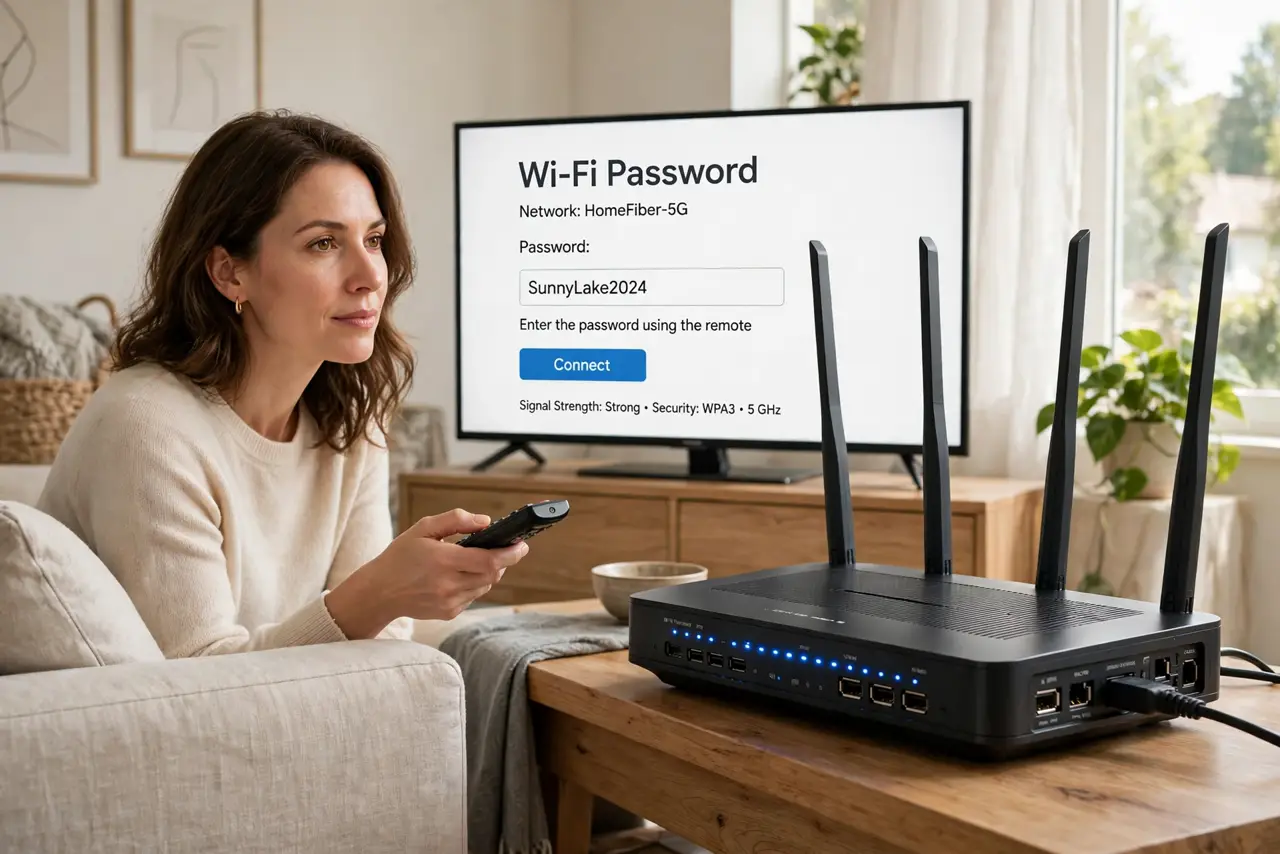
The TV asks for the Wi-Fi password, and nobody remembers it, while other devices stay connected. The password lives on the router label if never changed, on a saved device, or in the router settings.
TL;DR / Quick Fix
Quick fix: check the router label for the original password, and check a phone that already joins the network for its saved password. If both fail, open the router settings to view the current password before changing anything. Write down what worked for next time.
Follow these steps
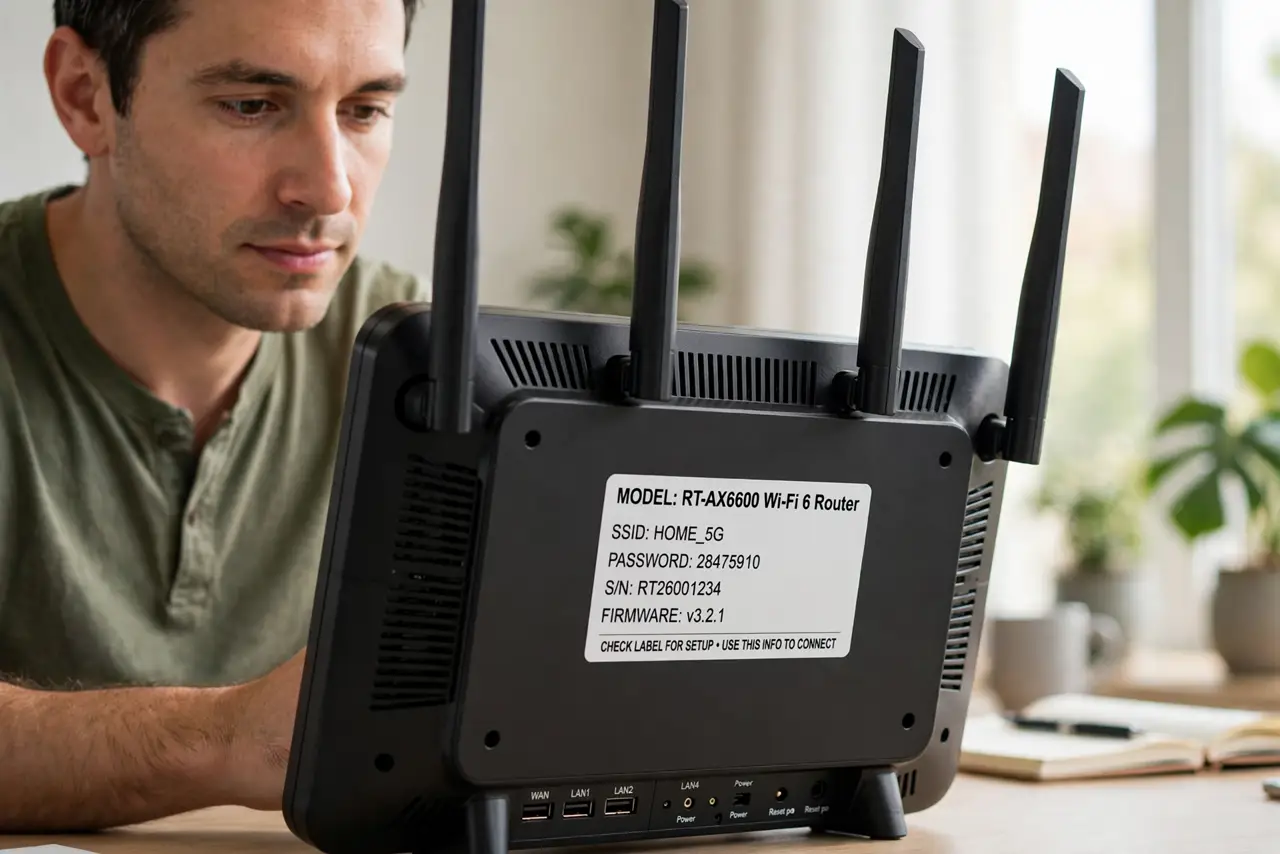
- Check the router label. Look at the label on the router for the original Wi-Fi password. If the password was never changed, the label value still works for the TV.
- Check a device already connected. On a phone already on the network, view the saved Wi-Fi password in its Wi-Fi settings. A connected device already holds the password you need.
- View the password in router settings. Open the router settings from a connected computer, find the wireless settings, and view the current password. This shows a changed password the label cannot show.
- Retype it carefully on the TV. On the TV, enter the password slowly with the on-screen keyboard, watching capitals and similar characters. TV keyboards make typos easy, so check each character.
- Forget and rejoin on the TV. On the TV, forget the network, then join it again with the password you found. A fresh join clears a stale TV entry that may hold an old password.
- Change the password only as a last step. If the password cannot be found anywhere, change it in the router settings, then update every device. Changing it fixes the TV but forces every device to rejoin.
What NOT to do
- Do not reset the router just to find a password. The label, a saved device, or the router settings usually reveal it without a reset.
- Do not photograph the router label and share it. That photo spreads the password further than you intend.
- Do not change the password without telling the household. Every device will drop until updated, which turns one TV problem into a house problem.
- Do not leave the TV network open to avoid passwords. An open network lets anyone nearby join, which is far worse than a forgotten password.
Frequently asked questions
Where is my Wi-Fi password?
On the router label if never changed, on a device already connected, or in the router wireless settings.
Can a phone show a saved Wi-Fi password?
Yes, on most phones, the saved network details can reveal the password for a network already joined.
Should I change the password if I cannot find it?
Only as a last step, since changing it forces every device in the house to rejoin.