Smart TV Slow on Wi-Fi? Try Ethernet
If your smart TV stutters on Wi-Fi while everything else flies, the TV's weak wireless radio is the bottleneck. A single ethernet cable to the TV ends the problem permanently — no extenders, no new router, no monthly upgrade. It is the most underused fix in home networking.
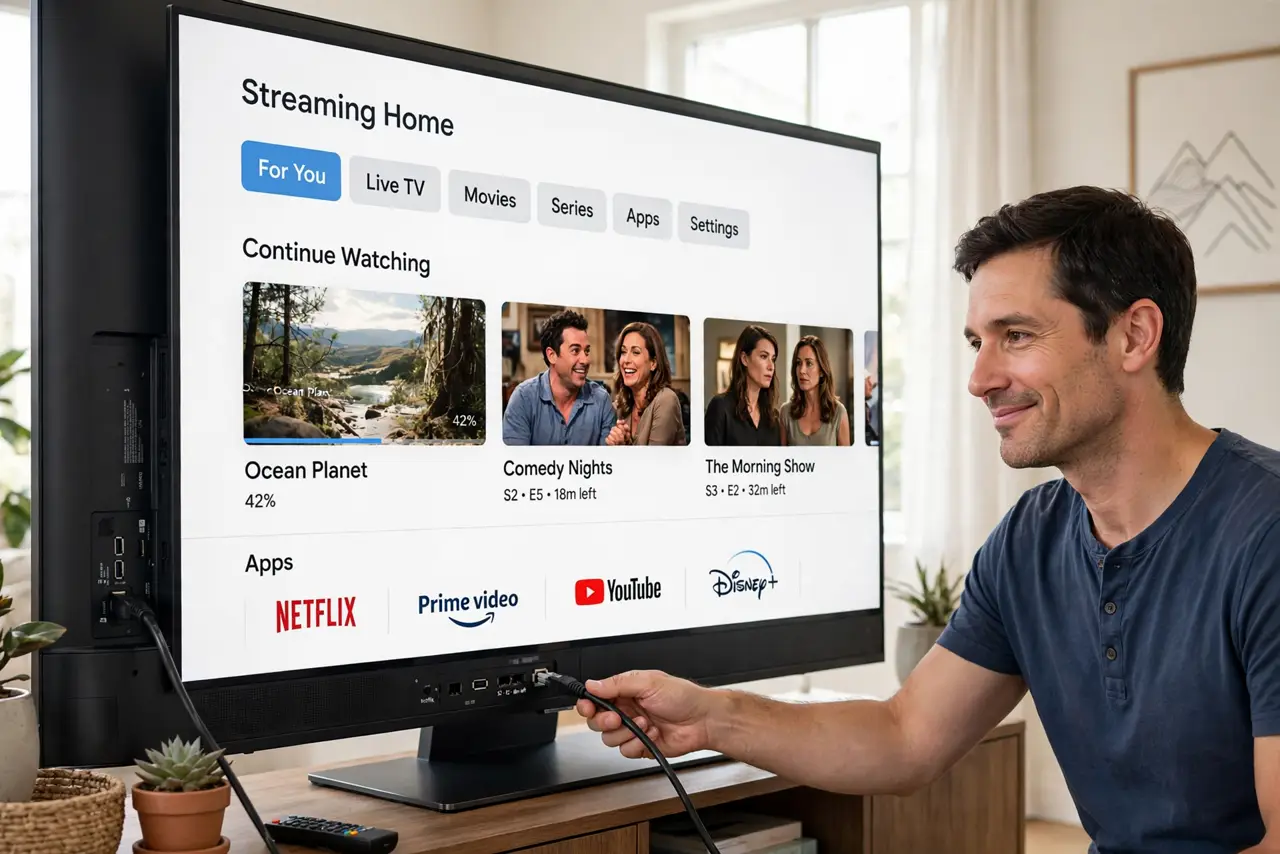
TL;DR / Quick Fix
Quick fix: run an ethernet cable from the router to the TV and watch buffering disappear. If a cable run is truly impossible, move the TV to the 5 GHz band — but check first whether the TV's [[Wi-Fi password is even saved right|smart-tv-wifi-password-forgotten]].
Follow these steps
- Check the TV has an ethernet port. Most smart TVs have one on the back, often overlooked. If yours does, you are one cable away from the fix.
- Run the cable neatly. Route it along baseboards or behind furniture. Flat ethernet cables slip under rugs and through door gaps without drilling.
- Plug in and confirm the TV switches. The TV should detect the wired connection automatically. Check the network settings to confirm it shows 'wired' instead of Wi-Fi.
- Test the problem stream again. Replay the show that buffered. Wired connections do not suffer the phone-fast-laptop-slow mystery — what the router gets, the TV gets.
- Consider powerline if no cable fits. When a cable truly cannot run, a powerline adapter pair carries the signal over your wiring. It is the closest thing to a wire without the wire.
- Leave Wi-Fi on as backup, or turn it off. Some TVs get confused with both active. If the TV lets you disable Wi-Fi while wired, do it for a cleaner setup.
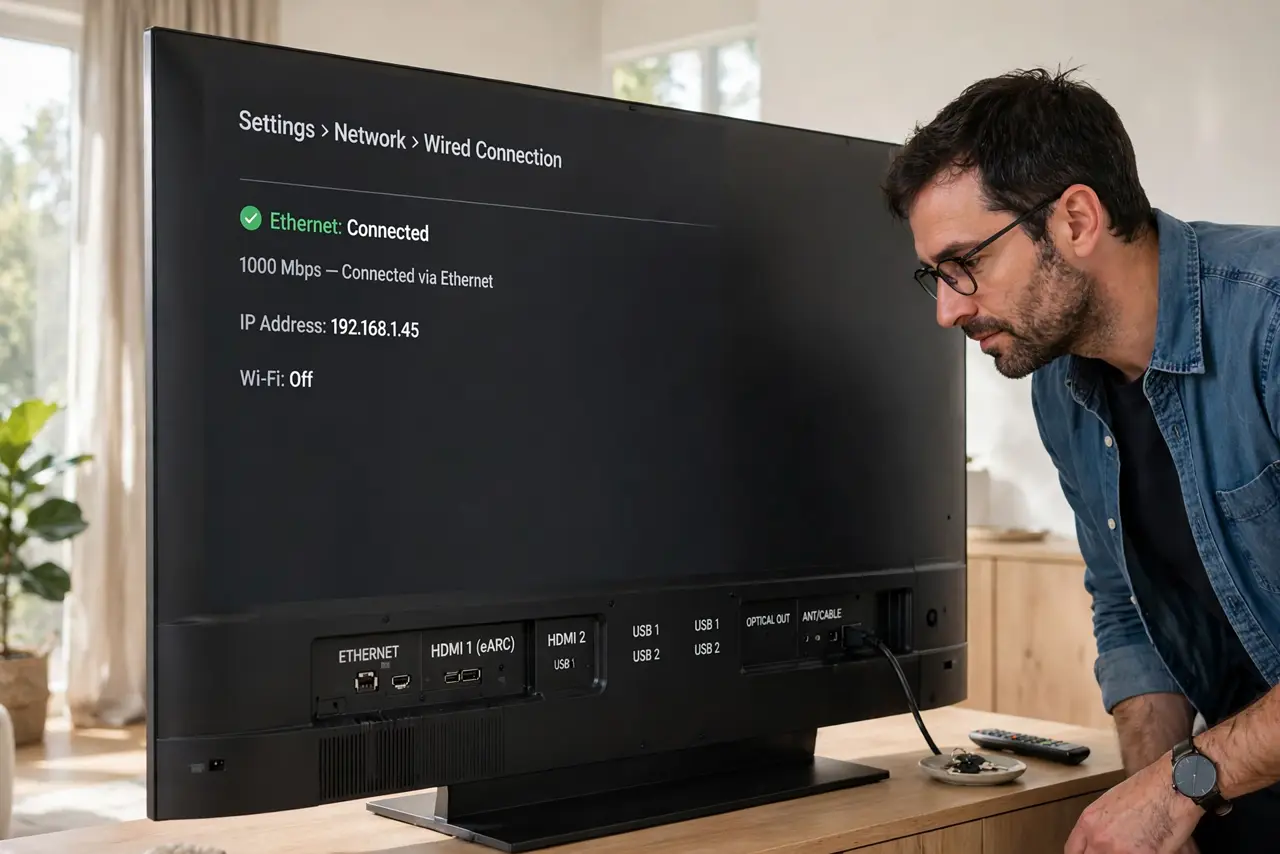
What NOT to do
- Do not buy a new TV for buffering. A $10 cable fixes what a $600 TV replacement would not — the weak radio follows no price tag.
- Do not use a 50-foot cable coiled in a knot. Excess coiled cable is fine electrically, but keep runs tidy and under 100 meters.
- Do not assume all ethernet ports are equal. The TV's port may be 100 Mbps — still plenty for 4K streaming, so do not chase gigabit here.
- Do not forget to test before hiding the cable. Confirm the buffering is gone before you staple anything to the baseboard.
Frequently asked questions
Is ethernet really faster than Wi-Fi for a TV?
More stable, which matters more. Wi-Fi speed spikes and dips; a cable delivers a steady stream that never buffers.
My TV has no ethernet port. Now what?
Use a streaming stick with an ethernet adapter, or a powerline kit with a Wi-Fi access point near the TV.
Will a cable help if my internet is slow?
Only if Wi-Fi was the bottleneck. If the plan itself is slow, the cable delivers that slowness reliably — test the plan speed first.