Split Text to Columns on Commas and Spaces
Names and addresses arrive jammed into one cell, separated by commas. Text to columns splits them into separate cells on the delimiter you choose, in seconds.

TL;DR / Quick Fix
Quick fix: select the column, open text to columns, choose delimited, and pick comma as the delimiter. Check the preview, then finish and confirm each piece landed in its own column and point the output at empty columns to stay safe.
Follow these steps
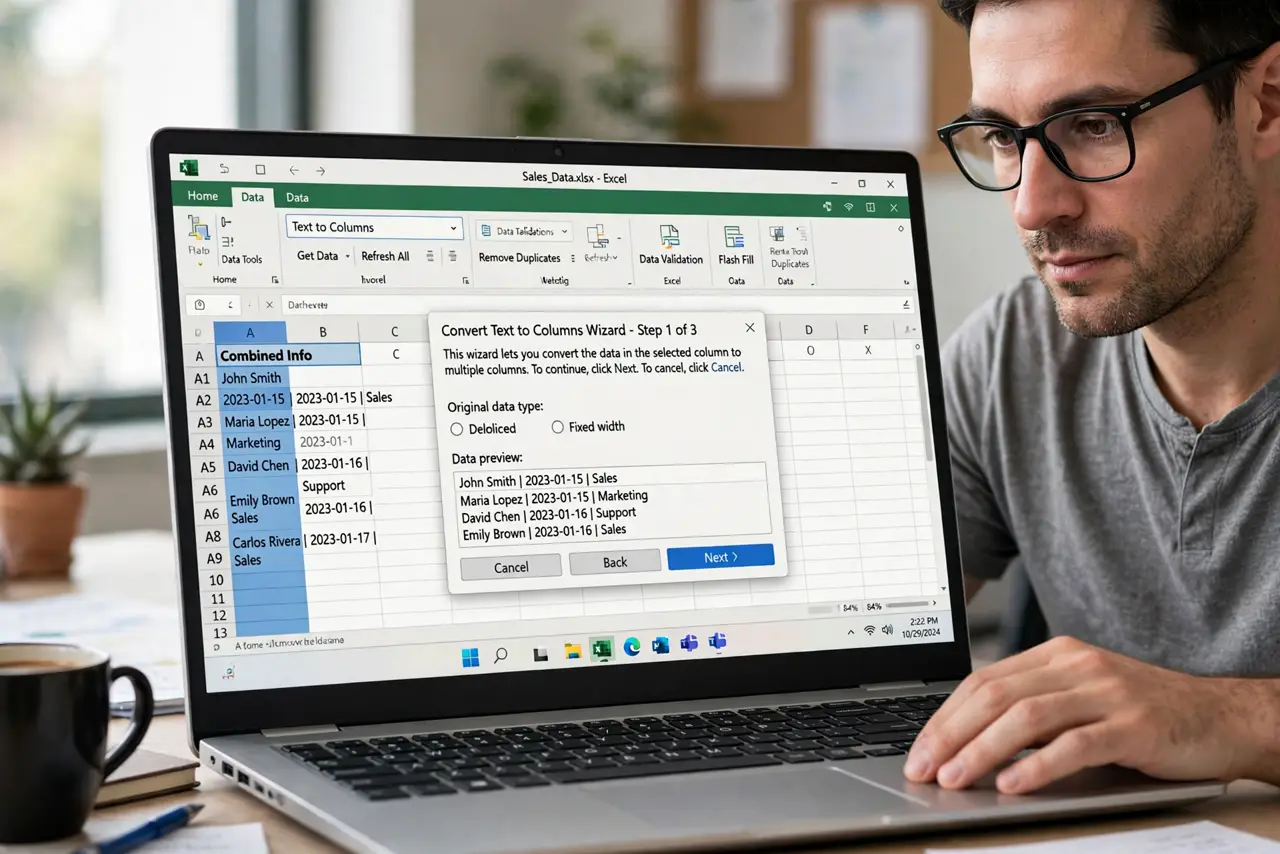
- Select the column to split. Highlight the single column holding the combined text. Text to columns works on the selection, so select before opening the tool.
- Open text to columns. Find text to columns in the data menu. The wizard walks you through delimiter, preview, and destination.
- Choose delimited, not fixed width. Pick the delimited option for comma or space separated text. Fixed width suits aligned text, not delimited lists.
- Pick the right delimiter. Check comma, and add space if values separate on both. The preview shows the split live, so wrong choices are obvious immediately.
- Check the preview carefully. Read the preview rows before finishing. A bad delimiter choice shows here, where it is still cheap to fix.
- Finish and verify the columns. Complete the wizard and scan the new columns. Each piece of the original text should now sit in its own column.
What NOT to do
- Do not split without checking the preview. The preview catches delimiter mistakes before they scatter your data.
- Do not split over existing data. Point the output at empty columns, or the split overwrites whatever sits to the right.
- Do not pick fixed width for delimited text. The wrong mode mangles the split, while delimited matches commas and spaces.
- Do not forget to save after splitting. The split is a real change, so save before doing anything else with the sheet.
Frequently asked questions
How do I split one column into several?
Select the column, open text to columns, choose delimited, pick the delimiter, check the preview, and finish.
What delimiter should I pick?
The character that separates the values, usually a comma, sometimes a space or semicolon. The preview confirms your choice.
Will splitting overwrite nearby data?
It can, to the right of the selection. Aim the output at empty columns to stay safe.