SSD Not Detected After a Move? Fix It
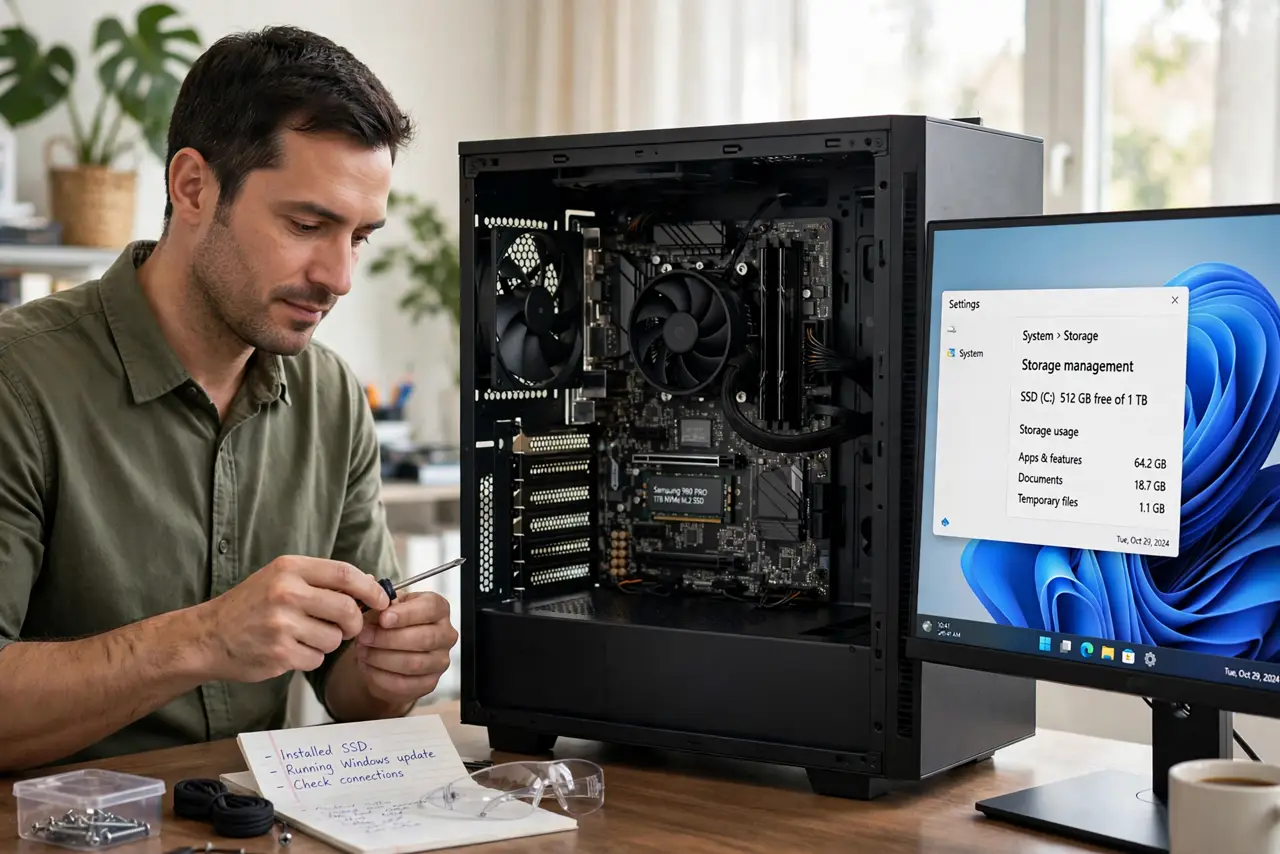
Moving a PC can loosen an SSD, especially a small card-style drive held by one screw. The drive may be perfectly healthy but no longer making full contact, so the PC cannot see it. Reseat it carefully, and test it elsewhere if the reseat does not help. A drive that vanished without a move needs the BIOS detection checks instead.
TL;DR / Quick Fix
Quick fix: Confirm the SSD is missing in BIOS setup. Unplug the PC and ground yourself. Then work through the remaining steps in order, checking one change at a time, and stop for a technician if you see damage, swelling, or a burning smell.
Follow these steps
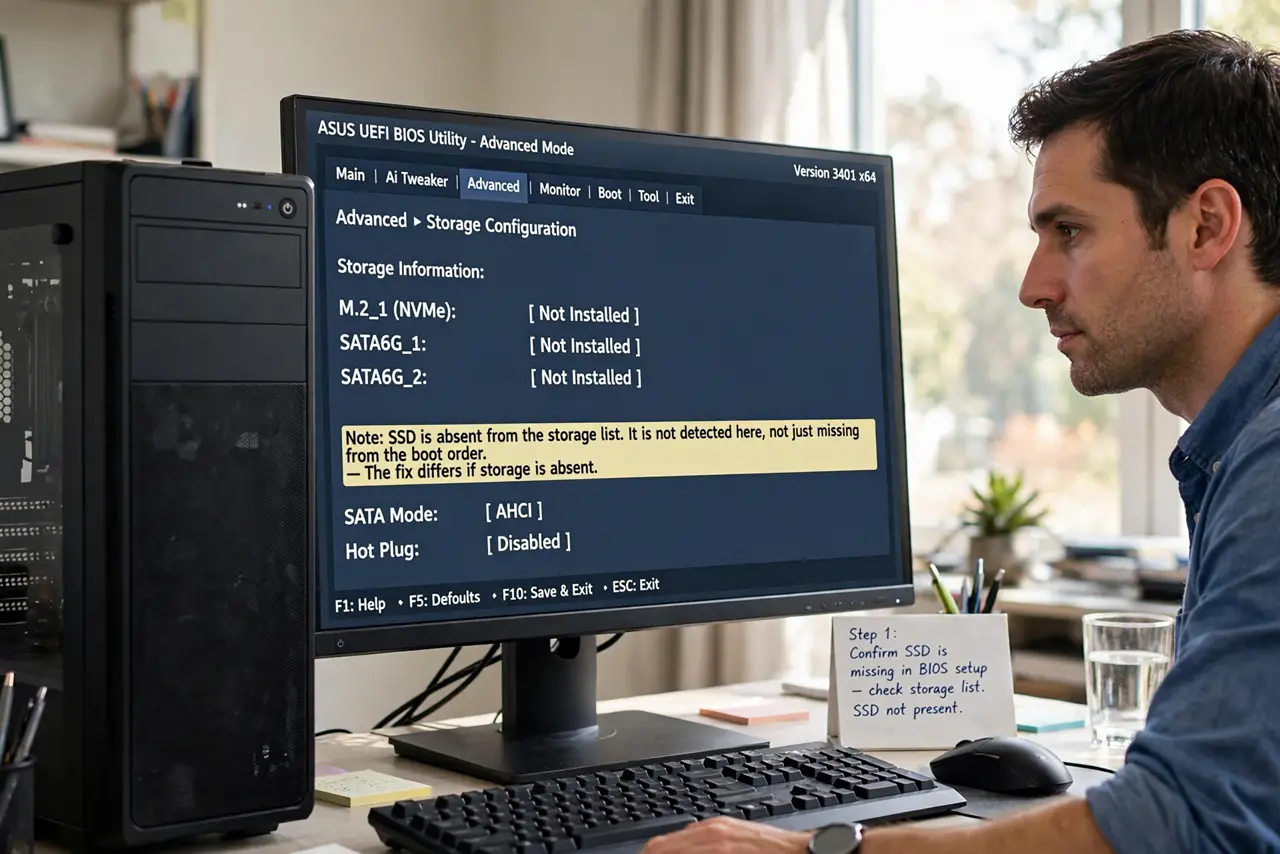
- Confirm the SSD is missing in BIOS setup. Enter BIOS setup and check the storage list for the SSD. Confirm it is absent, not just missing from boot order, because the fix differs.
- Unplug the PC and ground yourself. Shut down, unplug the power cable, press the power button to drain charge, and touch bare metal on the case before touching the drive or board.
- Reseat a card-style SSD fully. Remove the single holding screw, lift the card slightly, then press it back into its slot level and refit the screw snugly, not tightly. A card tilted by a move loses contact even when the screw looks fine.
- Reseat a cabled SSD and try another port. For a drive with cables, push the data and power cables firmly in, then try another data port on the board. Moves loosen cables as easily as cards.
- Test the SSD in another PC or enclosure. If reseating does not help, test the SSD in a second PC or a compatible enclosure. A drive seen elsewhere proves the first PC slot or port is at fault.
- Check BIOS settings for the SSD slot. In BIOS setup, confirm the slot is enabled and the storage mode matches the drive. A BIOS reset during a move can disable a slot and hide a healthy drive.
What NOT to do
- Do not force a card-style SSD into its slot. It fits at a slight angle then presses down flat, and forcing it straight in can break the card or the slot.
- Do not overtighten the holding screw. A broken SSD card or stripped mount comes from a screw turned too far, not from one left snug.
- Do not touch SSD contacts with bare fingers. Hold the drive by its edges, and ground yourself first, because static can damage the drive.
- Do not format an SSD that reappears after a reseat. Your files are still there, so back them up first before any format or reinstall.
Frequently asked questions
Why would a move hide an SSD?
Vibration loosens card screws and cables. A card tilted by a millimetre or a cable a fraction loose is enough for the PC to lose the drive entirely.
Can a move damage an SSD?
SSDs have no moving parts, so they survive moves better than hard drives. Loose contact is far more common than move damage.
What if the SSD works elsewhere but not in my PC?
The slot, port, or BIOS setting in your PC is at fault. Check the slot enable setting, or ask a technician to test the board.