Speed Up a Slow Windows Login: Startup Apps
If logging in takes ages and the desktop stays unresponsive for minutes, startup apps are a likely cause. Many apps add themselves to startup without asking clearly. You can turn most of them off safely and still open them whenever you need them.
TL;DR / Quick Fix
Quick fix: open Task Manager, then Startup apps, and look at the impact column. Disable apps marked High impact that you do not need at login, restart, and time the login again. Keep your security app enabled, and change only one or two apps at a time.
Follow these steps
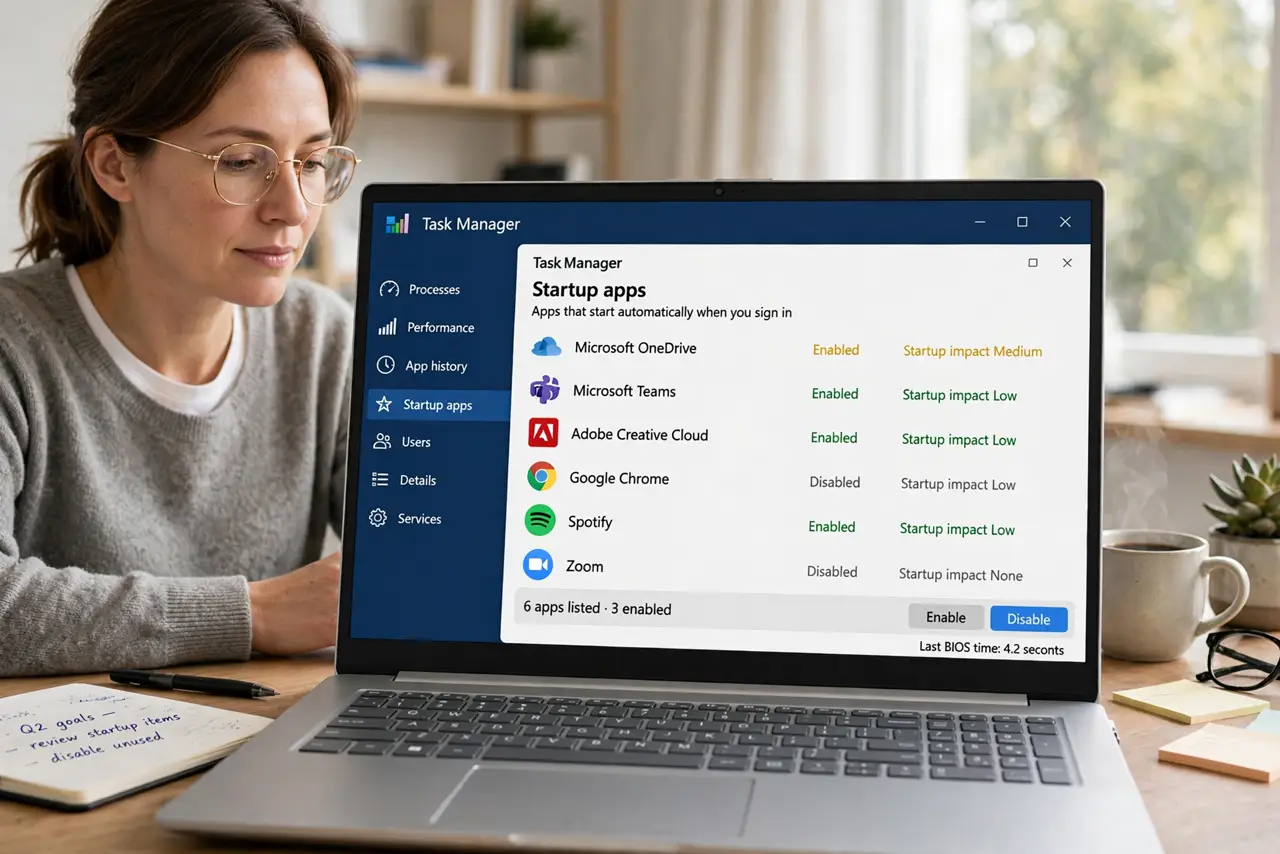
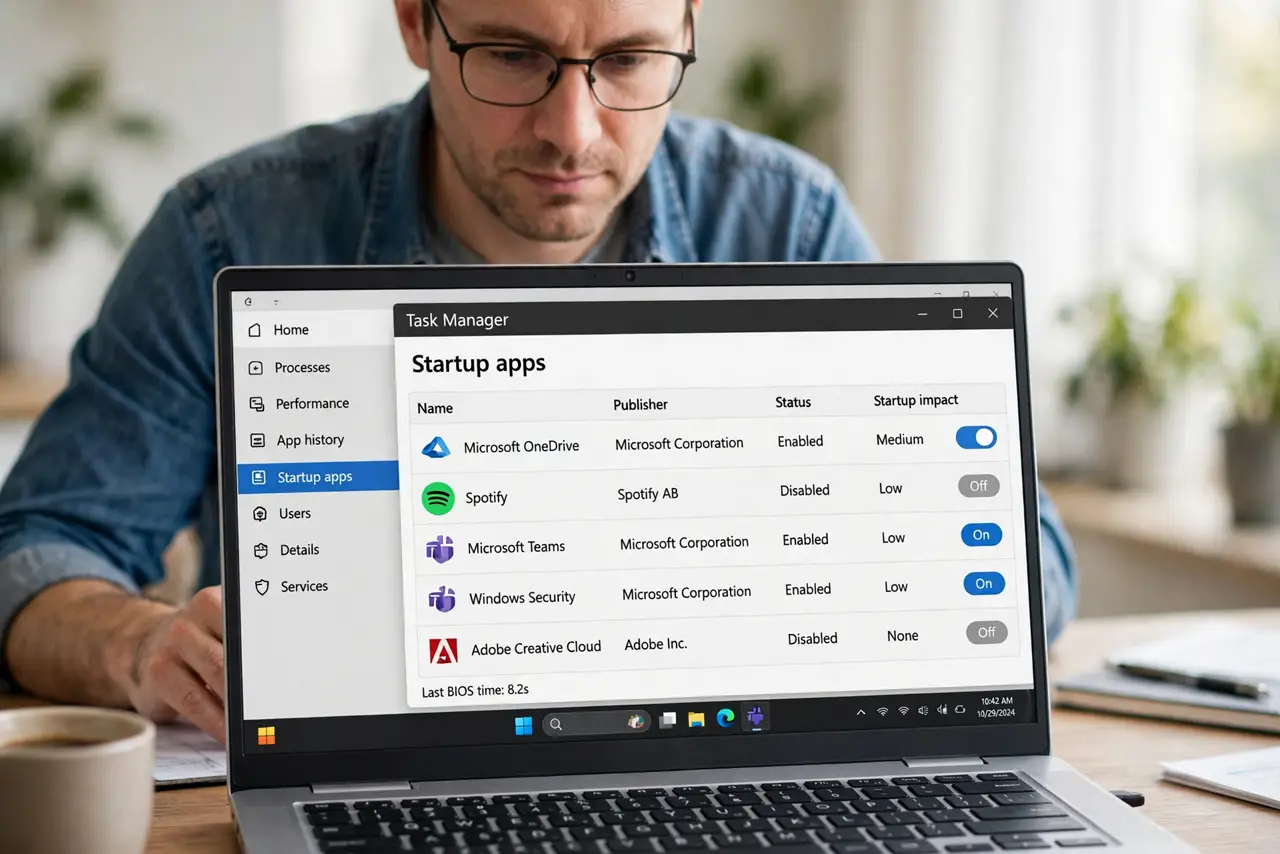
- Open Startup apps in Task Manager. Press Ctrl, Shift, and Esc, then open Startup apps. This list shows every app that launches when you sign in, with its impact on startup time.
- Sort by impact and review the High entries. Look at the Startup impact column first. High-impact apps slow login the most, so review those before touching Low-impact ones.
- Disable apps you do not need at login. Select an app you recognize and do not need immediately, such as a game launcher or chat app, and choose Disable. Disabling does not uninstall the app.
- Keep security and essential apps enabled. Leave your antivirus, firewall, and any accessibility tool you rely on enabled. Turning those off to save seconds is not worth the risk.
- Restart and time the login. Restart the computer and notice how long the desktop takes to become usable. If it is still slow, disable one more High-impact app and test again.
- Re-enable an app if you miss it. If you disabled something you actually want at login, return to Startup apps and enable it again. The change is reversible, so you can tune the list over time.
What NOT to do
- Do not disable everything in Startup apps at once. You may turn off a driver helper, security tool, or accessibility app you rely on.
- Do not uninstall apps just to stop them starting. Disabling in Startup apps is enough, and you can still open the app by hand later.
- Do not install a startup optimizer tool. Task Manager already shows impact and lets you disable entries safely, without extra software.
- Do not judge the fix in the first minute. Let the desktop settle after login, then check whether apps respond faster than before.
Frequently asked questions
Does disabling a startup app uninstall it?
No. Disabling only stops it launching at login. The app stays installed and opens normally when you click it.
Why is login still slow after disabling apps?
A slow drive, a pending update, or too little free space can also slow login, so check those if startup trimming does not help.
Should I disable my antivirus at startup?
No. Keep security software enabled at login so protection starts before you open anything else.