Get Started with Steam Deck
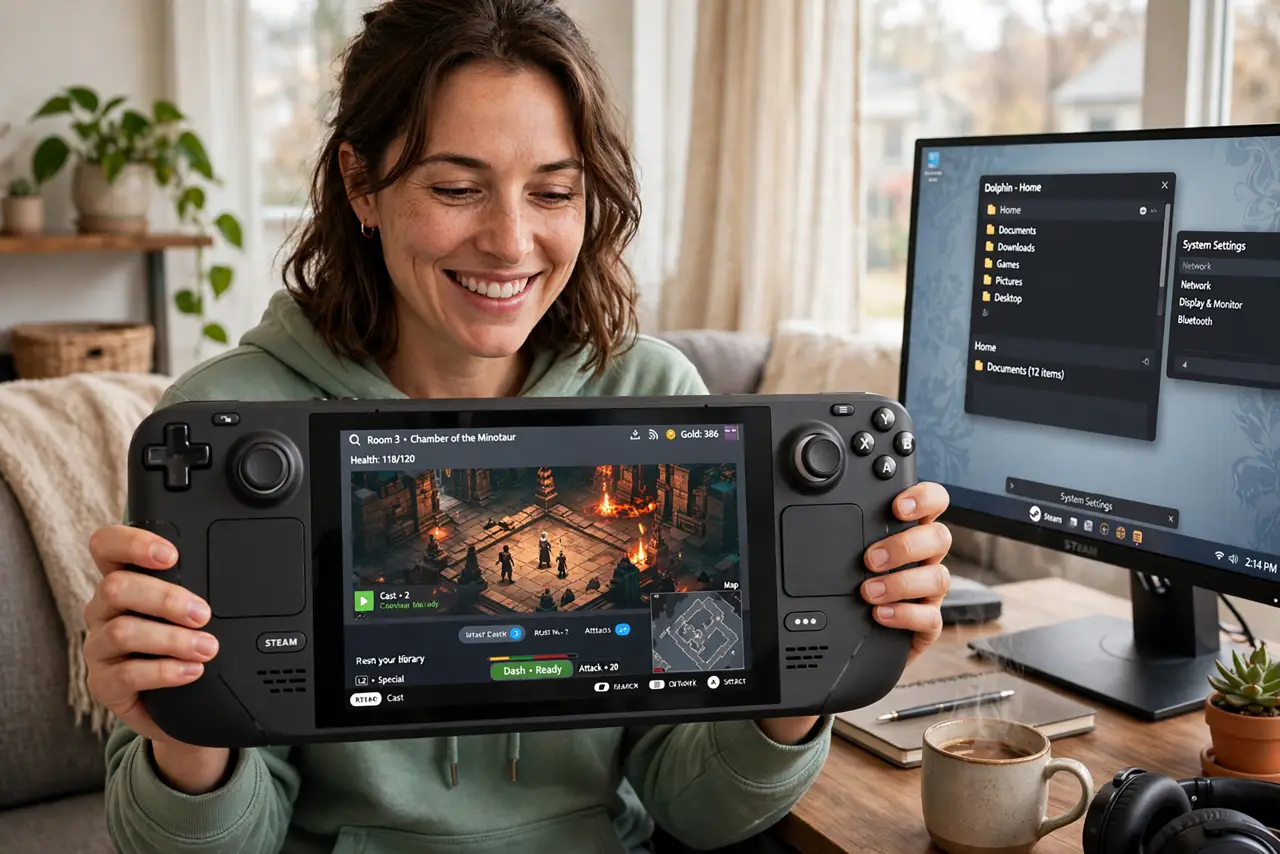
The Steam Deck is a handheld gaming PC that secretly contains a full Linux desktop — one button hold away. Desktop Mode turns it into a real computer for browsing, emulators, and tweaking, while Game Mode keeps the console experience. New owners should learn both, starting with updates and storage.
TL;DR / Quick Fix
Your Steam Deck runs Game Mode for console-style play and hides a full Linux Desktop Mode behind the power menu. Start in Game Mode: connect Wi-Fi, install the system update, sign into Steam. Then try Desktop Mode for browsing and file management. A strict NAT type is the online-play culprit.
Follow these steps
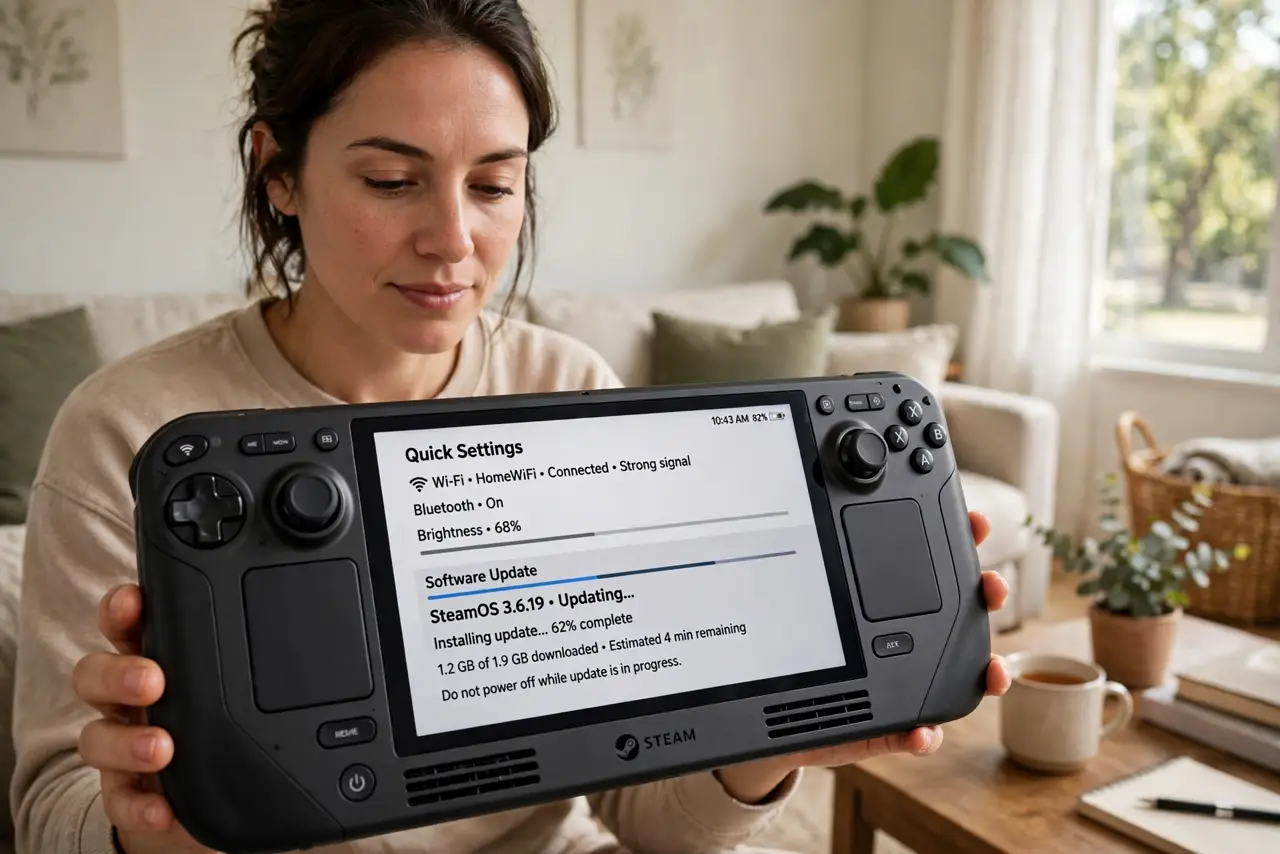
- Connect to Wi-Fi and update first. Join your network in the quick settings, then install the system update in Settings. Day-one updates fix controller, Wi-Fi, and compatibility issues — do this before judging anything.
- Sign into Steam and install one game. Log into your Steam account and install a single verified game first. 'Verified' titles are tested on Deck — start there before experimenting with untested ones.
- Learn the quick-access controls. The ... button opens quick settings (brightness, performance), the Steam button opens the main menu. Spend ten minutes pressing buttons — the interface rewards exploration.
- Try Desktop Mode. Hold the power button and choose Switch to Desktop. You get a full Linux desktop with a browser, file manager, and app store — a real PC hiding inside the handheld.
- Check storage before buying games. Look at available space in Settings. The base model's storage fills fast; a microSD card expands it cheaply and games run fine from it.
- Tweak per-game settings when needed. The quick-access performance menu lets you cap frame rates and adjust scaling per game. Small tweaks turn a stuttery game smooth without much visual cost.
What NOT to do
- Do not install random desktop software blindly. Desktop Mode is real Linux — sketchy downloads can still cause trouble, so stick to reputable sources.
- Do not fill the internal storage completely. The system needs breathing room for updates and shader caches — leave several gigabytes free.
- Do not crank every setting to maximum. The Deck is efficient, not a desktop GPU; balanced settings give the smooth experience it was designed for.
- Do not ignore the verified checkmarks. Untested games may work, but starting with Verified titles avoids the 'is it broken or is it me' confusion.
Frequently asked questions
Can the Steam Deck replace my laptop?
For light use, surprisingly yes — Desktop Mode handles browsing, documents, and media. Heavy workloads and specialized software still want a real laptop.
Should I get the bigger storage model?
If you play many large games, yes — or buy the base model plus a big microSD card, which is the budget-friendly expansion path.
Does Desktop Mode risk my games?
No — Game Mode and Desktop Mode share the same system. Switching is safe and instant; nothing gets uninstalled.