Stop MFA Fatigue Attacks
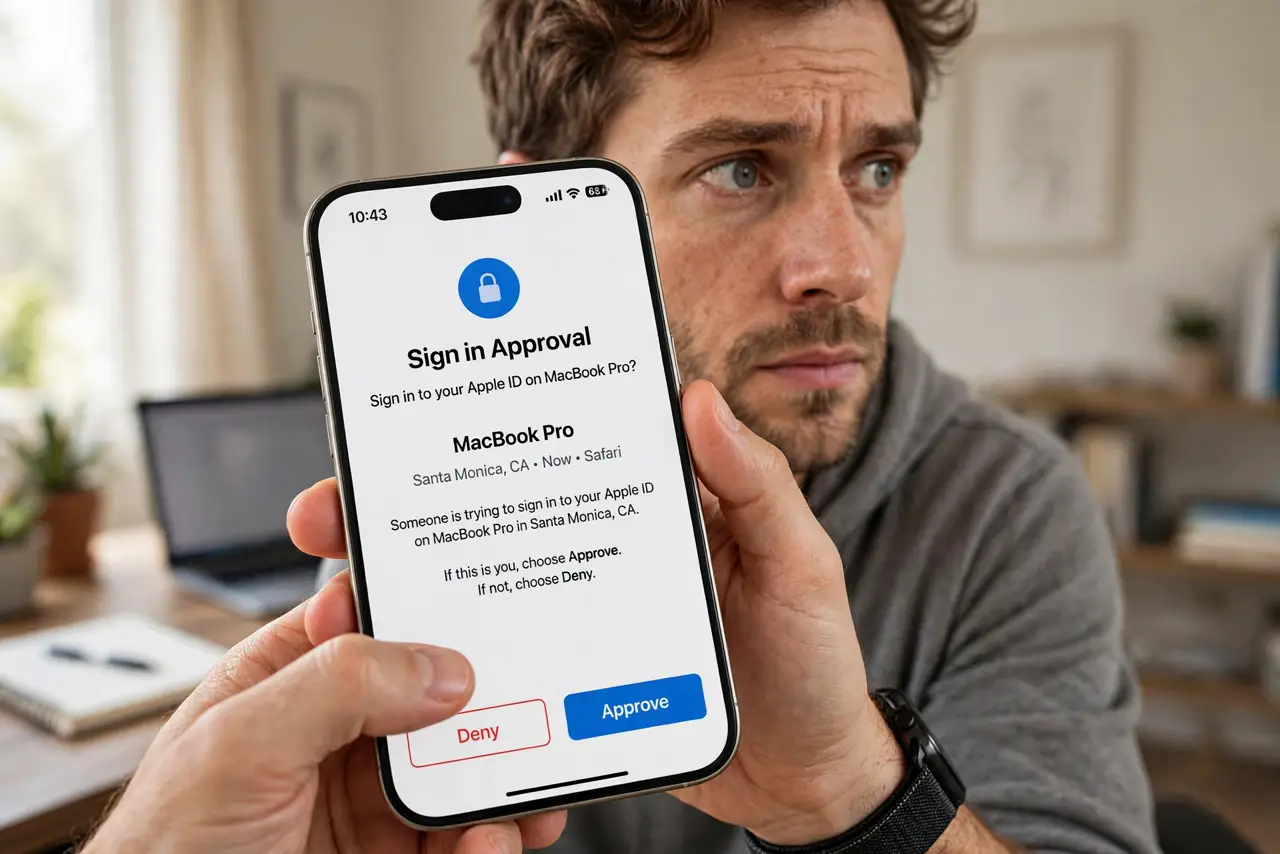
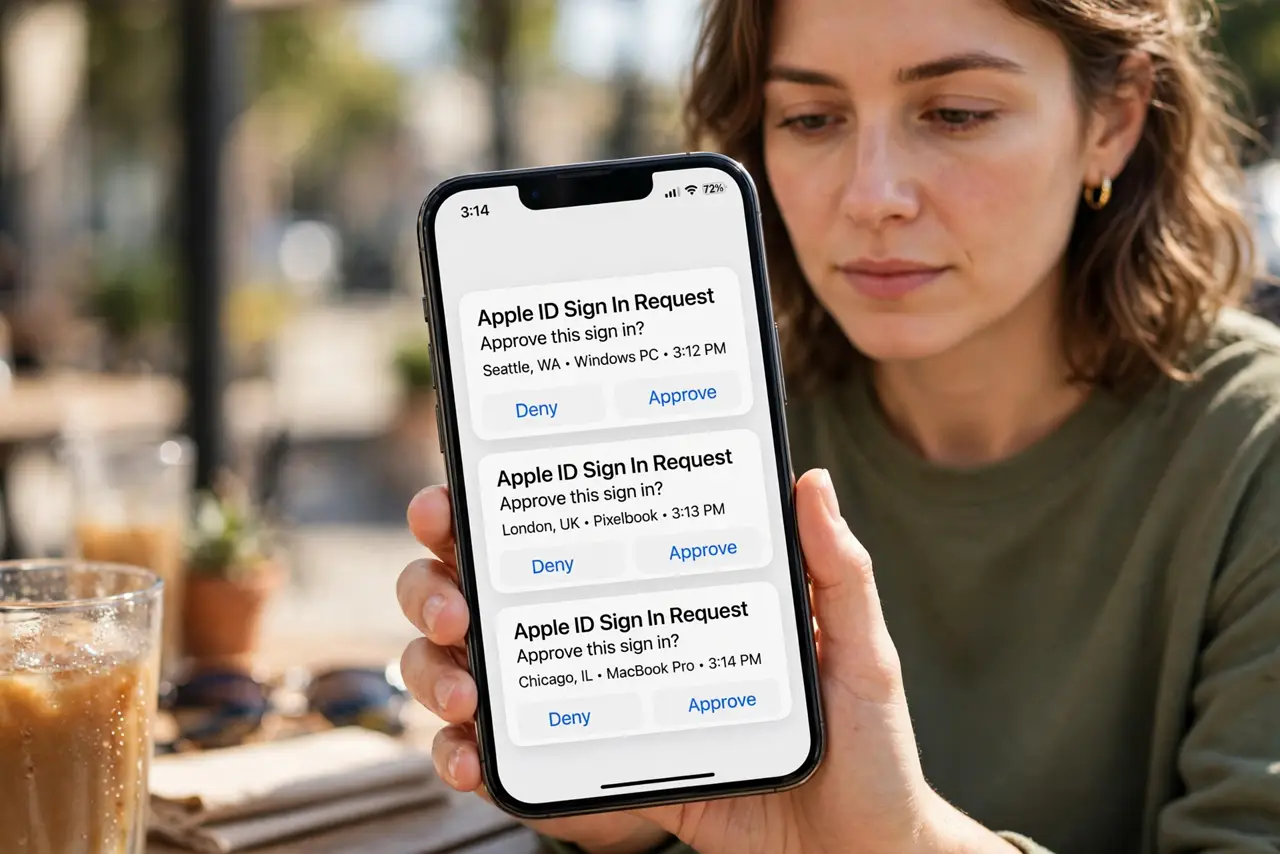
Your phone buzzes. Approve sign-in? You did not sign in to anything — but the prompt keeps coming, again and again, until in frustration you tap Approve just to make it stop. That is exactly the attack: MFA fatigue bombing wears you down until you let the criminal in yourself. Here is how it works and the two settings that end it.
TL;DR / Quick Fix
Quick fix: MFA fatigue attacks spam your phone with fake sign-in approval prompts until you tap Approve by mistake. Never approve a login you did not start — deny unexpected prompts and change that account's password immediately. Switch important accounts to number-matching or hardware keys, which make accidental approval impossible.
Follow these steps
- Recognize the pattern. A burst of approve/deny prompts for logins you did not start means someone has your password and is waiting for one tired tap. The prompts are the attack — not a glitch. See how the fatigue technique works if you want the mechanics.
- Deny every unexpected prompt. No exceptions, no 'maybe it was me.' If you did not type your password in the last sixty seconds, the answer is Deny — then go change that account's password right away.
- Change the compromised password. The attacker has your current password — that is why the prompts exist. Change it to something long, unique, and random before anything else.
- Switch to number matching. Many authenticator apps now show a number on the login screen that you must type into the phone. A blind Approve tap no longer works — the attacker would need the number too.
- Consider a hardware security key. For your most important accounts, a physical key ends prompt attacks entirely — there is no prompt to fatigue, just a touch on the key you hold.
- Report it. Tell your IT team or the service's security contact. Fatigue campaigns often hit many accounts at once; your report helps them spot the wave.
What NOT to do
- Do not tap Approve to make the prompts stop. That single tap is the entire goal of the attack — it hands over the account.
- Do not assume the prompts mean the attacker is inside. They are at the door with your password, waiting for you to open it — deny them and they stay out.
- Do not keep a password the attacker clearly has. Prompts prove compromise of the password; changing it ends the campaign.
- Do not use SMS codes as your only factor if you can avoid it. SIM-swap and interception risks stack on top of fatigue — app or key is stronger.
Frequently asked questions
Why do the prompts keep coming?
Each denial just prompts the attacker's script to try again. They are automated and patient — your defense is to deny, change the password, and upgrade the factor.
Does this mean my password leaked?
Almost certainly yes — from a breach, phish, or guess. Treat the password as public and replace it everywhere it was reused.
Is number matching really safer?
Much. It turns approval from a reflex tap into a matching task the attacker cannot complete without seeing your screen.
What to read next
- What Is Credential Stuffing?
- What Is a Brute-Force Attack?