Stream Your PC to the TV
You have videos on your PC and a big TV across the room, and you want the movie on the big screen. You can do it with a cable in seconds, or wirelessly if both devices cooperate — but wireless needs the right network setup and realistic expectations about lag. Here is the plain path for each method.
TL;DR / Quick Fix
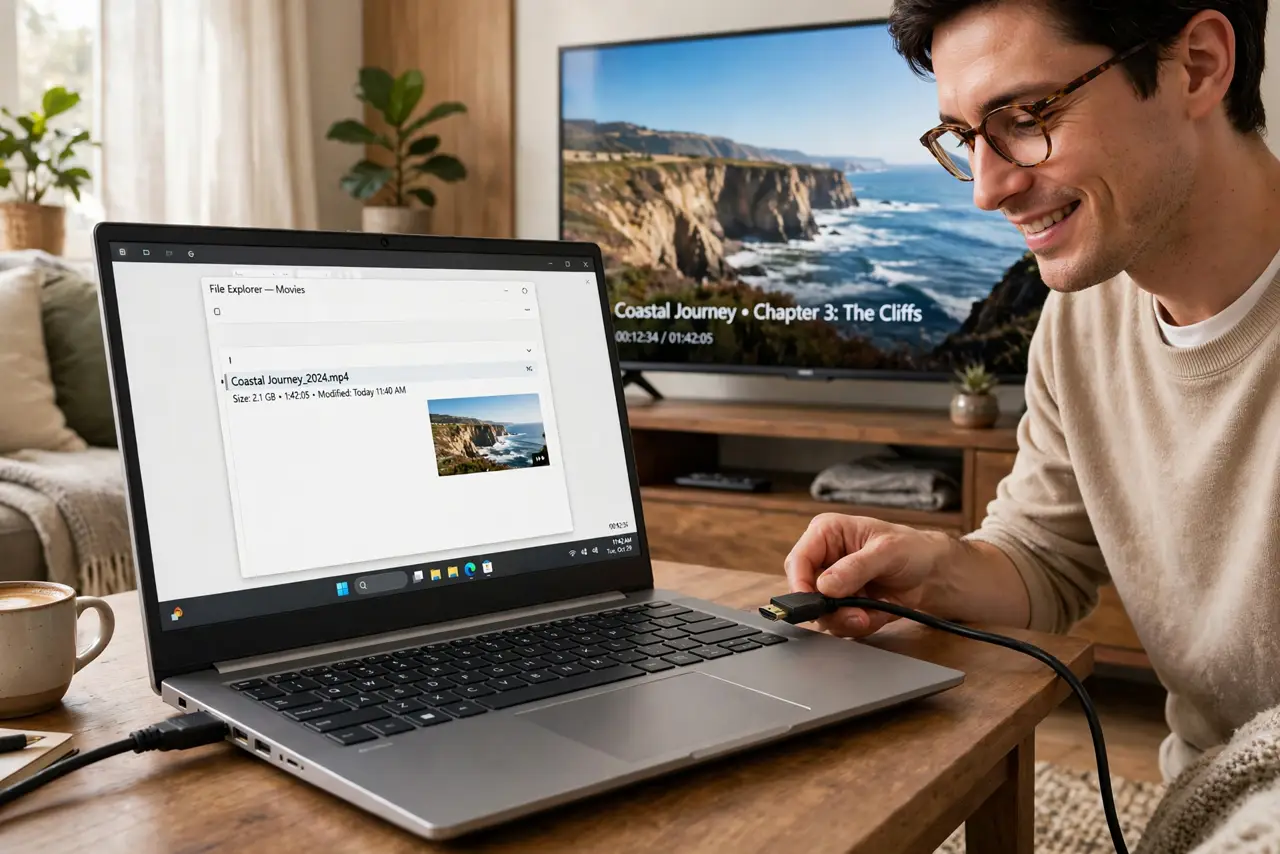
Quick fix: the simplest way is an HDMI cable — no lag. For wireless, use your TV's casting or a streaming stick, with both devices on the same Wi-Fi network. Set the TV to the correct input, match the resolution, and switch audio output to the TV.
Follow these steps
- Try an HDMI cable first — it always works. Plug one end into the PC and the other into the TV, then switch the TV to that HDMI input. It is the most reliable method with zero lag, and it carries audio too.
- For wireless, put both devices on the same Wi-Fi. Casting only works when the PC and TV share the same network — not a guest network, not mobile data. Check both devices show the same Wi-Fi name.
- Use the TV's built-in casting or a streaming stick. Most smart TVs accept casting directly; otherwise a streaming stick adds it. On the PC, use the Cast option in the browser or the wireless display feature — no extra software to buy.
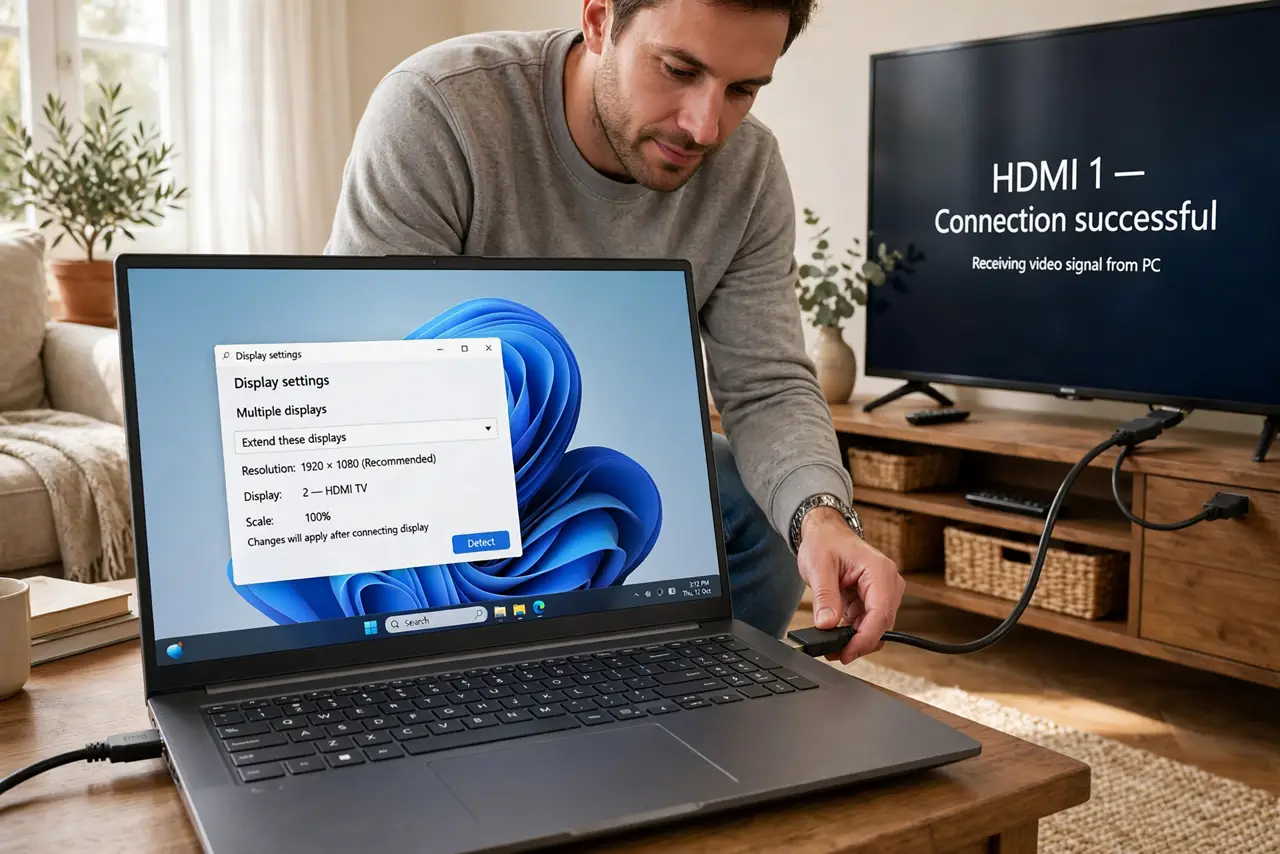
- Match the resolution to avoid a blurry picture. If the TV image looks soft or cut off at the edges, open the PC's display settings and set the TV to its native resolution. Also check the TV's overscan or picture-size setting.
- Switch the audio output to the TV. Video on the TV with sound still coming from the laptop is the classic gotcha. In the PC's sound settings, set the TV or HDMI device as the output.
- Keep expectations realistic for gaming. Wireless mirroring adds noticeable delay — fine for movies, annoying for games. For gaming on the TV, the HDMI cable or a dedicated streaming setup is the way.
What NOT to do
- Do not buy a wireless HDMI kit before trying built-in casting. Most smart TVs already do this free, and the kit may gather dust.
- Do not cast over a guest or neighbor's Wi-Fi. Both devices must be on the same private network or they will never find each other.
- Do not expect lag-free gaming over wireless mirroring. The delay is physics, not a setting you missed — use a cable for games.
- Do not forget to switch the TV input back afterward. The next person to turn on the TV will stare at a blank HDMI screen otherwise.
Frequently asked questions
Why is there no sound on the TV?
The PC is still sending audio to its own speakers. Change the sound output device to the TV or HDMI in the PC's sound settings.
Why does the wireless picture stutter?
Weak Wi-Fi between the PC and TV is the usual cause. Move closer to the router or switch to the HDMI cable for a steady picture.
Can I stream in 4K wirelessly?
Only with a strong network and a TV and PC that both support it. Check the bandwidth you actually need before assuming.