Stylus Pen Not Detected? Fix It
When a stylus pen is not detected, the cause is often a flat battery, a lost pairing, or a tip problem, and each is easy to check. Test in a simple drawing app before changing drivers or settings.
TL;DR / Quick Fix
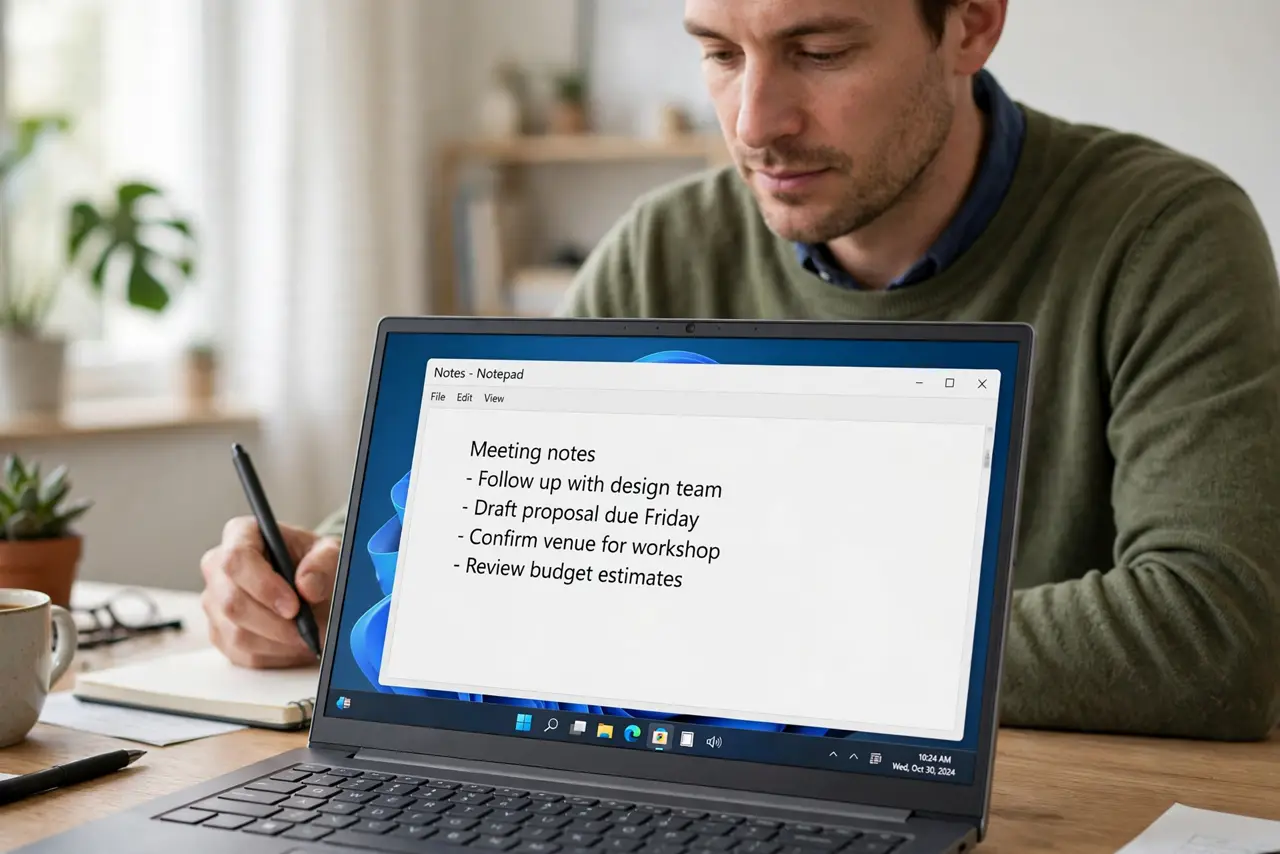
Quick fix: check the pen battery or charge it, then press its top button and watch for a pairing light. Open Settings, then Bluetooth and devices, and pair the pen again if it is missing. Then test a stroke in a simple notes app.
Follow these steps
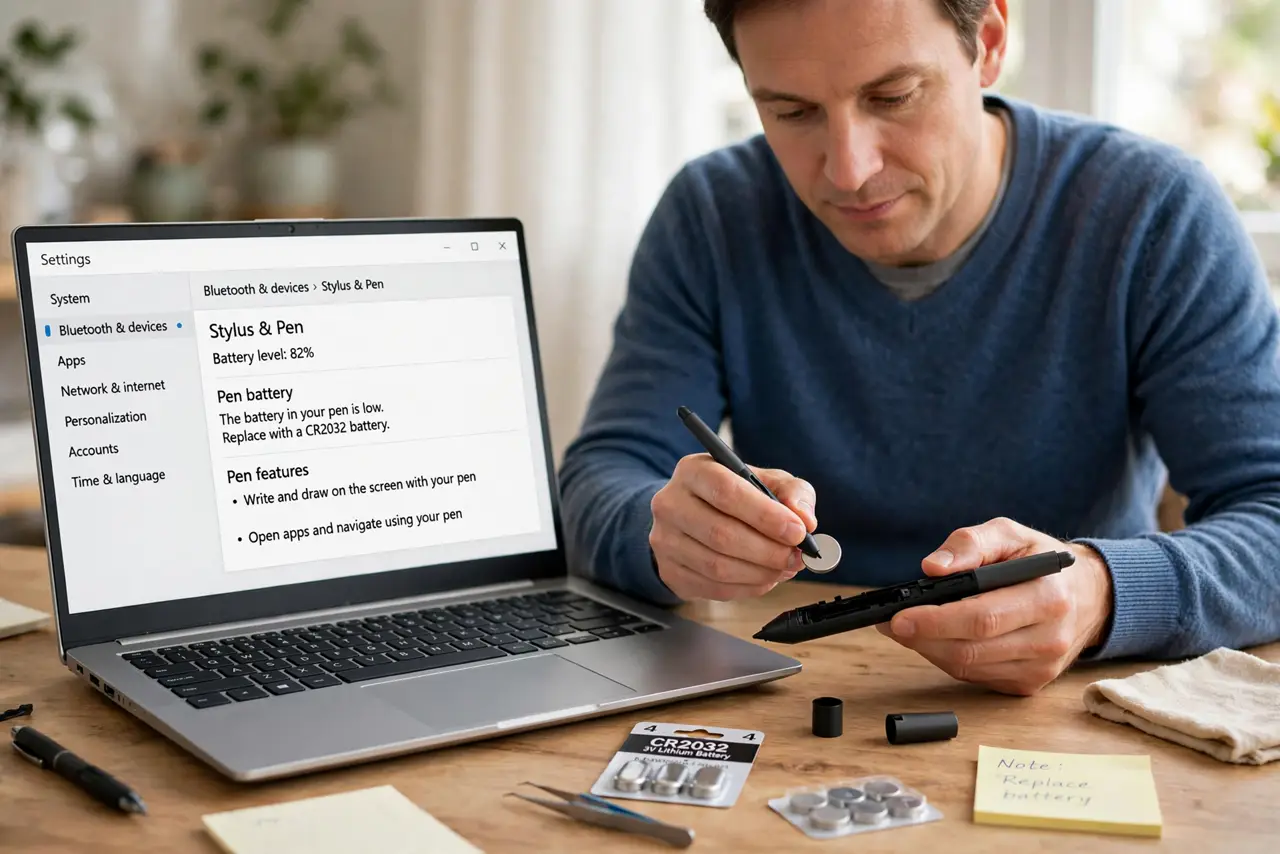
- Check the pen battery or charge. Replace the pen battery, or charge the pen if it charges by USB. A pen with no power looks exactly like a pen Windows cannot detect.
- Pair the pen again. Open Settings, then Bluetooth and devices, and check whether the pen is listed. If it is missing, put the pen in pairing mode and add it again.
- Press the pen buttons and watch. Press the top button and the side button, and watch for a light or a screen response. No response at all points to power, while a button response points to a tip issue.
- Check the pen tip. Look at the tip for wear, bending, or a loose fit. Replace a worn tip with the correct spare for your pen model, and test again.
- Test in a simple app. Open a simple notes or drawing app and try a stroke. If it works there, the pen is detected, and the first app may need its own pen setting.
- Restart and test again. Restart the computer with the pen paired, then test a stroke again. A restart reloads the pen driver and clears a stuck pairing state.
What NOT to do
- Do not force the pen tip into the pen. A forced tip can break the pen barrel, so use only the correct spare tip for your model.
- Do not pair the pen while another Bluetooth device is in pairing mode. The wrong device can pair instead, and the pen will still look undetected.
- Do not buy a new pen before checking the battery. A flat battery is the cheapest cause, and a new pen will fail the same way if pairing is the problem.
- Do not change pen drivers as a first step. Check power, pairing, and tip first, because those cause most detection failures.
Frequently asked questions
The pen pairs but draws nothing. Why?
The tip may be worn, or the app may not accept pen input. Try a new tip, then test in a simple notes app.
Does the pen need Bluetooth to draw?
Some pens draw without Bluetooth, while buttons need pairing. If drawing works but buttons do not, pairing is the part to fix.
How do I know if the battery is flat?
Replace or charge it and test again. A pen with no light and no response, that works after a battery change, had a flat battery.