Tablet as Second Display
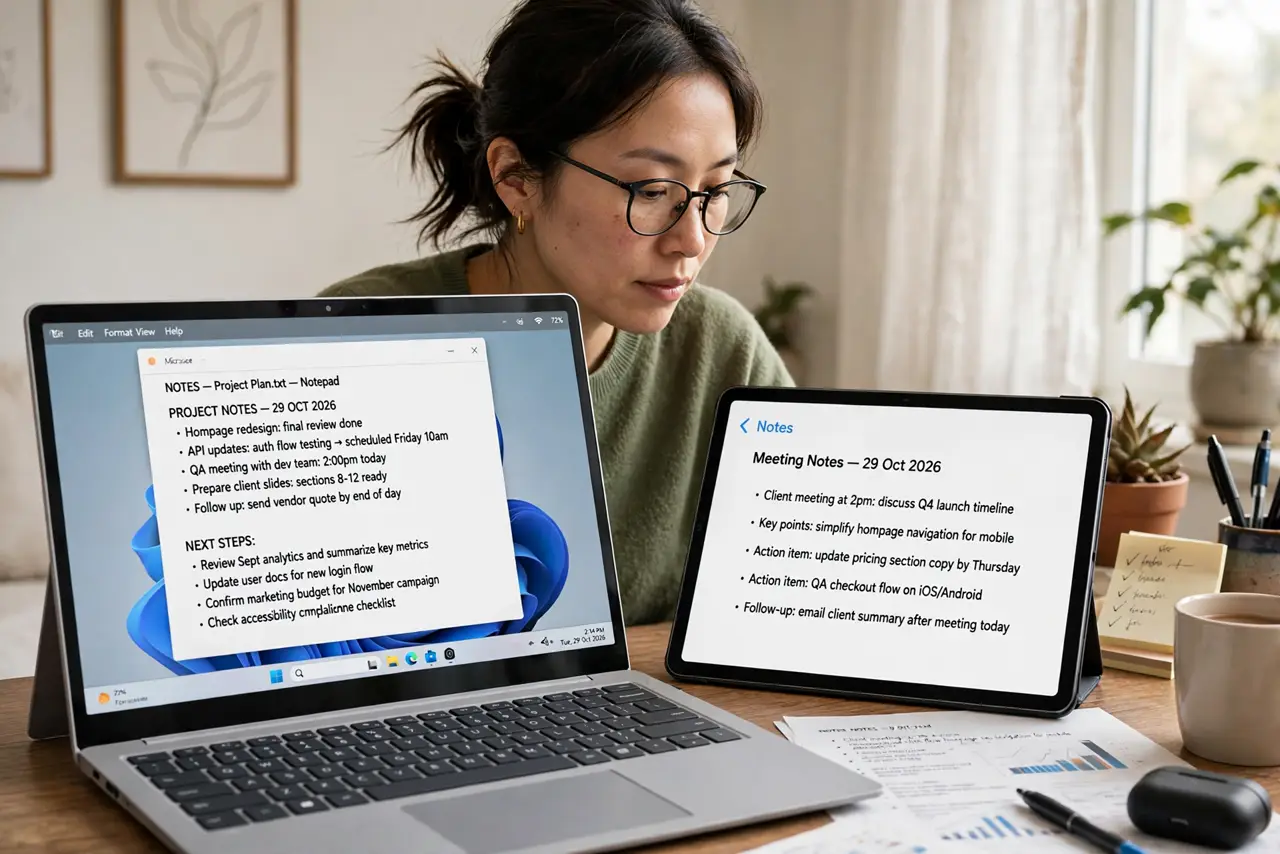
One laptop screen means constant juggling — the document hides behind the video call, the notes vanish behind the browser. Your tablet can become a second display over Wi-Fi or USB, giving you room to spread out without buying a monitor. It will not replace a real desk setup, but for travel and small desks it is a genuine upgrade. Pair it with a stylus for note-taking and it doubles as a sketch pad.
TL;DR / Quick Fix
Quick fix: turn your tablet into a second display over Wi-Fi or USB to escape a cramped laptop screen. iPads pair with Macs easily; Windows and Android need a display app. It will not replace a real monitor, but it beats constant window juggling.
Follow these steps
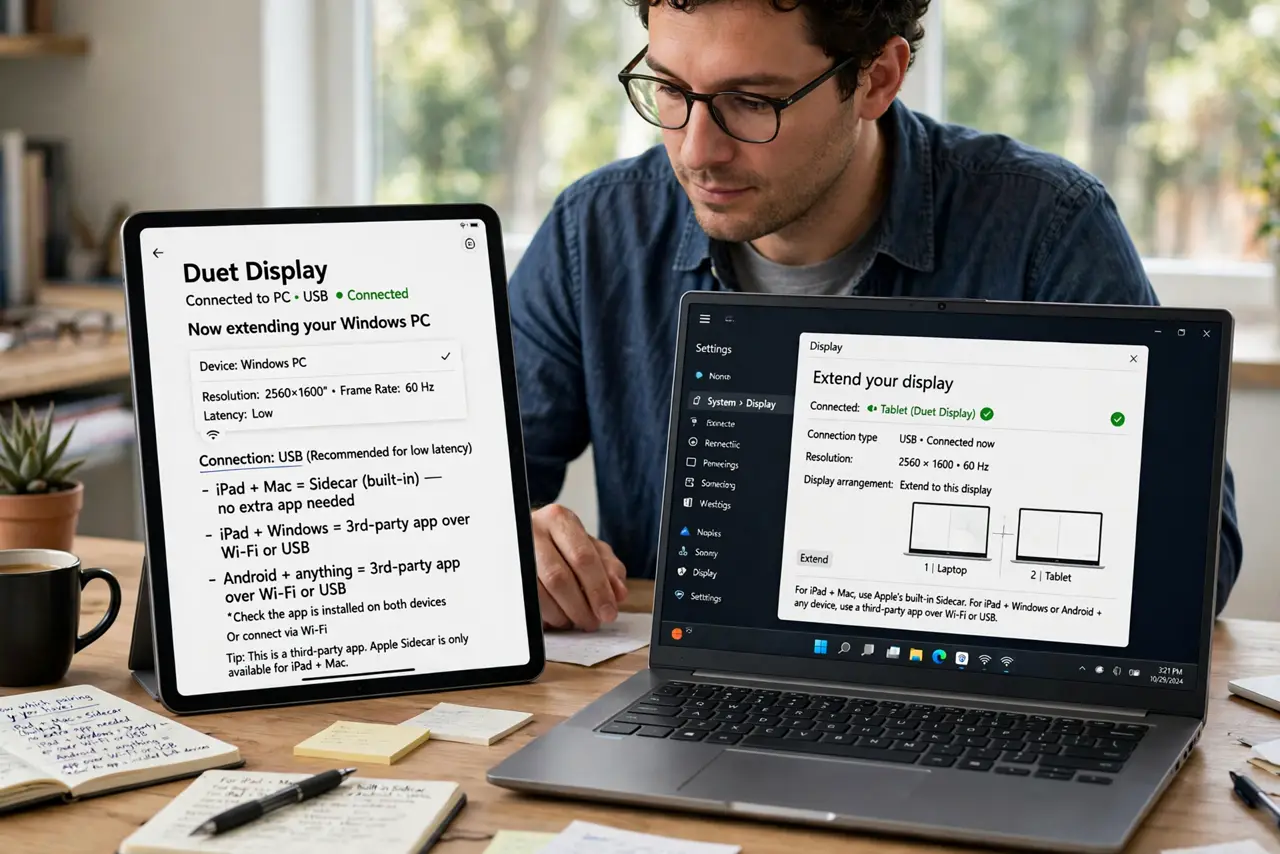
- Know which pairing you have. iPad plus Mac is the smooth case — Apple's Sidecar is built in. iPad plus Windows, or Android tablet plus anything, needs a third-party display app over Wi-Fi or USB.
- Connect over USB for the best result. Wi-Fi works, but USB gives lower lag and charges the tablet while you work. For video calls or anything animated, the cable is worth it.
- Extend, do not mirror. Set the tablet as an extended display, not a mirror of your laptop screen. Mirroring wastes the second screen; extending gives you real extra space.
- Put the right things on it. Park reference material on the tablet — notes, chat, email — and keep your main work on the laptop. A second screen for glancing beats a second screen for doing.
- Mind the ergonomics. A tablet lying flat is a neck ache waiting to happen. Prop it at laptop-screen height with a stand or case so both screens sit in one sightline.
- Unplug cleanly when done. Disconnect through the display settings or app before yanking the cable. A graceful disconnect avoids the frozen-cursor weirdness of a ripped connection.
What NOT to do
- Do not expect monitor smoothness over Wi-Fi. Lag is normal on wireless — fine for documents, annoying for video.
- Do not buy a tablet just for this. As a use for a tablet you already own it is great; as a reason to buy one, a real monitor costs less.
- Do not run it at full brightness for hours. Second-display duty drains a tablet fast — keep the charger handy.
- Do not ignore the resolution mismatch. Text may look different sizes across the two screens; adjust scaling until it feels natural.
Frequently asked questions
Which tablets work as a second display?
iPads work with Macs out of the box and with Windows via apps. Many Android tablets work with Windows and Mac through third-party display apps.
Is there noticeable lag?
Over USB, barely. Over Wi-Fi, some — acceptable for reading and chat, distracting for fast video or gaming.
Can I draw on the tablet screen?
With the right app and a stylus, yes — it becomes a drawing tablet for the computer. Check the app's features before counting on it.