Task Board Card Moves by Itself? Fix It
A card that jumps columns on its own is rarely haunted; it is usually an automation rule, a teammate's edit, or a sync from another device. Finding which one moved it stops the mystery from repeating.

TL;DR / Quick Fix
Quick fix: Check the card activity log first. Look for automation rules on the board. Ask whether a teammate moved it. Check other devices for a stale board view. Move the card back and watch one cycle. Turn off or narrow the rule that moved it.
Follow these steps
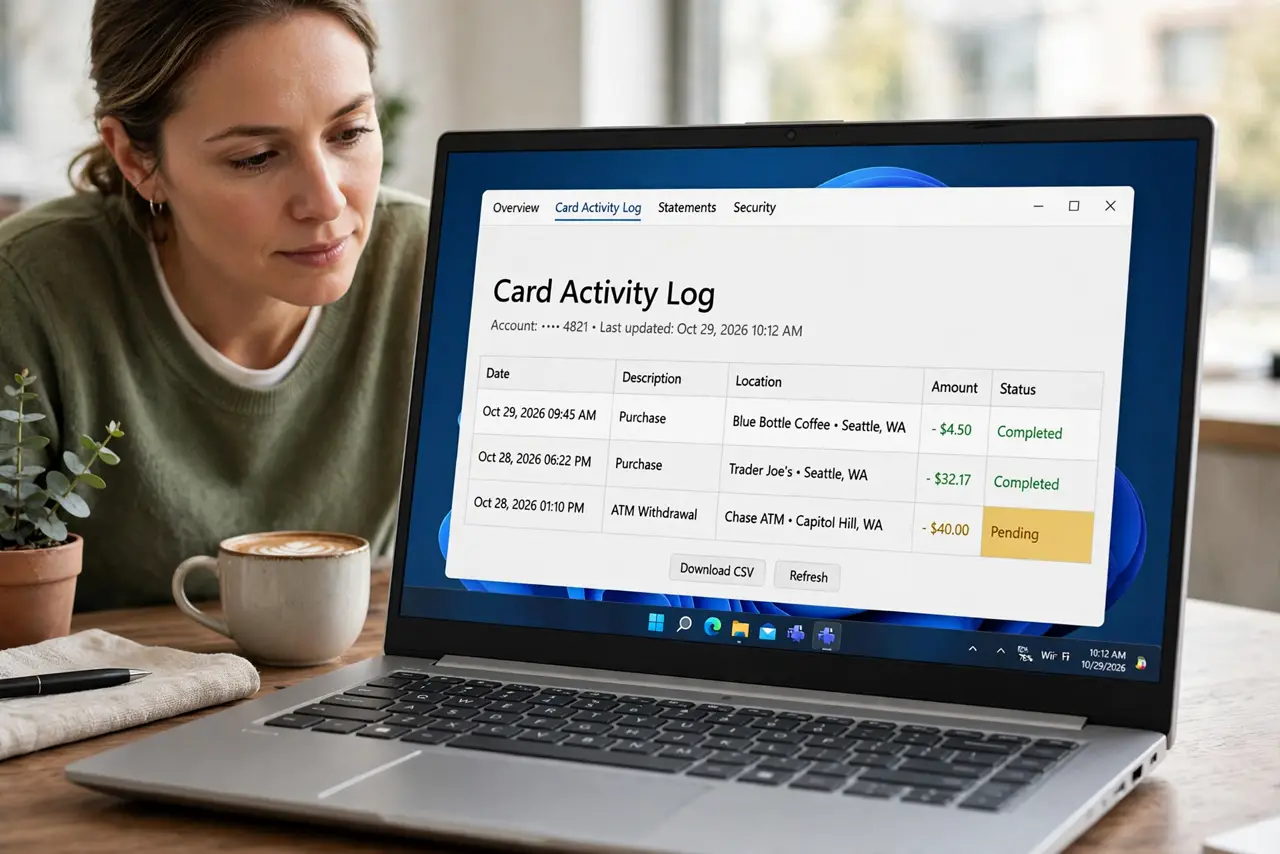
- Check the card activity log first. Open the card and read its activity history. It usually names who or what moved it, and when, which ends the guessing immediately.
- Look for automation rules on the board. Check for rules that move cards when dates pass, checklists complete, or labels change. A forgotten rule moves cards on schedule, looking exactly like a glitch.
- Ask whether a teammate moved it. If the log names a colleague, ask what they intended. Many mystery moves are a teammate tidying a board they also use.
- Check other devices for a stale board view. A phone or tablet with an old board open can push an outdated card position when it syncs. Close stale board views on devices you no longer use.
- Move the card back and watch one cycle. Put the card where it belongs, then watch whether it moves again, and when. A timed move points to automation; a random move points to another editor.
- Turn off or narrow the rule that moved it. If a rule is responsible, narrow its trigger or turn it off, and tell the team. A rule nobody remembers is a rule that will surprise someone again. The same rule habit also stops archived tasks from coming back.
What NOT to do
- Do not keep moving the card back without checking the log. The mover, human or rule, will just move it again.
- Do not delete the card to stop it moving. Deletion destroys its history and comments for no benefit.
- Do not assume a bug before checking automations. Rules are the most common invisible mover.
- Do not edit the same board from two stale devices at once. Stale views push stale positions on sync.
Frequently asked questions
Why did my card move overnight?
Usually a date-based automation, or a teammate in another timezone tidying the board.
How do I see who moved a card?
Open the card activity log. It records moves, editors, and automations.
Can I lock a card in place?
Some boards allow locking or restricting moves. Otherwise, fix the rule or agree the workflow with the team.