Taskbar Icons Keep Rearranging? Lock Them in Place
Your taskbar icons shuffle themselves, especially after unplugging a monitor or changing display settings. Taskbar order follows the display layout, so a layout change can reshuffle it. Pin in order and protect the layout.
TL;DR / Quick Fix
Quick fix: drag the taskbar icons into your preferred order, then avoid display changes while apps are open. If icons shuffle after unplugging a monitor, close apps first next time, then reopen them in order after the display settles completely.
Follow these steps
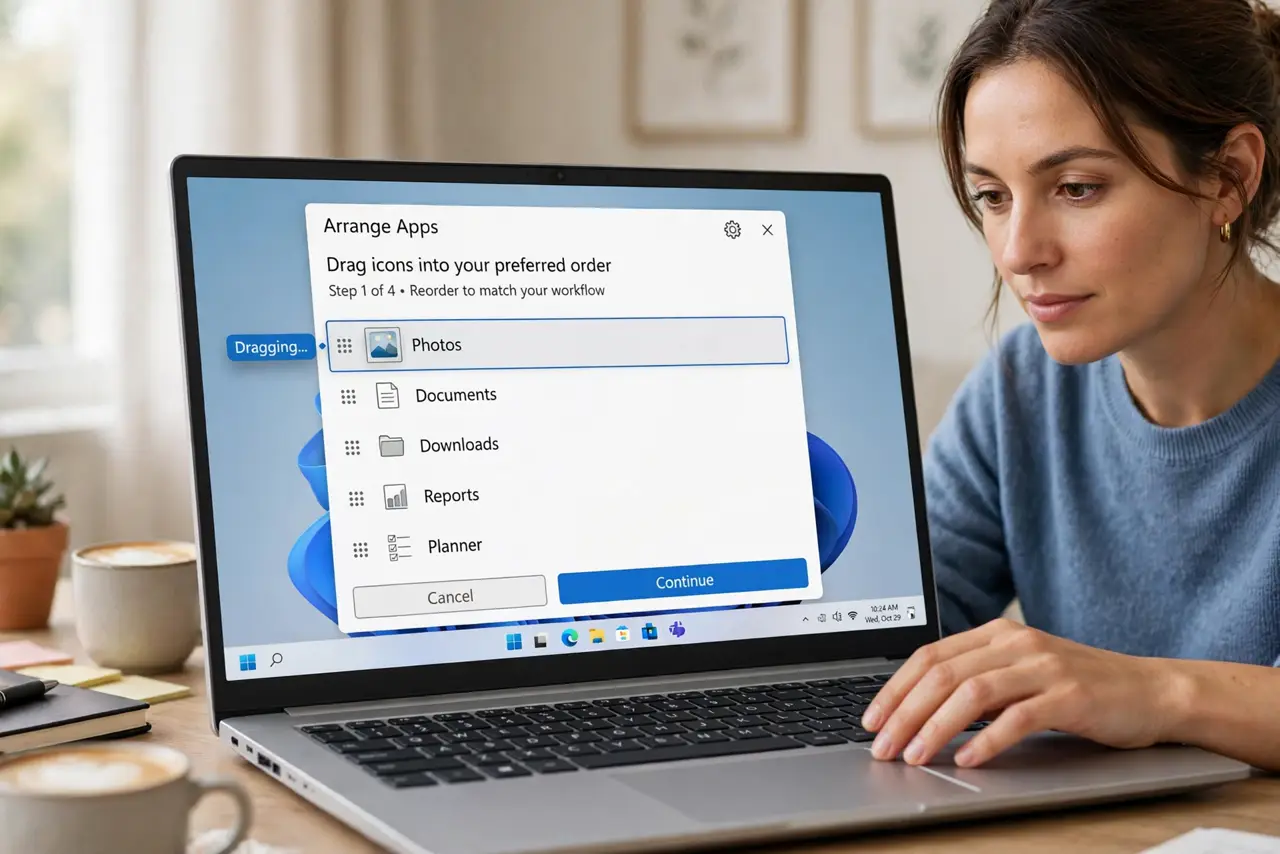
- Drag icons into your preferred order. Click and drag each taskbar icon into the order you want. Windows remembers the order for pinned icons, so set it deliberately rather than accepting a random shuffle.
- Pin the apps you use daily. Right-click each daily app and choose Pin to taskbar. Pinned icons hold their order better than unpinned running apps, which appear and vanish as you open and close them.
- Close apps before changing displays. Before unplugging a monitor or changing resolution, close the apps you care about. Display changes while apps run are the most common trigger for a reshuffle.
- Reopen apps in order after a display change. After the display settles, reopen apps in your preferred order. The taskbar lists running apps in launch order, so launch order is the simplest way to control it.
- Check for a second monitor change. If icons shuffle without any action from you, check whether a monitor woke, slept, or disconnected. A display waking up can count as a layout change.
- Restart and confirm the order. Save your work, restart, and check the pinned order before opening anything else. If pinned icons hold their order after restart, your layout is stable.
What NOT to do
- Do not unpin and repin everything after every shuffle. A single display change explains the shuffle, and repinning from scratch wastes the order you already set.
- Do not expect unpinned apps to hold a fixed order. Unpinned apps appear in launch order, so their position changes every time you open them differently.
- Do not change resolution while apps are open and blame the taskbar. The taskbar is reacting to the layout change, not misbehaving on its own.
- Do not install a taskbar ordering tool as a first fix. Pinned order plus careful display changes covers the normal case without extra software.
Frequently asked questions
Why do icons shuffle after I unplug a monitor?
The display layout changes, and the taskbar reflows to fit the new layout. Closing apps before the change avoids most shuffles.
Do pinned icons stay in order?
Yes, pinned icons hold their order far better than unpinned running apps, which follow launch order instead.
What if icons shuffle with no display change?
Check for a monitor waking or sleeping on its own, and check whether an app updated and repinned itself.