Record Teams Meetings
The Teams meeting produced three decisions and nobody wrote them down — again. Recording in Teams captures everything, with transcription that turns speech into searchable text. But organizers fumble the record button, recordings land in unexpected places, and nobody tells attendees. This guide records cleanly and finds the file after. For screen sharing during the call, see how to share screens in Teams.
TL;DR / Quick Fix
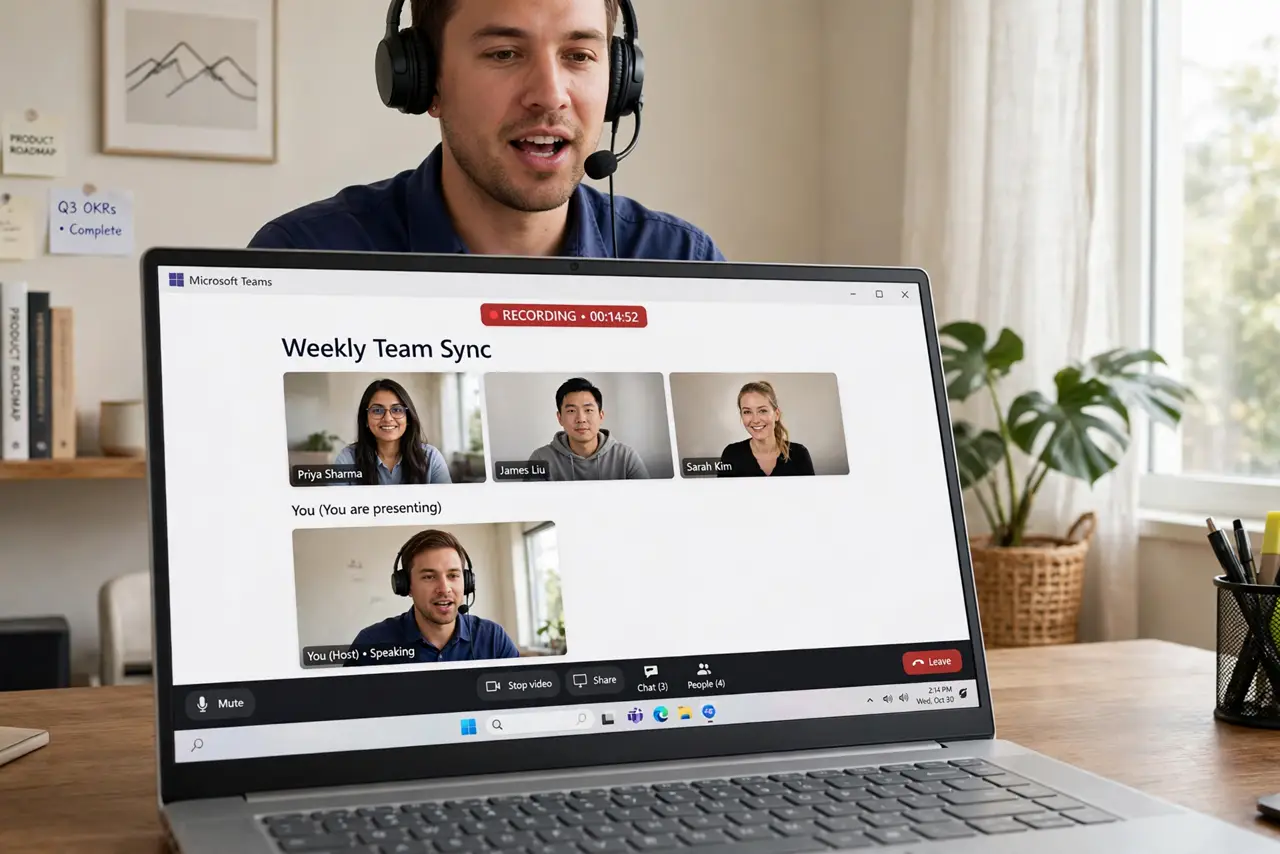
Quick fix: in a Teams meeting, click More, then Record and transcribe — tell everyone first, since Teams announces it anyway. The recording and transcript land in the meeting chat and OneDrive after. Find them in the chat's shared files if the notification vanishes.
Follow these steps
- Start recording from More. Click More (the three dots) in the meeting controls, then Record and transcribe, then Start recording. Teams announces the recording to everyone automatically.
- Tell participants anyway. The announcement covers the legal basics, but a human 'I am recording this for notes' builds trust. People speak more carefully on record — which is usually what you want.
- Enable transcription. Choose the transcribe option alongside recording. The live transcript becomes a searchable text file — the real value is finding 'what did we decide' later without rewatching.
- Know where it saves. Recordings save to the recorder's OneDrive and link in the meeting chat. If the chat scrolls past, check OneDrive's Recordings folder directly.
- Share with absentees. The chat link works for meeting members. For outsiders, share the OneDrive file explicitly — and remember the transcript may contain sensitive discussion.
- Stop and verify. Stop recording from the same More menu when done. Wait for the processing notification, then spot-check that the file plays before announcing 'it is recorded.'
What NOT to do
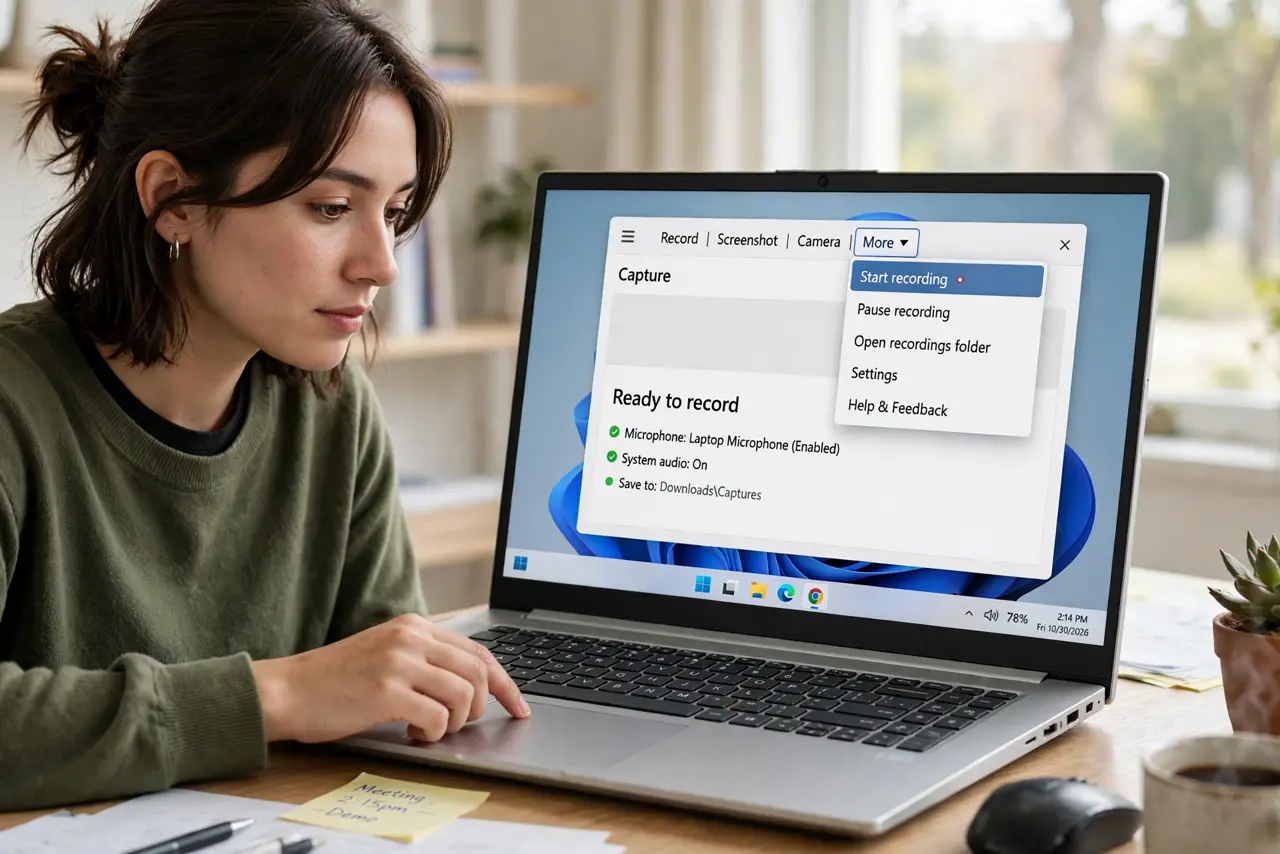
- Do not record without the announcement and a verbal heads-up. Secret recordings nuke trust — and may break the law where you are.
- Do not assume the recording worked. Processing fails occasionally — verify the file exists before deleting your own notes.
- Do not share recordings widely without thought. A casual meeting recording forwarded to the wrong people causes real damage.
- Do not forget transcription needs the right language. Set the spoken language correctly or the transcript becomes creative fiction.
Frequently asked questions
Who can record a Teams meeting?
Organizers, co-organizers, and presenters by default. Attendees need a role upgrade — ask the organizer.
How long are recordings kept?
They follow your organization's retention policies — some auto-delete after months. Download keepers rather than trusting retention.
Can I record a 1:1 call?
Yes — the same More menu works in direct calls, with the same announcements and storage.