Quiet Calls in Teams
You joined the Teams call from the kitchen and now everyone hears the dishwasher, the dog, and your typing — or you are the one suffering through a colleague's leaf blower. Teams has built-in noise suppression that filters all of it, and it defaults to a middle setting most people never touch. This guide sets the right level and knows when to turn it off. For the same problem in Zoom, see how to cut background noise.
TL;DR / Quick Fix
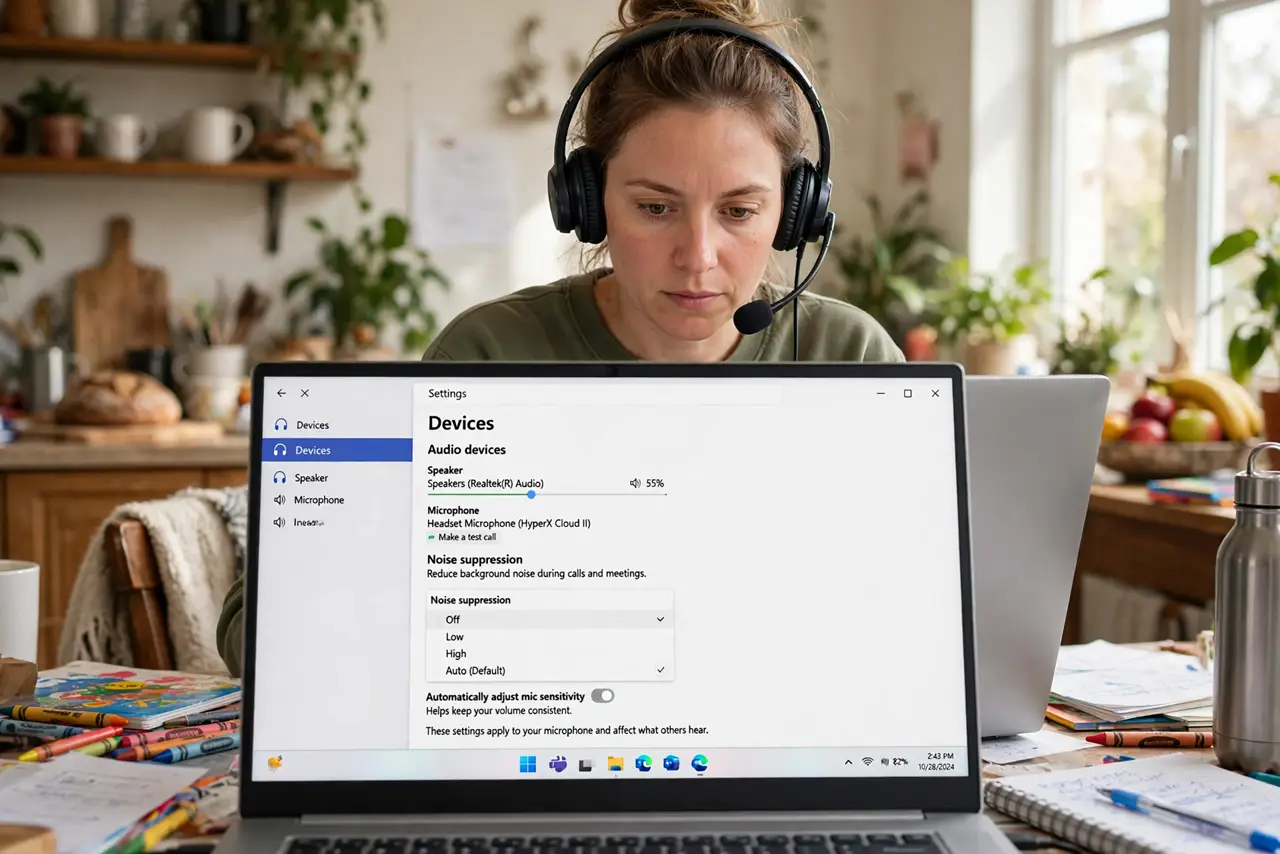
Quick fix: in Teams settings under Devices, set Noise suppression to High for noisy homes — it filters dogs, keyboards, and appliances. Use Auto in quiet rooms. Turn it to Off when sharing music, since suppression hears instruments as noise.
Follow these steps
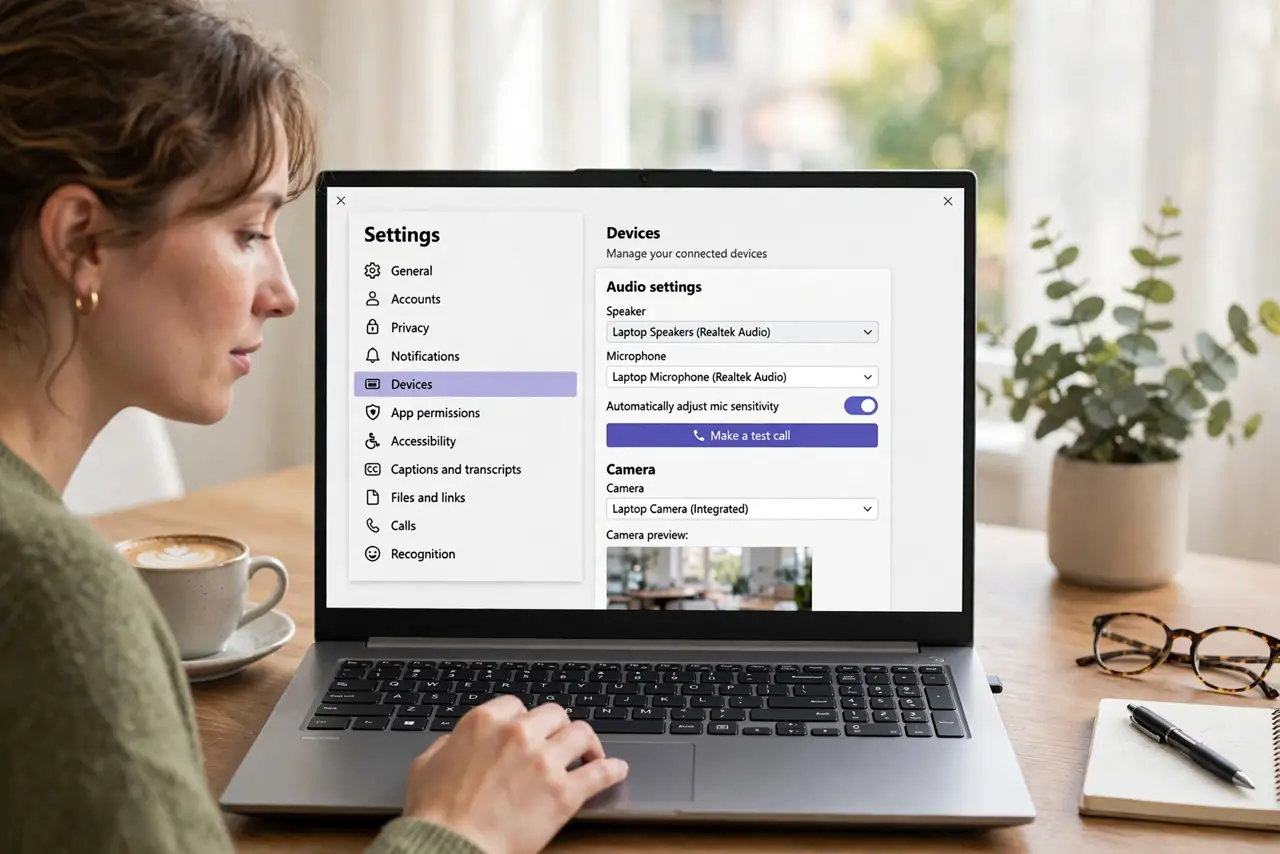
- Open Teams device settings. Click your profile picture, then Settings, then Devices. Noise suppression sits among the audio options — the default Auto is conservative.
- Match the level to your noise. Quiet office: Auto or Low keeps your voice natural. Dogs, kids, appliances: High. Set it for your real environment, not the ideal one.
- Test before the big call. Make a Teams test call and generate noise — type loudly, run water. Ask how it sounds, or record and listen back yourself.
- Use a headset too. Suppression plus a headset mic is the professional combo. The mic close to your mouth gives the filter a strong signal to work with.
- Turn it off for music. Sharing a song or playing an instrument? Set suppression to Off first. High suppression garbles sustained musical notes — switch back after.
- Know the admin can lock it. In work accounts, IT sometimes controls this setting centrally. If the dropdown is greyed out, your admin owns it — ask them.
What NOT to do
- Do not leave it on High for music sharing. Instruments become casualties of the filter — Off is the music setting.
- Do not assume it replaces muting. Mute when not speaking; suppression is the backup, not the plan.
- Do not sit far from the mic and expect miracles. A whisper across the room defeats any filter — get close.
- Do not forget it is per-device. The desktop setting does not follow you to the phone app — set both.
Frequently asked questions
Does noise suppression work on calls I do not host?
Yes — it filters your microphone's audio on any call, hosted by anyone. It is a per-device setting, not per-meeting.
Why does my voice sound thin on High?
Aggressive filtering trims vocal frequencies too. Drop to Medium if callers comment — the tradeoff is personal.
Is there a keyboard shortcut?
Ctrl+Shift+M mutes in Teams — the fastest noise control ever invented. Suppression handles what muting misses.