Text Too Blurry on a Monitor? Fix It
Blurry text on a monitor usually means the resolution is not the monitor native setting, or scaling is confusing Windows. Setting the recommended resolution and fixing text clarity, in order, restores sharp text.
TL;DR / Quick Fix
Quick fix: open Settings, then System, then Display, and set the resolution to the recommended value. Then open the ClearType tuner and follow its steps to sharpen text. If text is still blurry, check the cable and try the monitor on another computer.
Follow these steps
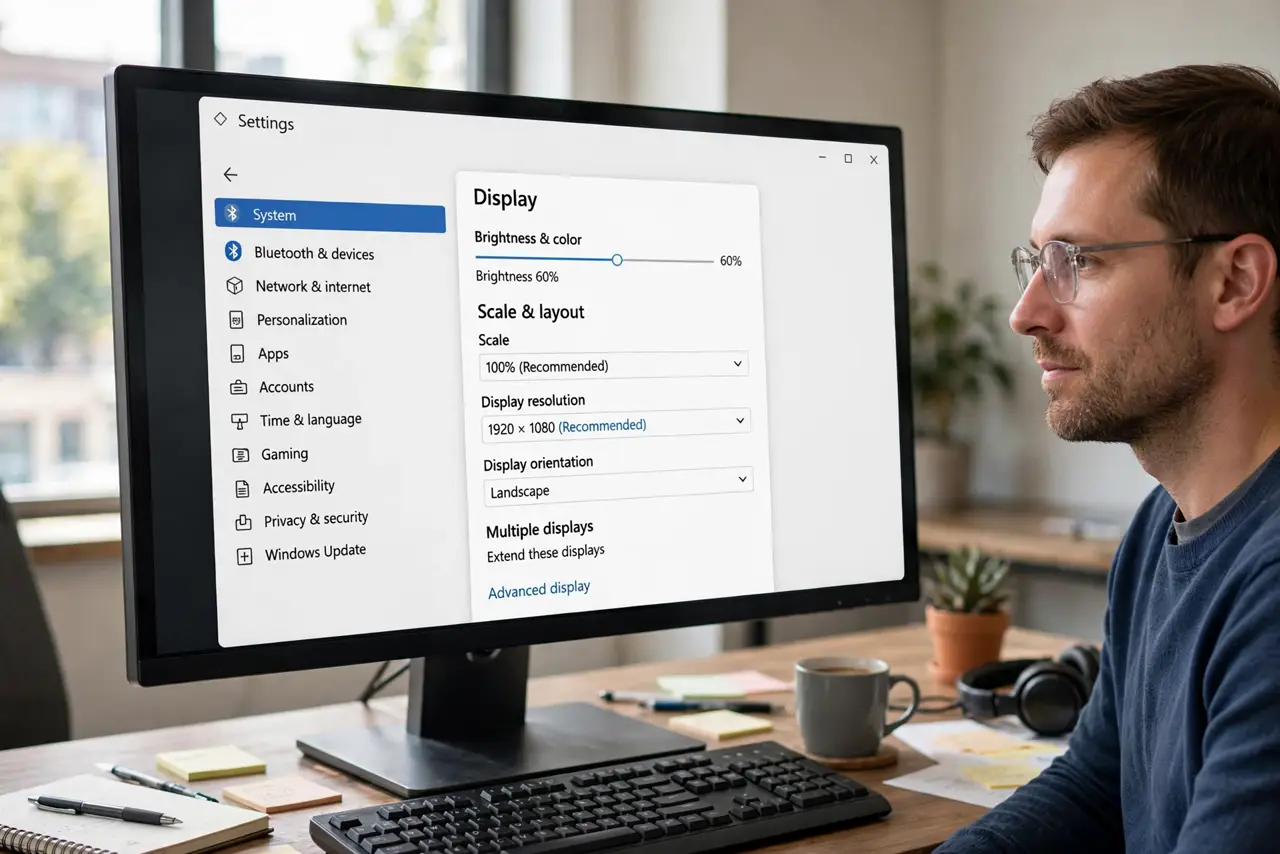
- Set the recommended resolution. Open Settings, then System, then Display, and choose the resolution marked Recommended. A non-native resolution stretches the image and blurs text.
- Run the ClearType tuner. Search for Adjust ClearType text, open it, and follow the samples to pick the sharpest text. ClearType tunes how Windows renders letters on your exact monitor.
- Check the scale setting. On the Display page, make sure Scale is at the recommended value. A scale that is too high or too low for the monitor can blur text edges.
- Try a different cable. Swap in another cable of the same type. A poor cable can soften the image, especially at high resolution, even if the picture otherwise looks fine.
- Check the monitor sharpness setting. Open the monitor own menu and check the sharpness setting. If sharpness is set very low or very high, text can look soft or edgy, so return it to the middle.
- Test the monitor on another computer. Connect the monitor to a second computer at the recommended resolution. If text is sharp there, the first computer setting is the cause.
What NOT to do
- Do not lower the resolution to hide blur. Lower resolution makes text softer, not sharper, and wastes the monitor you bought.
- Do not change every display setting at once. Change resolution, then ClearType, then cable, so you know which step fixed it.
- Do not use a damaged or very long cheap cable for a high-resolution monitor. A poor cable is a common cause of a soft image.
- Do not assume the monitor is faulty at the first blur. Resolution and ClearType fix most blurry text, and they are free to try.
Frequently asked questions
Why is text blurry only in one app?
That app may have its own scaling or zoom. Check the app display settings, and check whether Windows is scaling it for high resolution.
ClearType made it worse. What now?
Run the tuner again and pick the samples that look sharpest to you. ClearType is personal, and the wrong sample choice can soften text.
Is blurry text a sign of a dying monitor?
Rarely. Test another cable and another computer first, because settings and cables cause most blur.