Master Todoist Filters
Your Todoist list has 80 tasks and your brain has checked out — everything looks equally urgent, so nothing gets done. Filters are saved searches that slice the chaos: today's high-priority work tasks, errands near home, the five-minute wins. Learn the query language basics once and your lists organize themselves.
TL;DR / Quick Fix
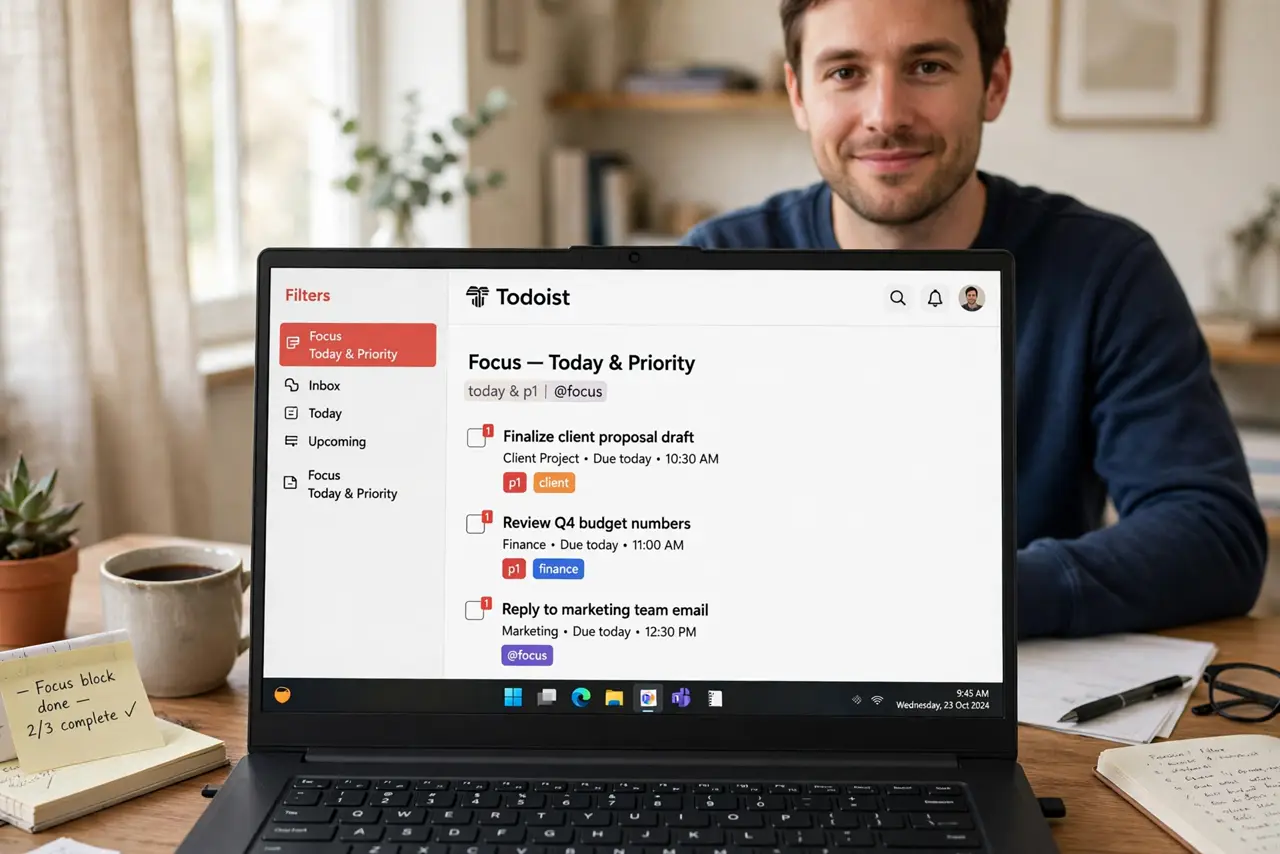
Todoist filters are saved searches showing exactly the tasks you need — high-priority tasks due today, errands without a project. Build your first filter with a simple query, save it as a favorite, and check it instead of the overwhelming master list. The Google Tasks guide covers the simpler alternative.
Follow these steps
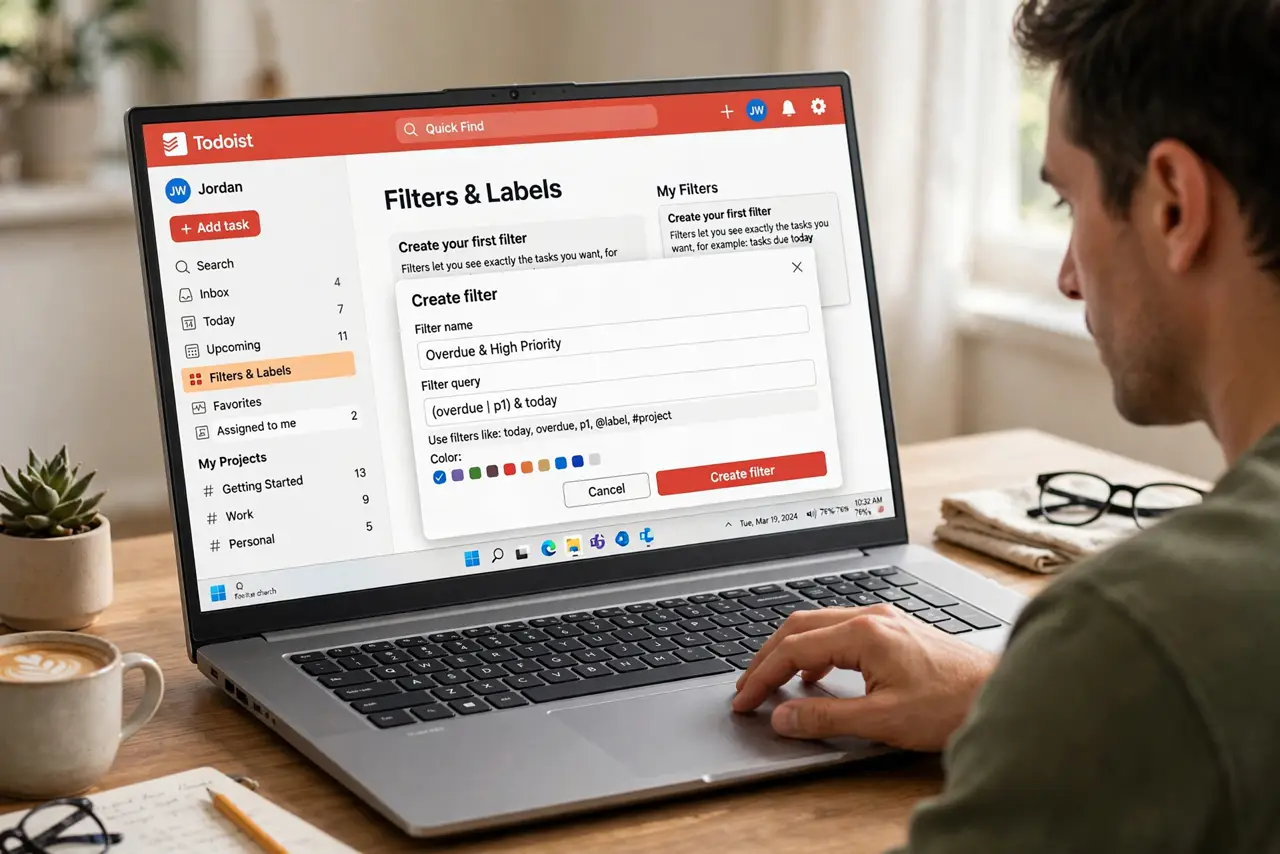
- Open Filters and create your first one. In Todoist, go to Filters and add a new filter. Give it a plain name like 'Today - Important' — you will see this name daily, so make it obvious.
- Write a simple query. Start with basics: due today, high priority, a specific project. The query builder suggests syntax as you type — you do not need to memorize the language.
- Test what the filter catches. Run it and review the results. A filter showing zero tasks has a typo or impossible combination; one showing everything is too broad — adjust until it feels right.
- Save it as a favorite. Star the filter so it sits in your sidebar. A filter buried in a menu gets forgotten; a visible one becomes the daily starting point.
- Build the three core views. Most people need: today's priorities, this week's overview, and a someday/maybe review list. Three good filters beat thirty clever ones.
- Review and prune monthly. Filters rot as projects end. A monthly two-minute cleanup keeps the sidebar trustworthy — delete or fix filters that no longer match reality.
What NOT to do
- Do not build twenty filters on day one. Three core views solve the overwhelm; a filter collection becomes its own procrastination project.
- Do not write queries from memory. Use the builder's suggestions — a misremembered operator silently returns wrong results.
- Do not filter so narrowly nothing appears. An empty 'perfect' view teaches you to ignore filters entirely — keep them useful, not ideal.
- Do not skip the someday review. Tasks without dates vanish from daily views; a weekly review filter catches what fell through.
Frequently asked questions
Are filters available on the free plan?
Basic filters yes; complex queries with multiple conditions may need Premium. The core daily-priority views work on free.
What is the difference between filters and labels?
Labels tag tasks; filters find tasks by any criteria including labels. Use labels to mark, filters to view.
Can I share a filter with my team?
Filters are personal views. Share the underlying project instead — teammates build their own filters on top.