Touch Screen Taps the Wrong Spot? Fix It
When taps land away from your finger, the screen calibration drifted, a protector interferes, or the driver needs attention. Calibrating first, then checking the surface, fixes most cases without a repair.
TL;DR / Quick Fix
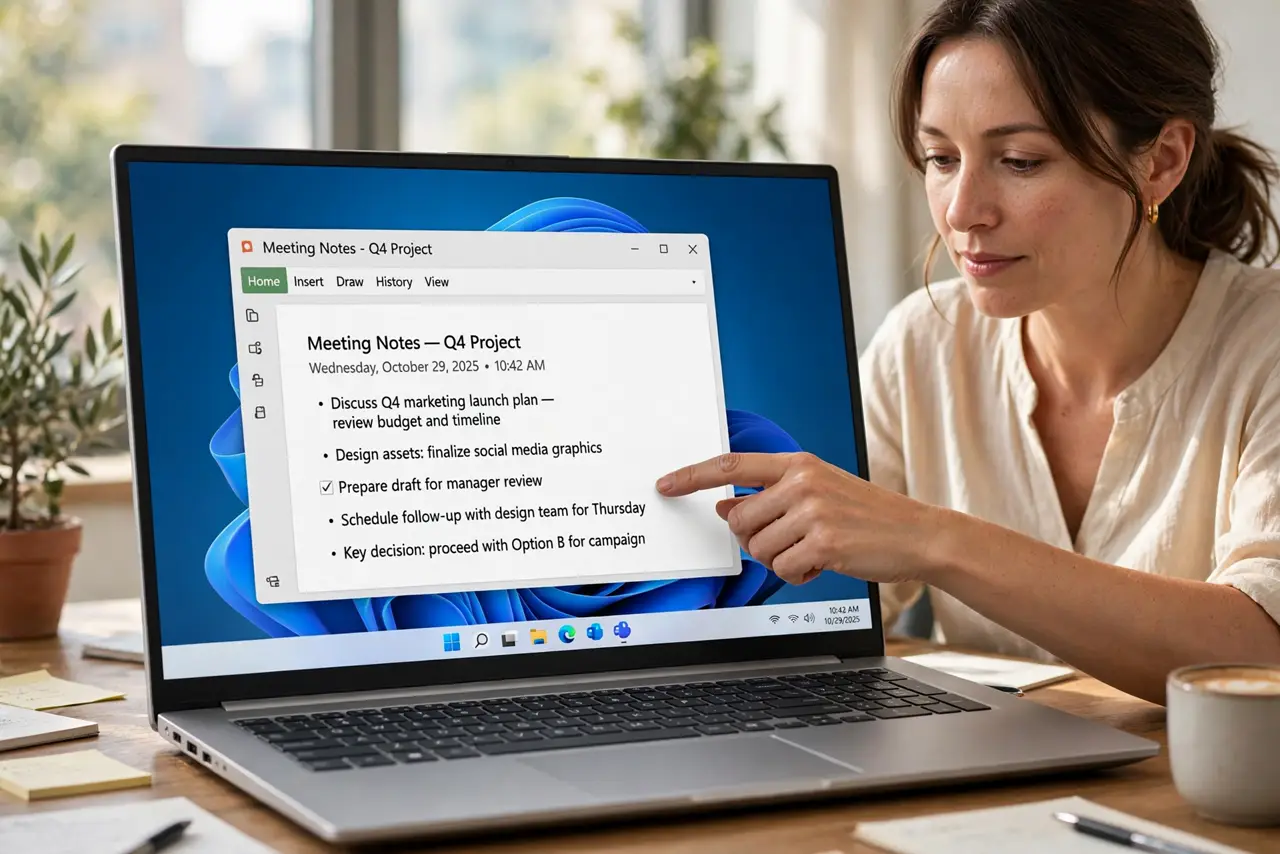
Quick fix: clean the screen gently with a soft dry cloth, remove any loose protector edge, then open the tablet PC calibration tool and follow its crosshair taps. Test by tapping icons in each corner, and check whether taps now land where you touch.
Follow these steps
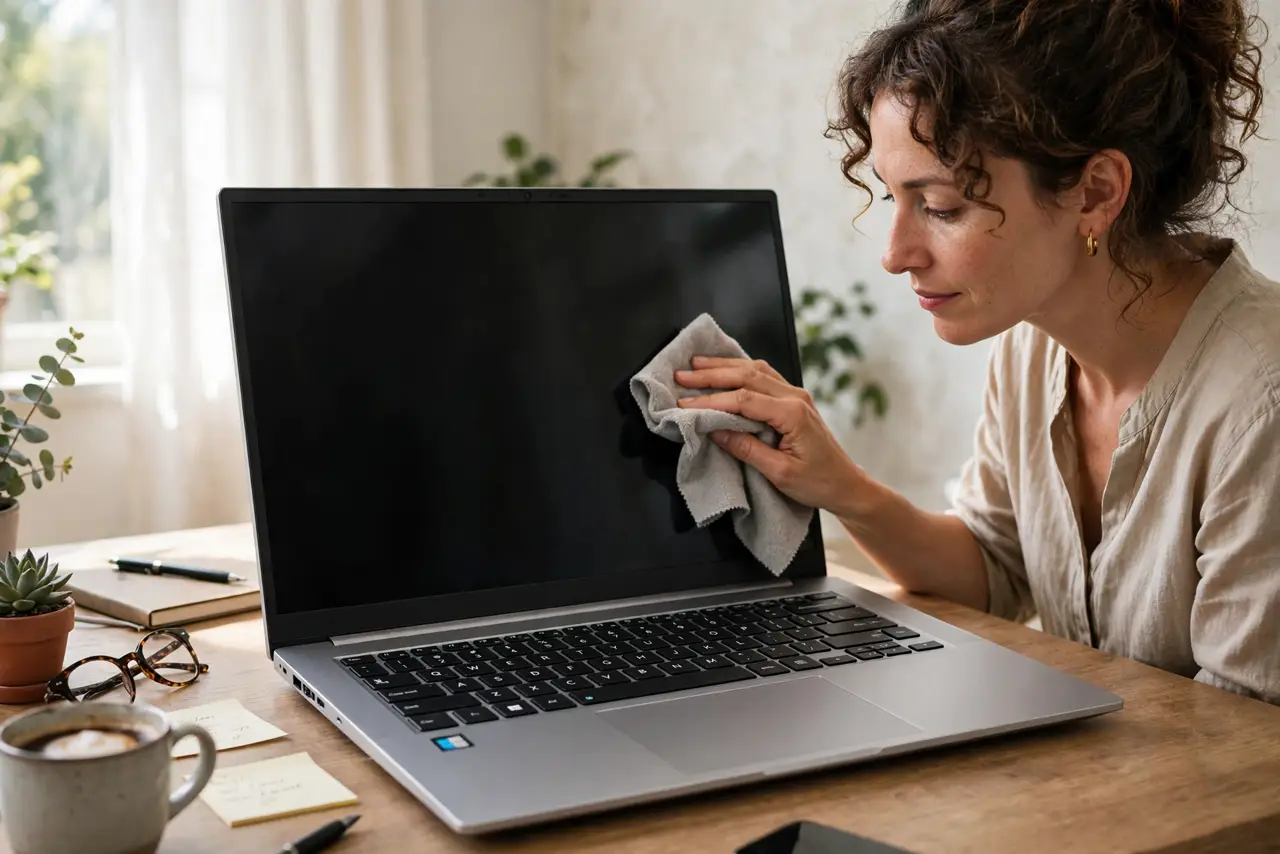
- Clean the screen gently. Turn the screen off, then wipe it with a soft, dry cloth. Dirt, moisture, or a sticky spot can shift where the screen thinks you touched.
- Check the screen protector. If a protector is lifting at an edge or has bubbles, it can offset taps. Remove a damaged protector and test without it before buying a replacement.
- Run the calibration tool. Search for Calibrate the screen for pen or touch input, open it, and follow the crosshair taps carefully. Tap exactly on each crosshair, not near it.
- Test all four corners. After calibration, tap icons in each corner and in the center. If one area still misses, calibration may need a second run, or that area may be damaged.
- Restart and test again. Restart the computer and test tapping again. A restart reloads the touch driver cleanly and confirms the calibration held.
- Update the touch driver if it still misses. In Device Manager, find the touch screen device and update its driver. Restart after the update, then calibrate once more if needed.
What NOT to do
- Do not press harder to compensate for wrong taps. Pressing harder does not fix calibration, and it can damage the screen over time.
- Do not calibrate with a wet or dirty screen. Dirt during calibration teaches the screen the wrong points, so clean it first.
- Do not open the laptop to fix touch accuracy. Touch panels are delicate, and internal work needs a repair shop, not a home fix.
- Do not ignore taps that miss only in one corner. A corner-only miss can be damage, so note it and get a repair opinion instead of recalibrating endlessly.
Frequently asked questions
Why does calibration help?
Calibration maps your touch points to screen points. If that map drifted, taps land away from your finger, and recalibrating remaps them.
Can a protector really shift taps?
Yes. A thick, lifting, or bubbled protector can offset the touch point, especially near edges. Testing without it proves whether it is the cause.
What if taps miss after calibration and a restart?
The touch panel or driver may be faulty. Update the driver once more, then ask a repair shop, because repeated calibration will not fix hardware damage.