Read a Traceroute
You ran a traceroute because someone told you to, and now you are staring at fifteen lines of asterisks, millisecond numbers, and router names that look like license plates. It is actually a simple map: each line is one hop your data takes to reach its destination, with the time it took. Once you can read it, you can point at exactly where a connection breaks.
TL;DR / Quick Fix
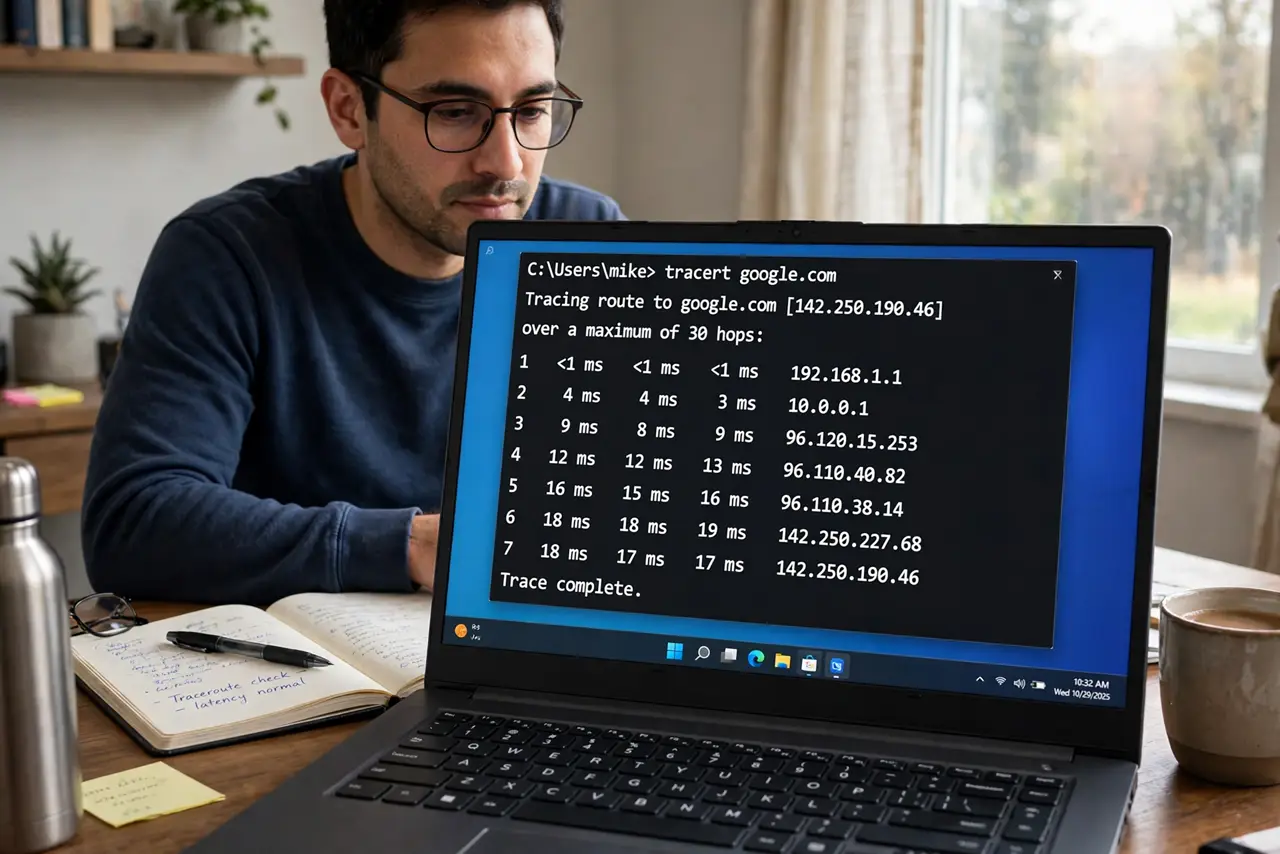
Quick fix: a traceroute lists every hop between you and a server. Read it top to bottom: the hop where times suddenly jump — or turn to asterisks — is where the trouble starts. Hops inside your home are your problem; deeper hops belong to your provider.
Follow these steps
- Run it the simple way. On Windows use tracert, on Mac and Linux use traceroute, followed by the address. Let it finish — each of the three probes per hop takes a moment. The basics walkthrough has the exact commands.
- Read top to bottom as a journey. Hop 1 is your router, hop 2 is usually your provider, and the numbers climb toward the destination. Times naturally grow with distance — that is geography, not a problem.
- Look for the sudden jump. If hops 1–5 take 10 ms and hop 6 takes 200 ms, the problem lives at or just before hop 6. The jump's location is the whole diagnosis.
- Understand the asterisks. Asterisks mean a hop did not answer that probe. One router hiding is normal — many block these probes. Asterisks all the way to the end mean the trail truly dies there.
- Ignore scary-looking router names. Names like xe-0-0-1.city.provider.net are just router labels. Ugly names are not errors; only the timing pattern matters.
- Compare a good route to a bad one. Run the trace when things work and save it. When things break, the difference between the two traces points straight at what changed.
What NOT to do
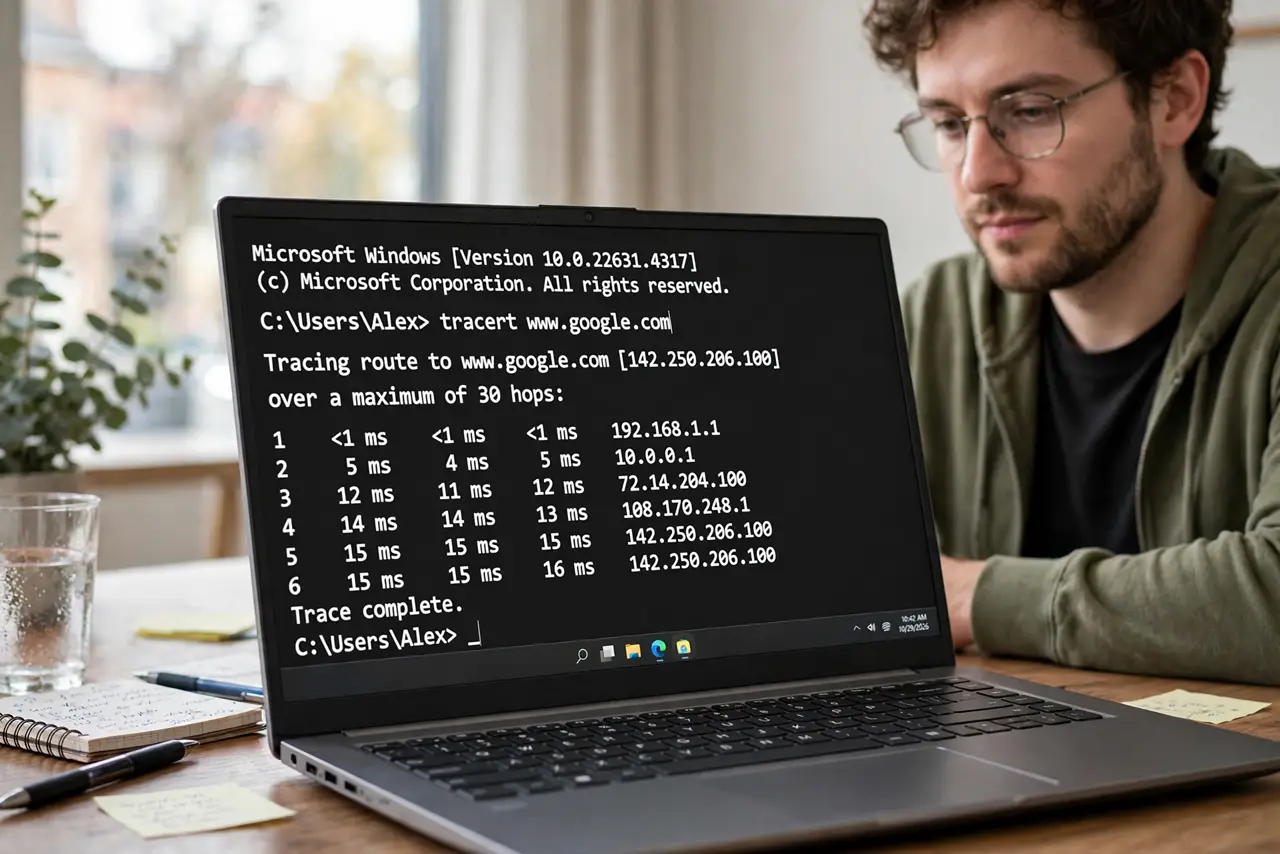
- Do not panic at one slow middle hop. Some routers deprioritize these probes and look slow while forwarding real traffic fine — the end-to-end time is what counts.
- Do not read asterisks as a smoking gun by themselves. Hidden hops are common; only asterisks that continue to the destination mean a real break.
- Do not traceroute once and declare the network dead. Routes change; run it a few times before concluding anything.
- Do not paste full traces with your IP publicly. The first hops can reveal your location — trim them before posting in forums.
Frequently asked questions
What does the first hop tell me?
It is your own router. If hop 1 is slow or lossy, the problem is inside your home — Wi-Fi, the router, or its cable — before the internet is even involved.
Why do later hops show lower times than earlier ones?
Routers answer probes at different priorities. A middle hop can look slower than the destination and still be fine — trust the final times.
Can I fix a slow hop inside my provider's network?
Not directly — but a trace showing exactly where it slows turns a vague complaint into evidence your provider must act on.