Set Up a Travel Router
Hotel Wi-Fi lets one device online, charges per extra device, and drops every time your laptop sleeps. A travel router logs into the hotel network once, then shares it with all your gadgets over your own private Wi-Fi — one login, every device, plus a little extra privacy. Here is the setup that works in most hotels.
TL;DR / Quick Fix
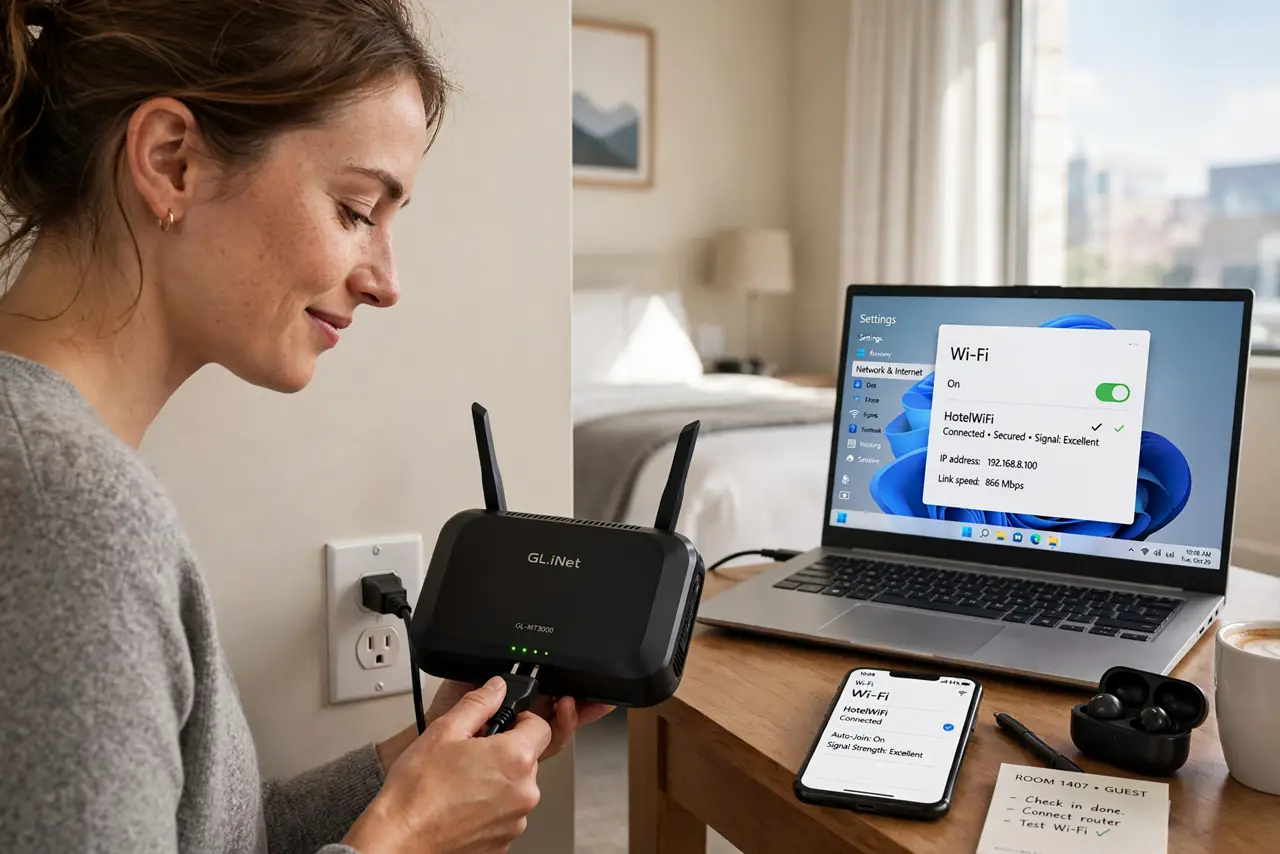
A travel router joins the hotel Wi-Fi once and rebroadcasts it as your own private network for all your devices. Plug it in, use repeater or WISP mode to connect it to the hotel network, then complete the hotel's captive portal login once. A VPN on public Wi-Fi adds protection.
Follow these steps
- Power up the travel router in the room. Plug it into the wall outlet or USB power. Wait for its lights to settle, then join its default Wi-Fi network from your phone — the name and password are on its sticker.
- Open its setup page. Browse to the router's admin address (check the manual) and log in. The setup wizard is designed for exactly this hotel scenario.
- Choose repeater or WISP mode. Select the mode that joins an existing Wi-Fi network as a client. Scan for the hotel's network and connect the router to it — the router is now the hotel's 'one device.'
- Complete the captive portal once. Open a browser on any connected device and finish the hotel's login or payment page. That single login now covers every gadget behind your router.
- Rename your private network. Give your router's Wi-Fi a recognizable name and a strong password. Your devices connect to this network, not the hotel's, for the rest of the stay.
- Pack it in the carry-on, not the suitcase. Travel routers are small and survive trips well, but a crushed one in checked luggage ruins the plan. It lives with your chargers from now on.
What NOT to do
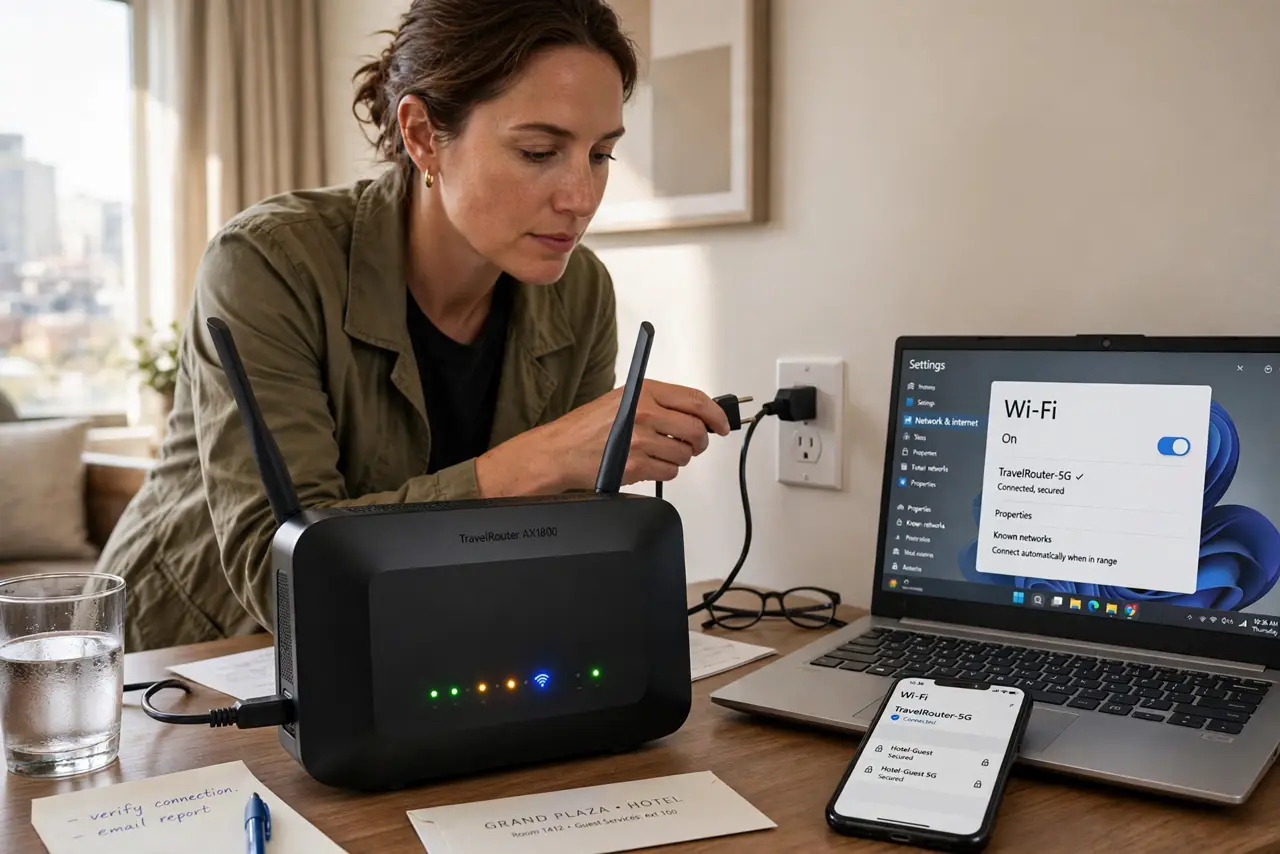
- Do not skip the captive portal step. Until one device completes the hotel login through the router, nothing behind it reaches the internet.
- Do not use the hotel's network name for your private Wi-Fi. Confusing names cause devices to join the wrong network and bypass your router entirely.
- Do not assume every hotel allows it. A few networks block repeater-style connections; the wired ethernet jack in the room (if any) is the fallback.
- Do not leave the default admin password. Anyone on your private network could reconfigure the router — set a real password during setup.
Frequently asked questions
Is a travel router worth it for one trip?
For a single night with one device, probably not. For a week with a laptop, phone, and tablet — or frequent travel — it pays for itself in convenience and per-device fees avoided.
Does it make hotel Wi-Fi faster?
No — it shares whatever speed the hotel provides. It saves logins and fees, and adds your own password-protected network, but not bandwidth.
Can I use it at home too?
Yes — as a spare access point or a portable network for the backyard. It is a real router; hotels are just its best trick.