Where to Store Two-Factor Backup Codes Safely
Backup codes rescue you when your phone is lost and two-factor blocks your own login. But codes screenshotted into your photo library are one phone theft away from handing attackers everything.
TL;DR / Quick Fix
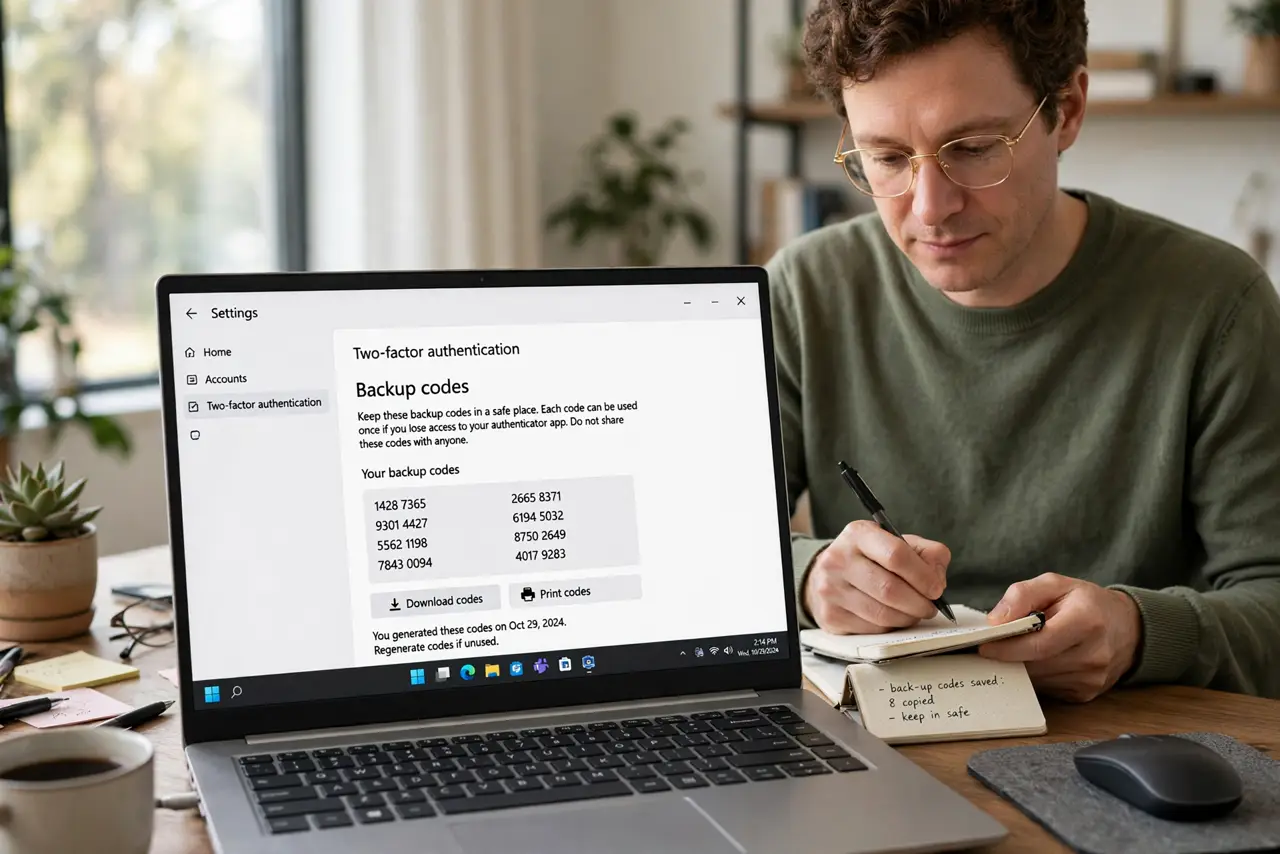
Quick fix: generate fresh backup codes for email and banking, print them or write them down, and store the paper somewhere safe like a locked drawer. Then delete any screenshots of codes from your phone, and keep a second copy with someone you trust.
Follow these steps
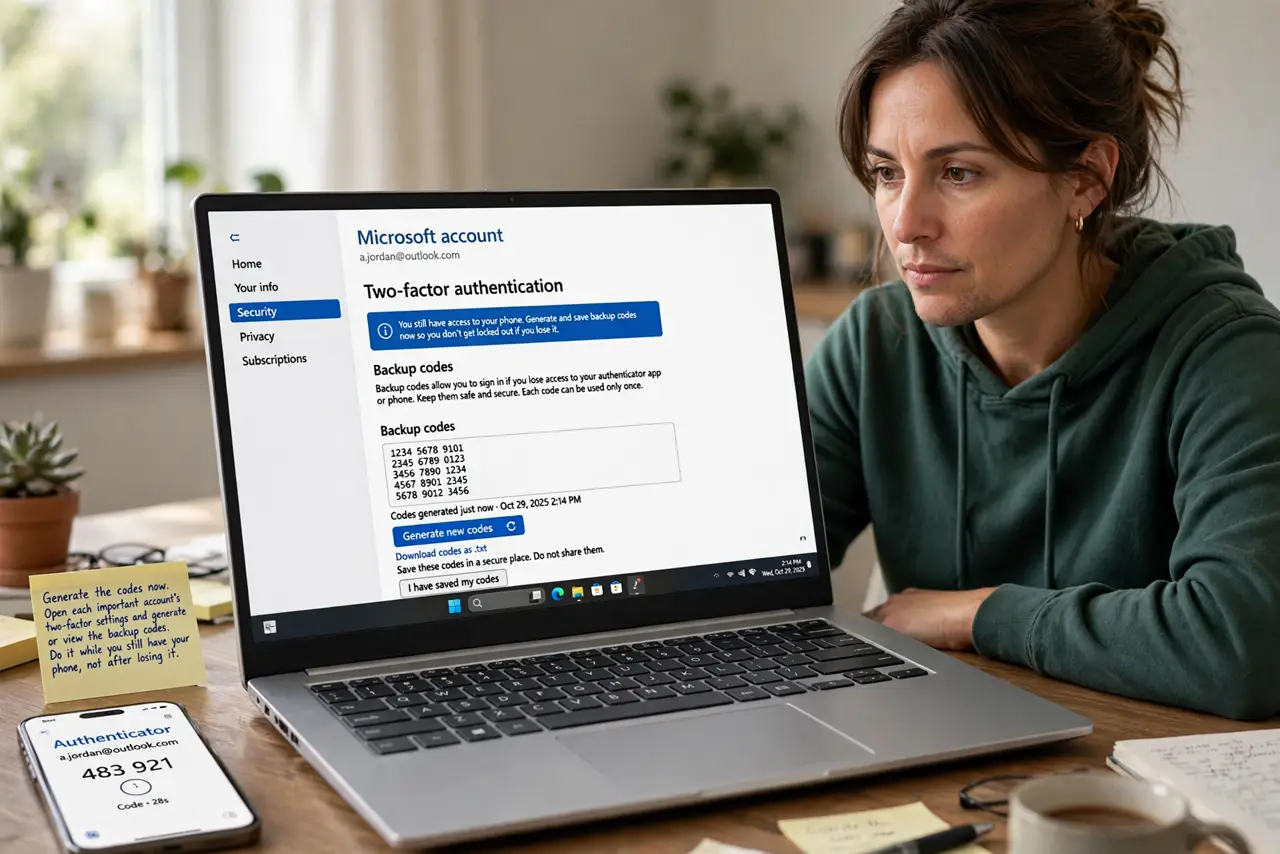
- Generate the codes now. Open each important account's two-factor settings and generate or view the backup codes. Do it while you still have your phone, not after losing it.
- Print them or write them down. Put the codes on paper rather than in a notes app or screenshot. Paper in a locked drawer survives phone loss, theft, and dead batteries.
- Store the paper somewhere safe. Use a locked drawer, a safe, or another spot only you access. Backup codes are as powerful as passwords, so their storage should match that power.
- Delete screenshots of codes from your phone. Remove any photos or screenshots of backup codes from your gallery and cloud backup. A screenshot syncs to the cloud, which defeats the offline safety of paper.
- Keep a second copy with someone trusted. Give a sealed copy to a trusted person or store one in a second safe place. One copy can burn or flood away, so redundancy matters.
- Learn the proper backup habit for codes. Treat backing up like a small ritual: generate, print, store, delete digital copies. Repeating the same safe habit for every account keeps them all protected.
What NOT to do
- Do not screenshot codes and keep them in your photos. Photos sync to the cloud, turning an offline backup into an online target.
- Do not store codes in an unlocked notes app. Notes apps sync too, and an unlocked note is barely safer than no protection.
- Do not keep your only copy next to the computer. A fire or burglary that takes the computer should not take the recovery codes with it.
- Do not share codes by message or email. Codes sent through messages live in chat histories and inboxes, far from the safe place they deserve.
Frequently asked questions
What are two-factor backup codes?
One-time codes that let you log in when your phone or authenticator app is unavailable, generated in the account's security settings.
Why paper instead of a screenshot?
Because paper cannot be hacked remotely, while screenshots sync to cloud photo libraries attackers can reach.
How many copies should I keep?
Two: one in your own safe place and one sealed copy with someone you trust or in a second location.