Update Download Stuck at a Percentage? Fix It
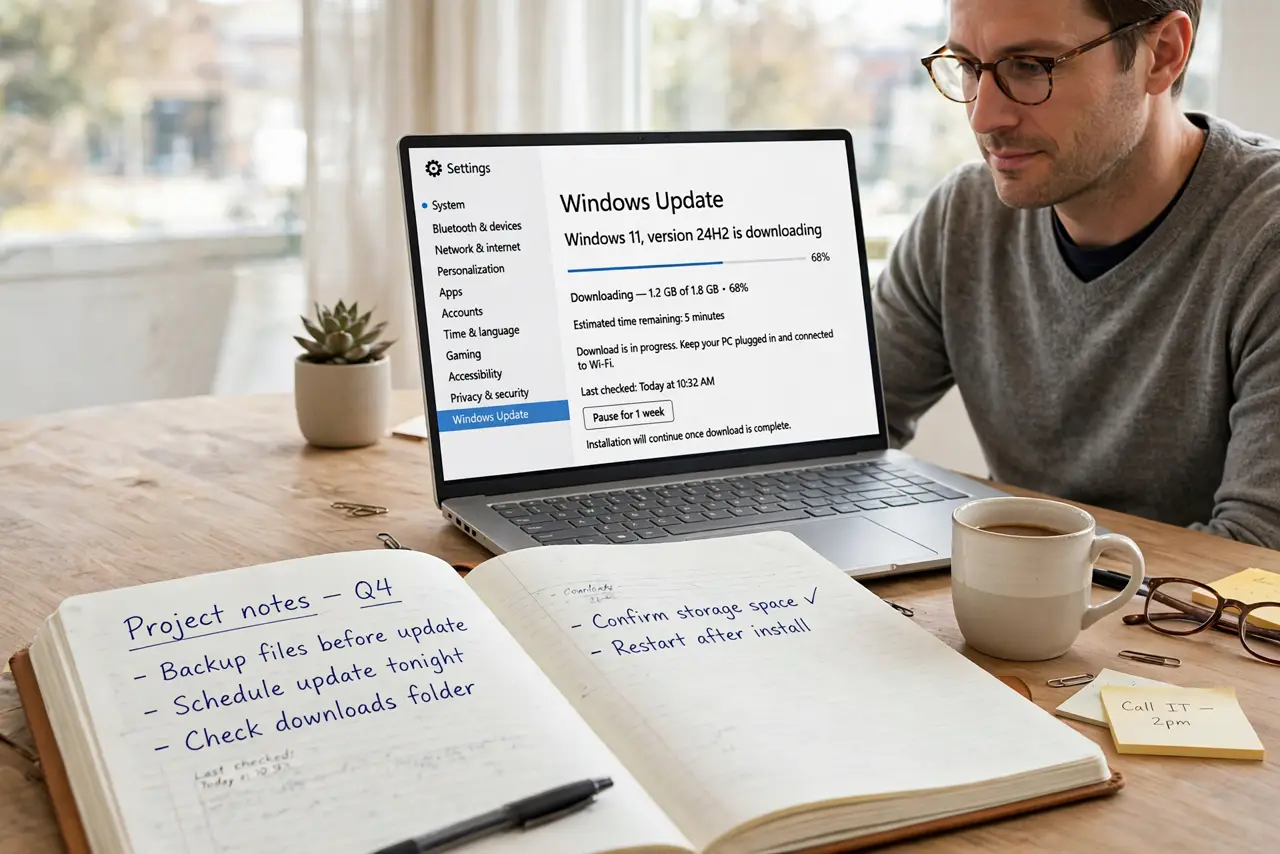
An update that sits at the same percentage for hours feels broken, but downloads often pause on a slow connection or a stuck service. Give it a fair wait first, then restart the download cleanly instead of forcing the computer off.
TL;DR / Quick Fix
Quick fix: wait at least thirty minutes with the computer plugged in and connected, without using heavy apps. If the percentage still has not moved, restart the computer once, then open Windows Update and check for updates again to restart the download.
Follow these steps
- Wait a fair time first. Leave the download alone for at least thirty minutes, plugged in and connected. Large updates pause on slow connections, and interrupting too early wastes the progress.
- Check the connection, not just the percentage. Open a web page to confirm the internet works. If the whole connection is down, fix the connection first, because no update can download without it.
- Restart the computer once. Save your work and restart. A restart clears a stuck update service, and Windows Update will resume or restart the download on its own.
- Run the Windows Update troubleshooter. Open Settings, then System, then Troubleshoot, then Other troubleshooters, and run Windows Update. Follow its prompts and note what it fixes.
- Free space before retrying. Check that the drive has free space, and free some if it is nearly full. An update with nowhere to unpack will stall, even if the download itself finished.
- Retry the download at a quiet time. Start the download again when the connection is free, such as when nobody is streaming. A steady connection finishes faster than a crowded one.
What NOT to do
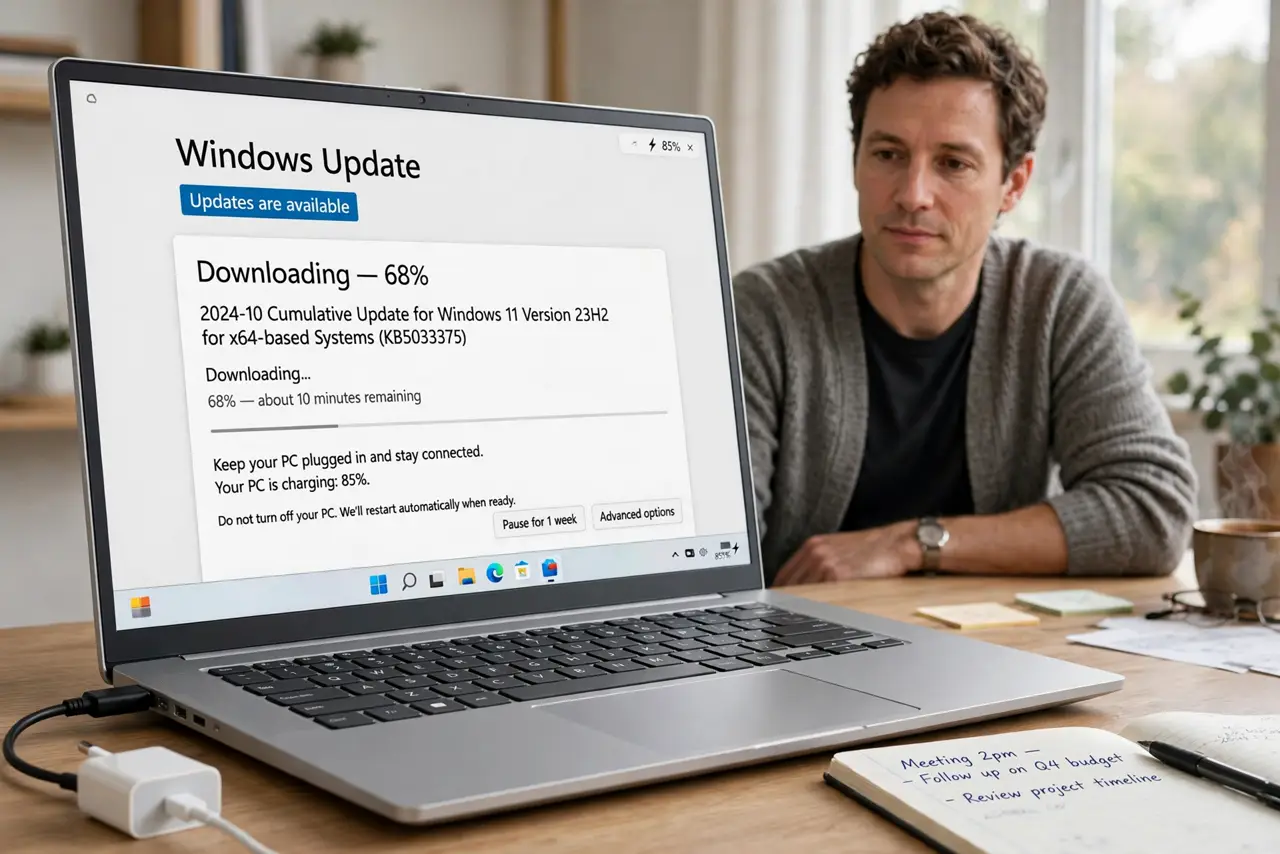
- Do not force the computer off during an update. A forced shutdown mid-install can damage system files and turn a slow download into a repair job.
- Do not delete the update download folders by hand. You can break the update service, and Windows has a troubleshooter that handles this safely.
- Do not turn off updates permanently because one download stalled. A stalled download is a temporary problem, and missing updates leaves security fixes uninstalled.
- Do not run several update tools at once. Extra tools can fight with Windows Update and stall the download further.
Frequently asked questions
How long should I wait before calling it stuck?
At least thirty minutes with no movement, plugged in and connected. Large updates and slow connections both cause long pauses that are not faults.
Will restarting lose the downloaded part?
Usually not all of it. Windows Update resumes or restarts the download, and a restart is safer than a forced shutdown.
What if it stalls at the same percentage every time?
Run the troubleshooter, free drive space, and check the connection. If it still stalls, the update itself may need a later retry.