Enable UPnP on a Router
Your game shows NAT Type: Strict, voice chat won't connect, and joining friends' lobbies fails half the time. The usual fix is port forwarding — but UPnP does the same job automatically: it lets trusted apps open the ports they need and close them when done. Two minutes in your router settings, no port numbers to memorize. Here is how, plus when to leave it off.
TL;DR / Quick Fix
Quick fix: UPnP lets games open needed ports automatically, fixing strict NAT without manual rules. Log in to your router, find UPnP under advanced or NAT options, and turn it on. If your network has devices you don't trust, use manual port forwarding instead — UPnP trades convenience for security.
Follow these steps
- Understand what UPnP does. Universal Plug and Play lets devices and apps on your network request port openings from the router automatically. Your game asks, the router opens the port, the game closes it later. It is port forwarding without the manual configuration — convenient, with a security tradeoff worth knowing.
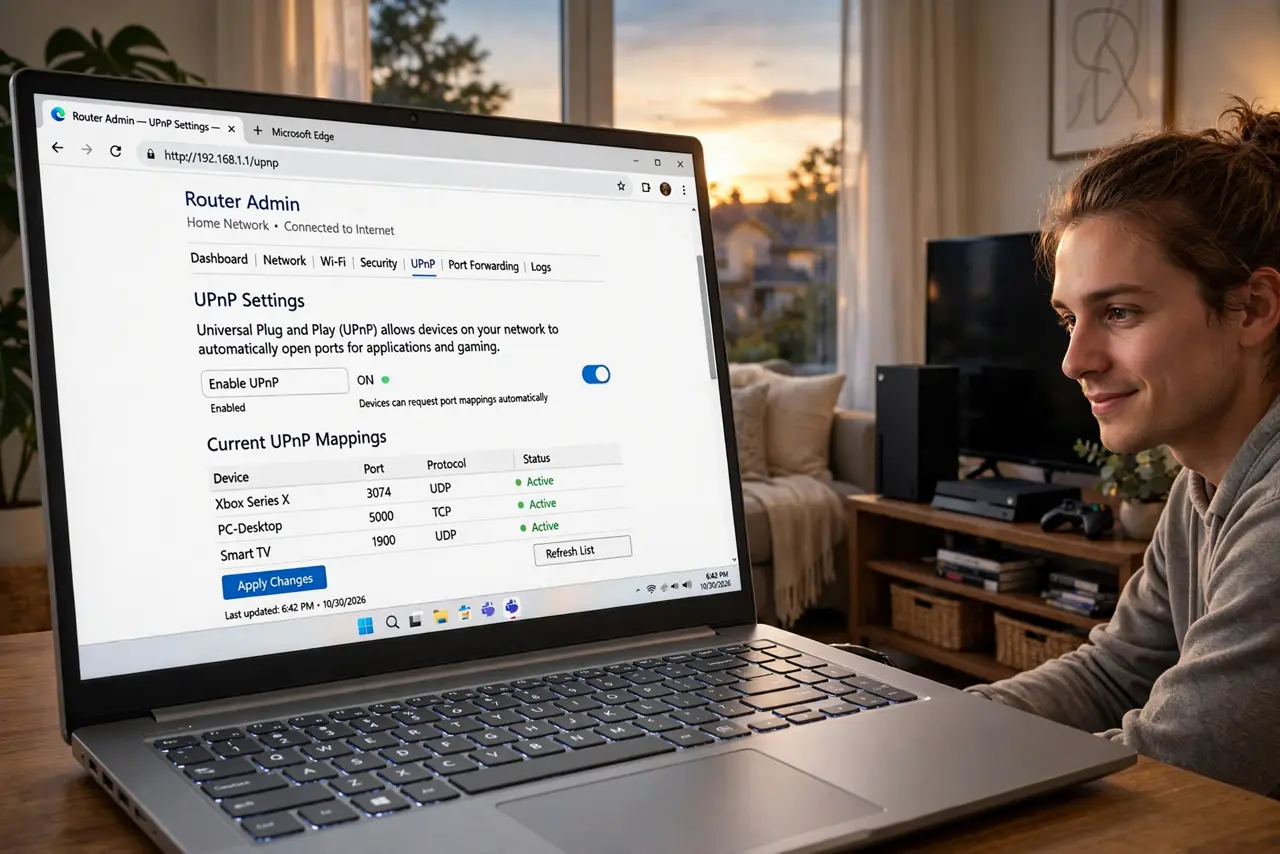
- Log in to your router. Open your router's admin page — usually an address like 192.168.1.1 — and sign in. If you have never changed the credentials, do that first; a router with a default password is a bigger risk than any UPnP setting.
- Find the UPnP toggle. Look under Advanced, NAT, or Gaming settings for a UPnP option. The exact location varies by brand, but it is nearly always near the port forwarding section. Flip it on and save — the router may reboot.
- Test your NAT type again. Restart the game or console and check the NAT type in its network settings. Open or Moderate means UPnP worked. If it is still Strict, you may have double NAT — two routers chained — which UPnP alone cannot fix.
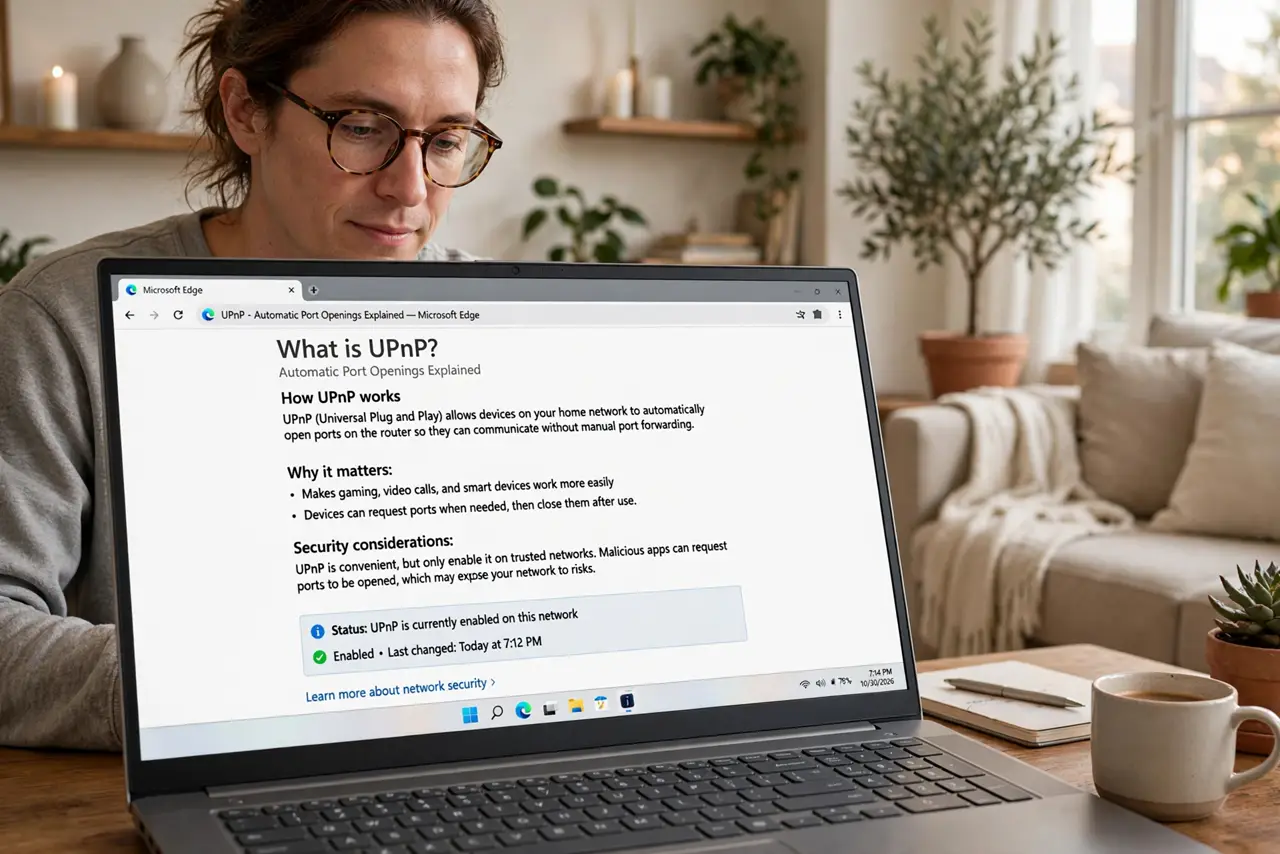
- Know the security tradeoff. UPnP trusts every device on your network to open ports — malware on any device could too. On a home network of your own trusted devices, the risk is low; on a network with gadgets you don't control, it is real. Read the UPnP security rundown before deciding.
- Prefer manual forwarding for untrusted networks. If you share the network with roommates' mystery devices or cheap smart gadgets, turn UPnP off and forward only the specific ports your game needs. More work, tighter control — the right call for messy networks.
What NOT to do
- Do not enable UPnP on a network full of untrusted devices. Every gadget gets port-opening power — one compromised camera is all it takes.
- Do not leave the router on default admin credentials. An attacker who logs in can enable UPnP themselves — or worse.
- Do not expect UPnP to fix double NAT. Two layers of routers need bridge mode or manual rules on both — UPnP only talks to the nearest router.
- Do not forward ports manually AND rely on UPnP blindly. Pick one method per service; overlapping rules cause the flaky behavior you were trying to fix.
Frequently asked questions
Is UPnP safe to leave on?
On a home network where you trust every device, yes — the practical risk is low. With untrusted IoT gadgets or roommates' devices, turn it off and forward ports manually.
UPnP is on but NAT is still strict — why?
Likely double NAT (ISP modem plus your router both routing) or CGNAT from your ISP. UPnP cannot punch through either — diagnose the chain first.
Should gamers use UPnP or manual port forwarding?
UPnP for convenience on trusted networks; manual forwarding for control and untrusted networks. Both fix strict NAT — they differ in effort and trust.