USB-C Monitor Not Detected? Fix It
Your USB-C monitor stays dark or undetected even though the cable is plugged in — because not every USB-C port or cable carries video. The port must support DisplayPort Alt Mode (or Thunderbolt), and the cable must too. This guide checks the port, the cable, and the settings in order, with docking know-how for the one-cable dream.
TL;DR / Quick Fix
Quick fix: check for a DisplayPort or Thunderbolt symbol next to your laptop's USB-C port — no symbol often means no video support. Then try a cable explicitly rated for video/USB-C display, not just charging. Update your graphics and USB drivers, and check display settings for a 'detect' button.
Follow these steps
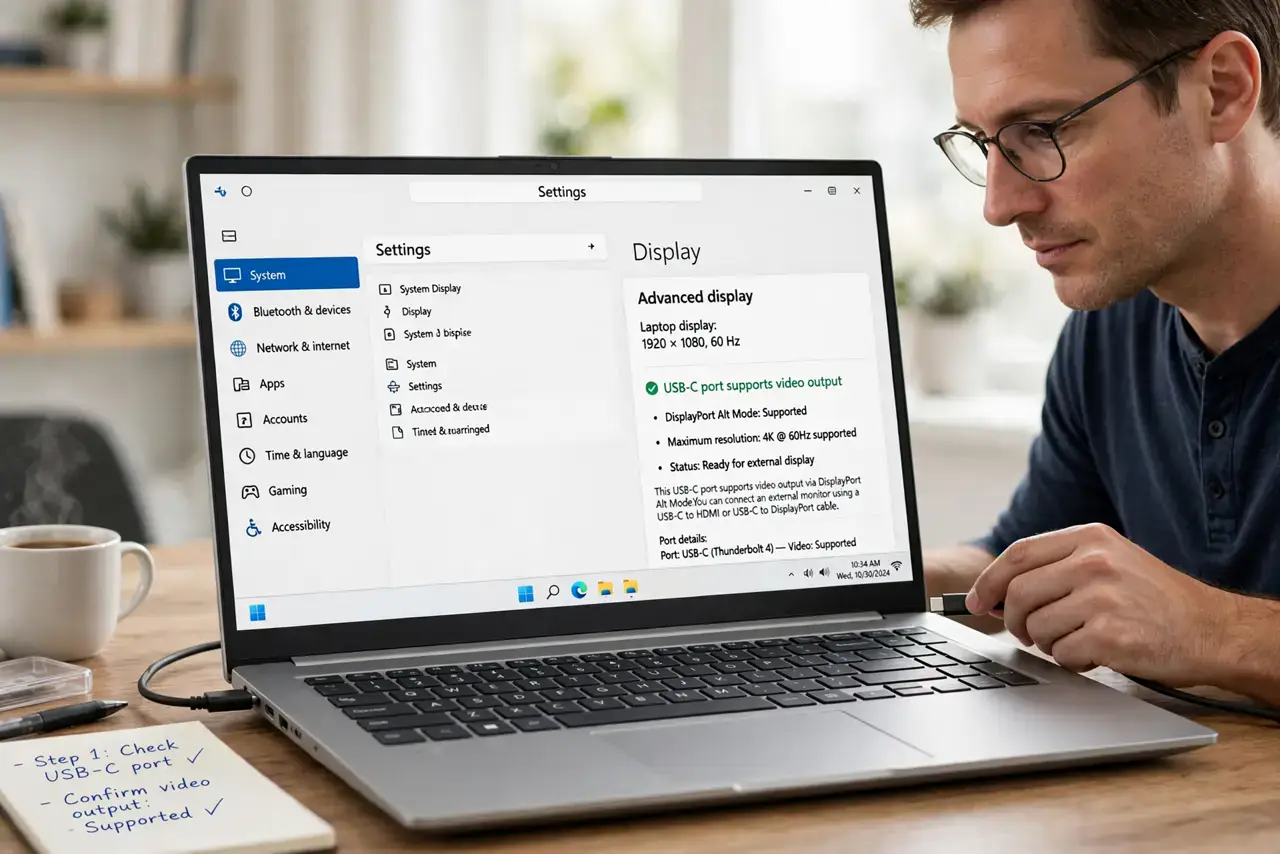
- Verify the port supports video. Look for a DisplayPort icon or lightning symbol beside the USB-C port. Many USB-C ports — especially on budget laptops — are data and charging only.
- Use a video-rated cable. A charge-only USB-C cable looks identical but carries no video signal. Use the cable that came with the monitor or one explicitly rated for display output.
- Update graphics and USB drivers. Get the latest graphics driver from the GPU maker and USB/Thunderbolt drivers from the laptop maker. Missing Alt Mode drivers are a common cause.
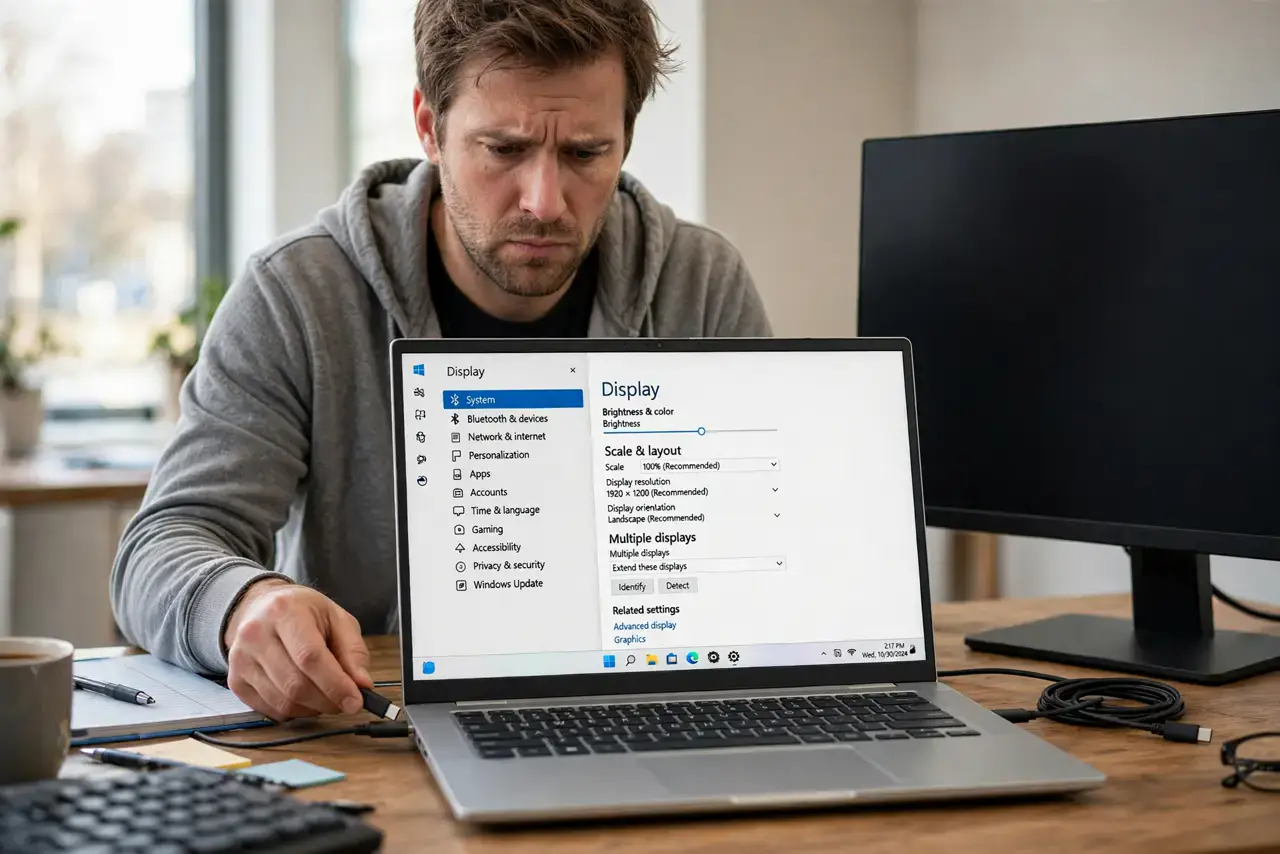
- Press Detect in display settings. Open display settings and click Detect. Windows sometimes needs a manual nudge to recognize a newly connected USB-C display.
- Check the monitor's input selection. Set the monitor to its USB-C input manually. Some monitors default to HDMI and never auto-switch to USB-C.
- Test the monitor's power delivery. USB-C monitors often need their own power brick connected. A monitor starved of power may not handshake video properly.
What NOT to do
- Do not assume all USB-C is equal. The connector shape guarantees nothing — video support is an optional feature many ports lack.
- Do not use a phone charging cable for the monitor. Thin charge cables cannot carry the video signal, no matter how well they charge.
- Do not daisy-chain through an unpowered hub. Video over USB-C needs full bandwidth; cheap hubs break the signal chain.
- Do not ignore the laptop maker's specs page. It lists exactly which USB-C ports support DisplayPort Alt Mode — check before buying the monitor.
Frequently asked questions
What is DisplayPort Alt Mode?
It is the feature that lets a USB-C port carry a DisplayPort video signal alongside USB data and power — the magic behind one-cable monitor setups.
Can a USB-C hub add video support?
Only if the laptop's port already supports Alt Mode. A hub cannot create video capability the port lacks.
Why does my phone's USB-C cable not work?
Phone cables are usually optimized for charging, not video. Monitor connections need a full-featured cable rated for display use.