Sharing the Wrong Screen on Calls? Fix It
You hit Share Screen and everyone sees your private messages instead of the slides. Sharing the wrong screen is embarrassing but easy to prevent once you know where the choice happens. This guide shows how to share the right thing every time.
TL;DR / Quick Fix
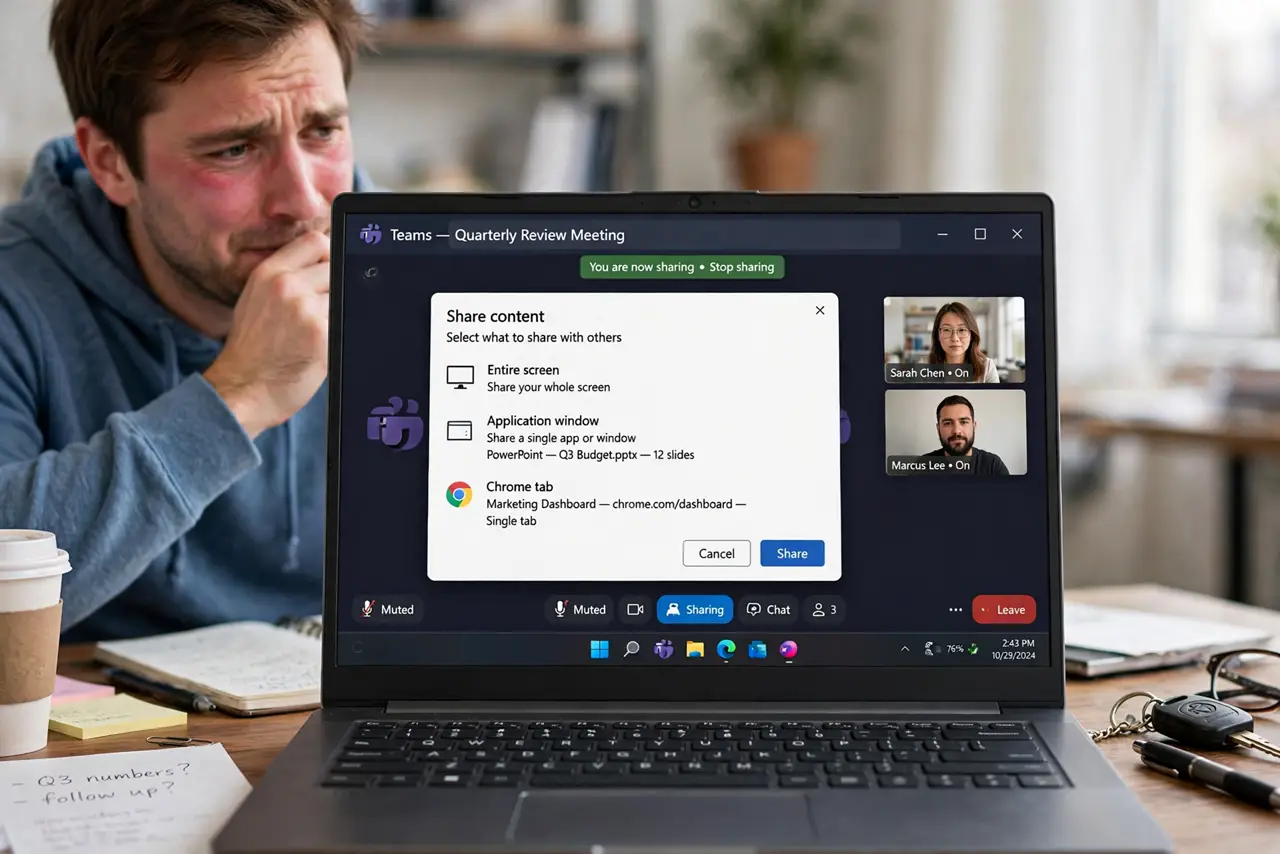
Quick fix: before sharing, close private windows and turn on Do Not Disturb, then choose Share and pick one specific window instead of your whole screen. Double-check the preview thumbnail before you confirm. When done, stop the share from the meeting toolbar so nothing extra stays visible.
Follow these steps
- Close what you do not want seen. Before the call, close messaging apps, email, and personal tabs. What is not open cannot be shared by accident.
- Turn on Do Not Disturb. Enable Do Not Disturb on your computer and phone. Notifications popping up over your shared screen are the most common accidental reveal.
- Click Share and read the options. The share dialog offers your screens and each open window separately. Take the two seconds to read the list instead of clicking the first big button.
- Pick one window, not the whole screen. Select the specific window with your slides or document. Window sharing keeps everything else private even if you click around during the call.
- Check the preview before confirming. Most apps show a thumbnail of what others will see. Glance at it — if it shows the wrong window, cancel and pick again.
- Stop sharing from the toolbar. When you finish, click Stop Share in the meeting controls. Closing the shared window alone can leave a frozen frame visible to everyone.
What NOT to do
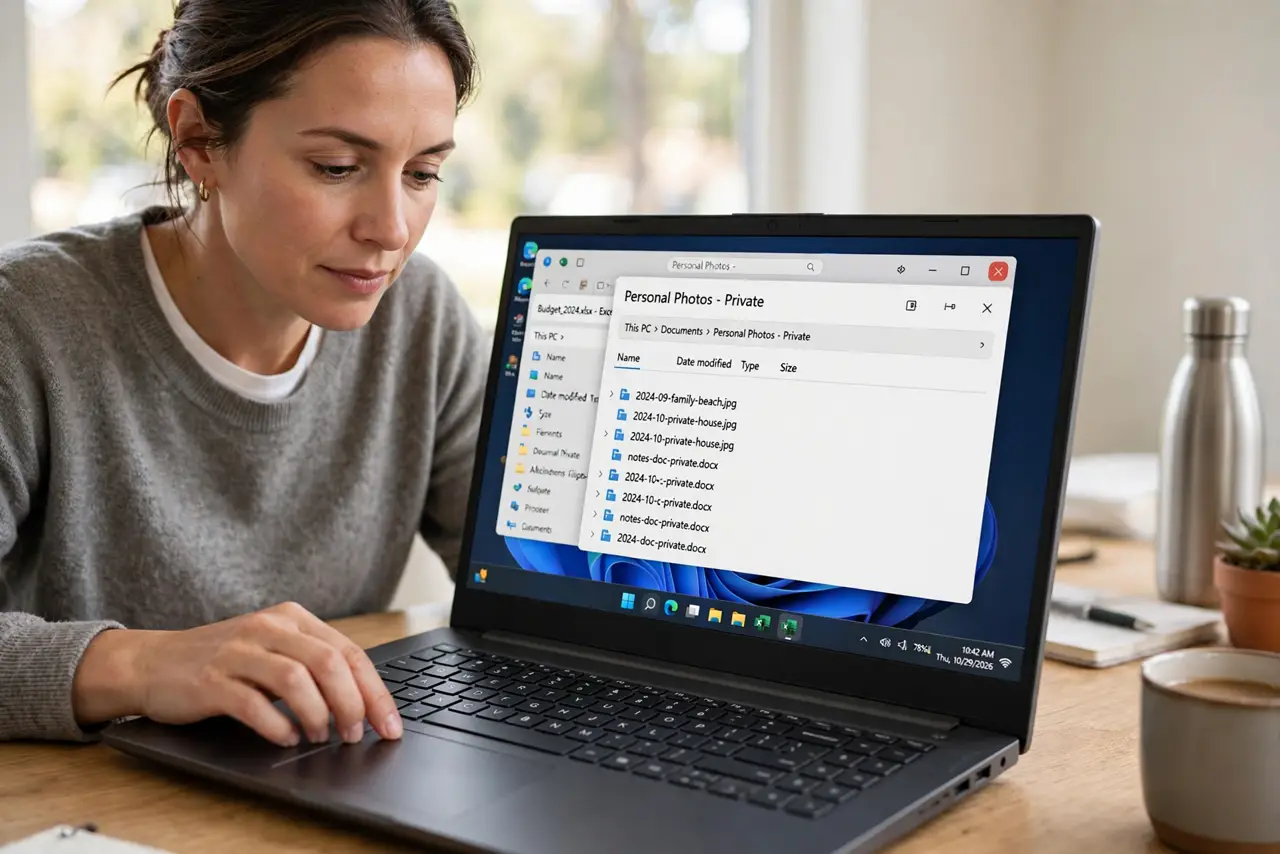
- Do not share your entire screen when a single window will do. Full-screen shares expose notifications and open tabs, and a stray pop-up can reveal home details you did not mean to show.
- Do not start sharing mid-sentence without looking. A quick glance at the preview takes two seconds and prevents most mix-ups.
- Do not leave private chats open 'just in the background.' Background windows become foreground surprises the moment you share the wrong thing.
- Do not forget your second monitor. If you have two screens, the share dialog lists both, so make sure you pick the intended one.
Frequently asked questions
Can others see my notifications when I share a window?
No, if you share just one window. Notifications appear outside it, which is exactly why window sharing is safer than full-screen sharing.
I shared the wrong screen — how do I fix it fast?
Click Stop Share immediately, then start a new share with the right window. A quick apology and moving on beats a long explanation.
Does the audience see my mouse cursor?
Usually yes. Keep the cursor parked somewhere neutral and avoid hovering over private bookmarks or tabs while sharing.