Fix Browser Videos That Stutter on Windows
A video that plays fine in one app but stutters in your browser is frustrating, especially when your internet feels fast enough. The cause is usually the browser, not your connection. Work through these checks in order, and test the same video after each one.
TL;DR / Quick Fix
Quick fix: play the same video in another browser first. If it runs smoothly there, clear the problem browser's cache, turn off hardware acceleration, and close extra tabs. Then update the browser and check for a stuck tab using too much memory before you blame your internet connection.
Follow these steps
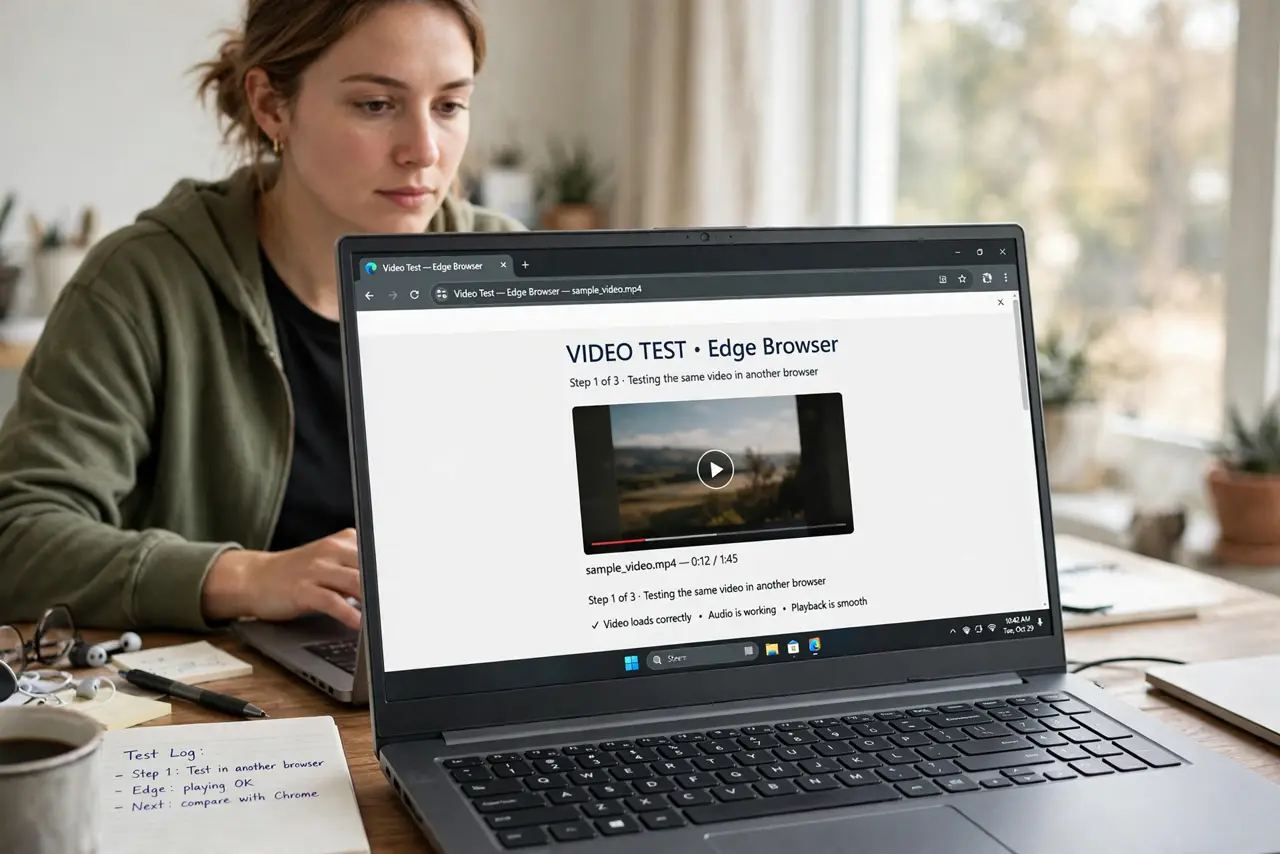
- Test the same video in another browser. Open the same video in a different browser on the same computer. If it plays smoothly there, the problem is in your first browser, not your internet connection or the video itself.
- Close extra tabs and programs. Close tabs you are not using, especially other video tabs, and close heavy programs. A browser sharing memory and processor power with many tabs will stutter even on a fast connection.
- Clear the browser cache for that site. Open your browser settings, clear cached images and files, then reload the video. A damaged cached file can make one site stutter while everything else looks fine.
- Turn hardware acceleration off, then test. In browser settings, find the system section and turn hardware acceleration off, then restart the browser and replay the video. If playback improves, leave it off.
- Update the browser and your graphics driver. Install the latest browser update from the browser's own update check, and install graphics updates through Windows Update. Old browser or graphics software is a common cause of choppy playback.
- Test with a wired connection or closer to the router. If the video still stutters in every browser, move closer to the router or plug in an Ethernet cable and test again. That result tells you whether the browser or the connection needs attention.
What NOT to do
- Do not install a random video booster or codec pack. These can add pop-ups and change browser settings in ways that are hard to undo.
- Do not keep raising video quality to the maximum while it stutters. Lower the quality one step to test whether the connection or the browser is the limit.
- Do not reinstall the browser first. You will lose saved settings and extensions for a problem that a cache clear usually fixes.
- Do not blame the video site at once. Test another video on the same site and the same video in another browser before you conclude the site is at fault.
Frequently asked questions
Why does video stutter only in one browser?
That browser usually has a damaged cache file, a heavy extension, or a hardware acceleration setting that does not suit your graphics hardware.
Does clearing the cache delete my passwords?
Clearing cached images and files alone does not delete saved passwords, but check the boxes before you confirm so you do not clear cookies or passwords by mistake.
Should I turn hardware acceleration back on?
Only if playback stays smooth with it on. If stuttering returns, leave it off; the difference in everyday browsing is small.