Delete Voice Recordings
Every hey assistant command becomes a recording — stored, transcribed, and in some cases reviewed by humans. The convenience is real, but so is the archive of your living room. You can review, delete, and limit these recordings from the assistant's privacy settings. Start with the deletion walkthrough and the Alexa privacy settings.
TL;DR / Quick Fix
Quick fix: your voice assistant keeps recordings of your commands — review them in the assistant's app under privacy settings and delete what you do not need. Turn off options that let humans review recordings. A tidy history keeps the convenience without the archive.
Follow these steps
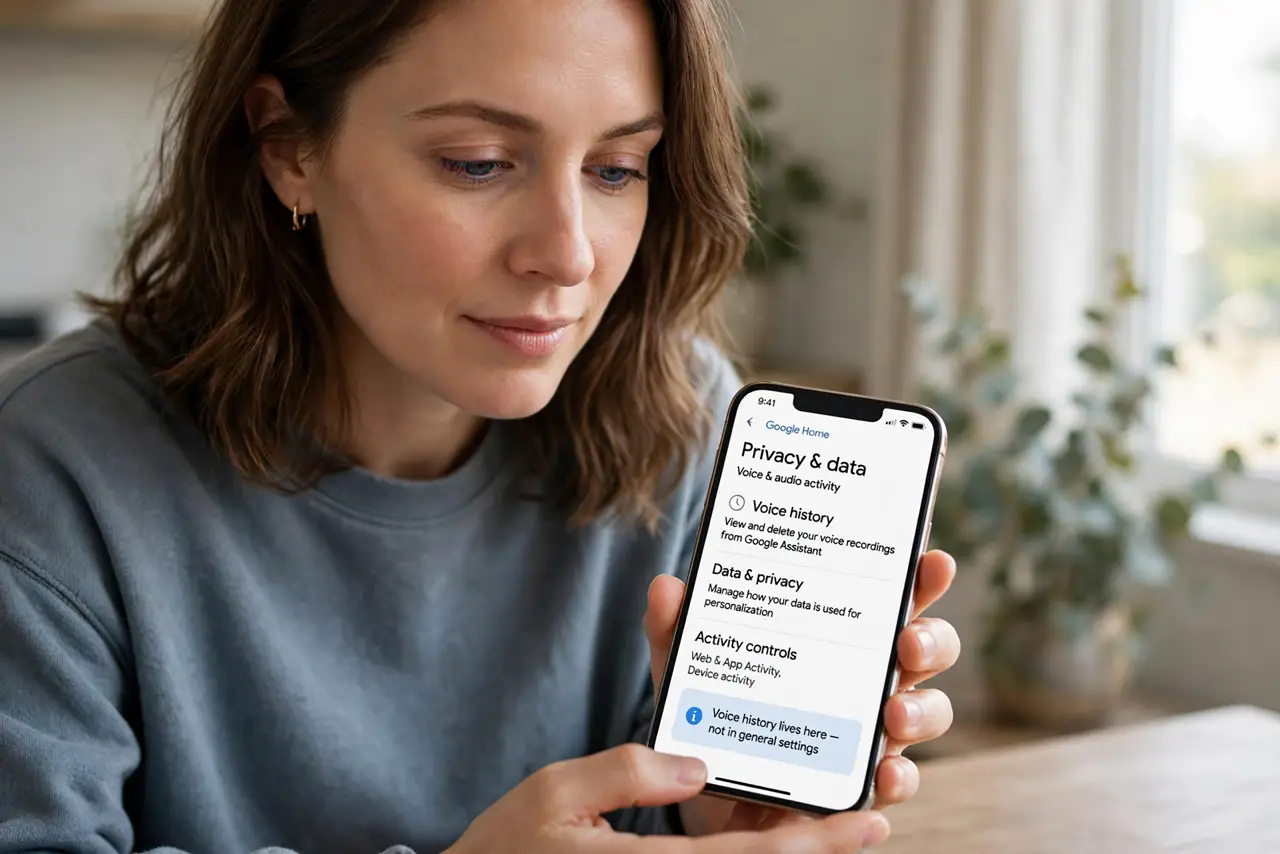
- Open the assistant's privacy settings. In the Alexa, Google, or Siri companion app, find the privacy or data section. Voice history lives here, not in general settings.
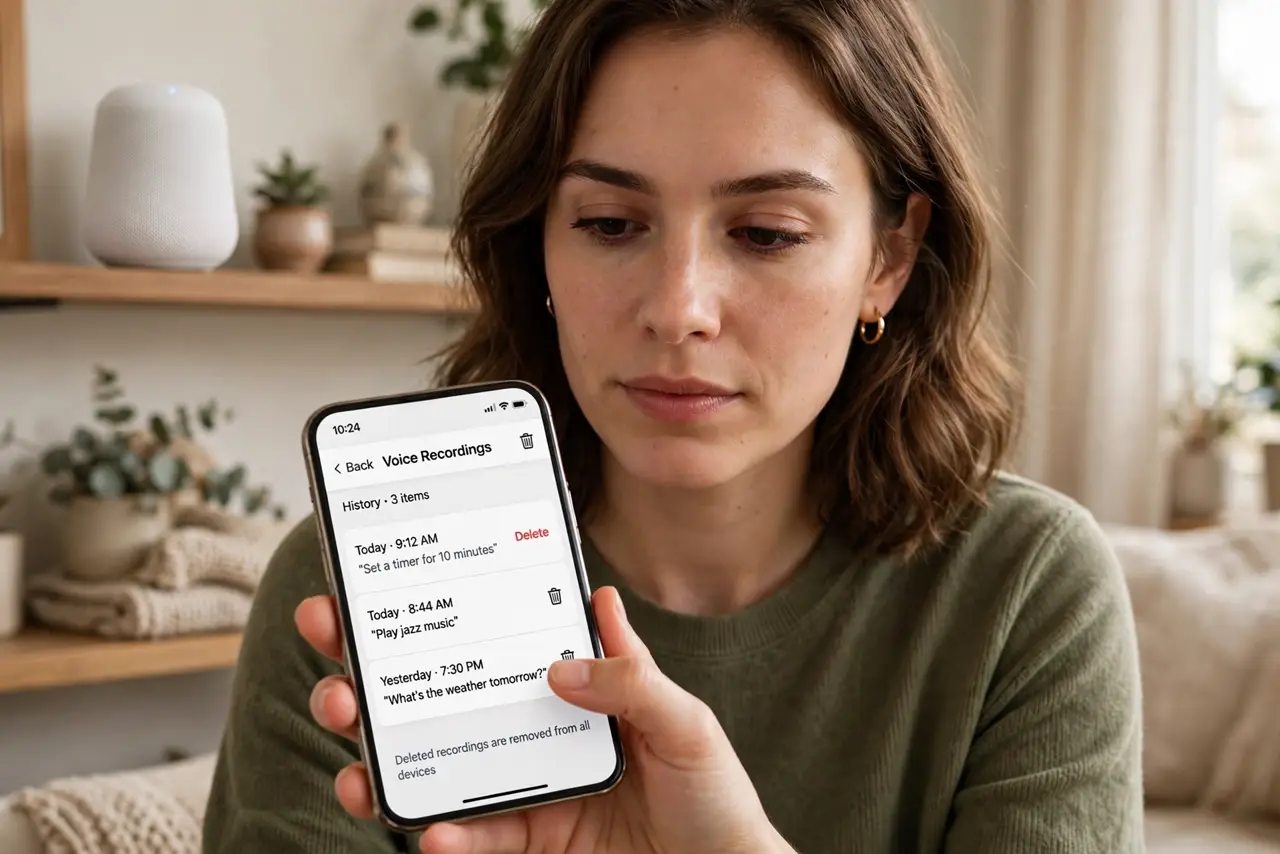
- Review your recordings. Listen to or read through recent entries. Most are mundane commands — the point is seeing the archive exists, in your voice.
- Delete what you do not need. Delete individual recordings or clear the whole history. Old commands have no ongoing value — they are just stored audio of your home.
- Turn on auto-delete. Set recordings to auto-delete after a few months. This is the set-and-forget fix that keeps the archive from growing forever.
- Opt out of human review. Decline any option that lets employees or contractors review recordings to improve the service. Your voice should not be training data by default.
- Mute the mic when idle. Use the hardware mute button for hours you never use voice commands. A muted mic records nothing at all.
What NOT to do
- Do not assume recordings vanish on their own. By default most assistants keep them until you delete or set auto-delete.
- Do not leave human review enabled. It is often opt-out, not opt-in — check and decline it deliberately.
- Do not discuss sensitive topics near an active speaker. Passwords, health issues, and arguments do not need a recording.
- Do not forget every device counts. Each speaker and display keeps its own history — audit them all, not just the kitchen one.
Frequently asked questions
Who can listen to my recordings?
Potentially the company's staff and contractors if human review is enabled — which is why opting out matters.
Does deleting history break the assistant?
No. It keeps working fine; it just loses the memory of past commands, which it never needed.
Can I stop recordings entirely?
You can minimize them with auto-delete and muting, but using voice commands inherently creates recordings. The mic button is the only full stop.