Webcam Cover vs Software Camera Shutter
A sliding webcam cover and a software camera shutter both promise privacy, but they work in very different ways. One is a physical guarantee; the other is a setting you have to trust — and the difference matters.
TL;DR / Quick Fix
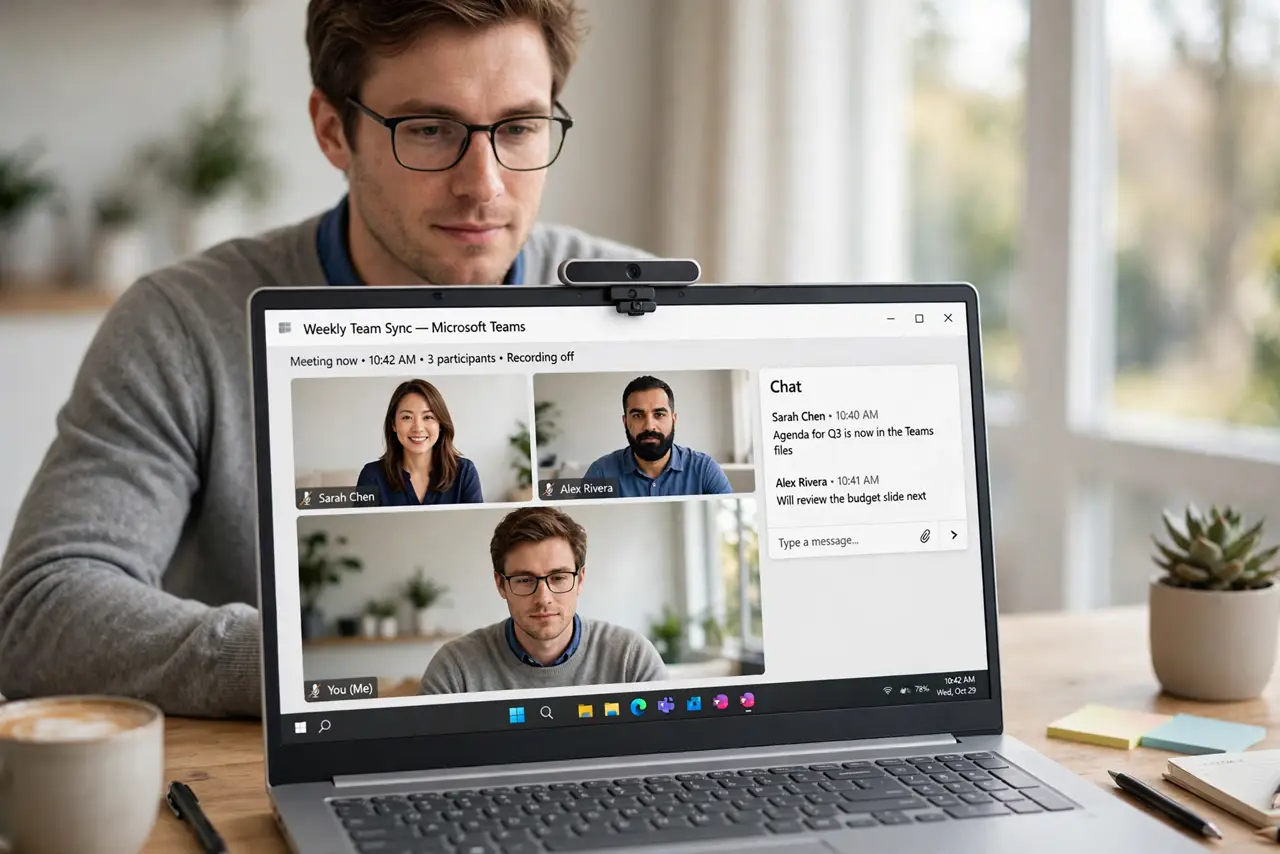
Quick fix: use a physical sliding cover for real peace of mind — it blocks the lens no matter what the software does. Use the software shutter or camera toggle as a convenience during calls, not as your only privacy protection.
Follow these steps
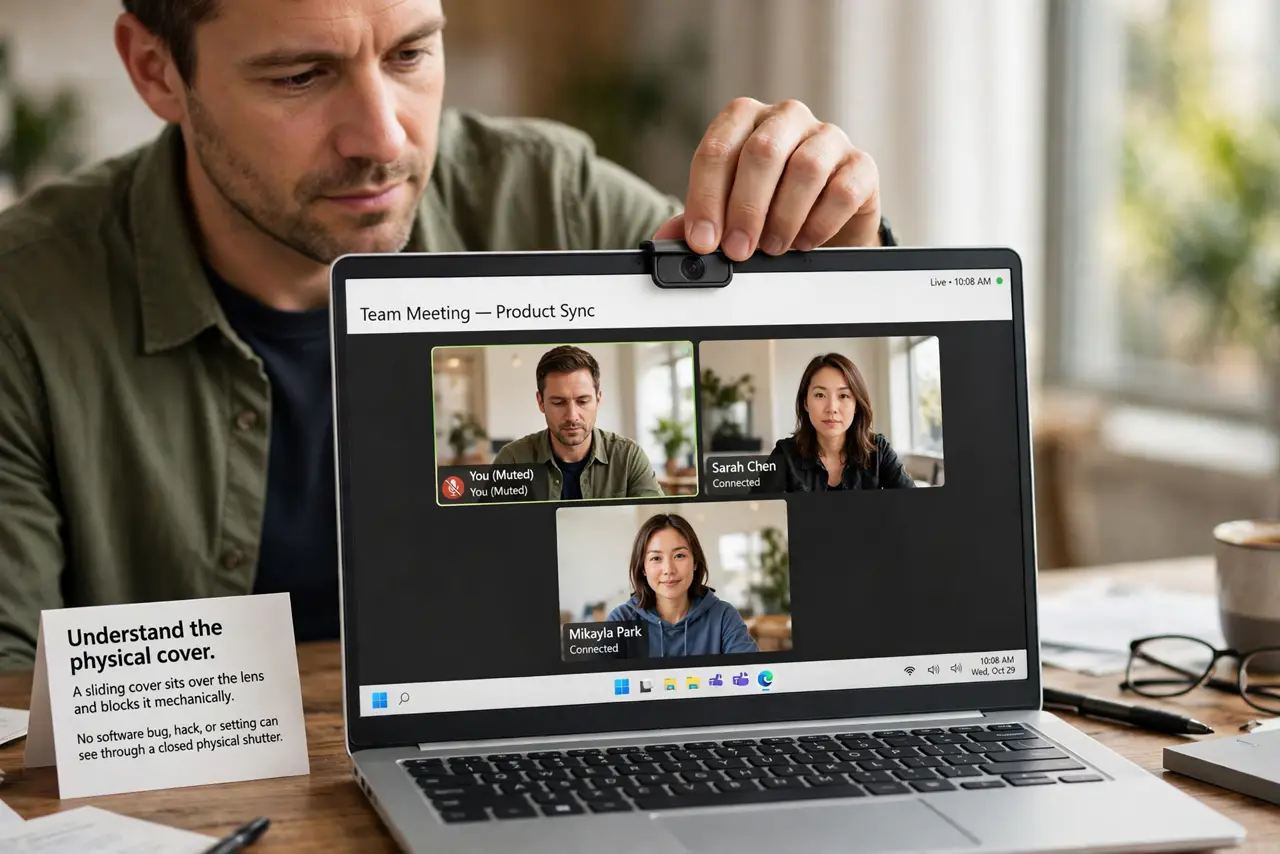
- Understand the physical cover. A sliding cover sits over the lens and blocks it mechanically. No software bug, hack, or setting can see through a closed physical shutter.
- Understand the software shutter. A software shutter tells the operating system or app to stop the camera feed. It is convenient, but it depends on software behaving correctly.
- Use the cover when the camera is idle. Slide the cover closed whenever you are not on a call. That one habit covers every app, update, and permission mistake at once.
- Use software controls during calls. During a meeting, the in-app camera toggle is the fast way to go dark between turns. Open the cover first, then use the toggle for moment-to-moment control.
- Check the indicator light habit. Most laptops light a small LED when the camera is active. If the light is on with no call running, check which app holds the camera — or see the guide for a camera that shows black in calls.
- Pick a cover that fits your laptop. Choose a thin slider made for your model so the lid still closes flat. A thick cover can crack the screen when the lid shuts.
What NOT to do
- Do not use tape as a permanent cover. Tape leaves residue on the lens area and looks unprofessional, while a slider costs little.
- Do not trust the software toggle as your only protection. It is one setting away from being wrong, while a physical cover cannot be overridden.
- Do not cover the microphone hole with the camera slider. Some sliders sit over the mic too, so check that your audio still works after installing one.
- Do not assume the camera is off because the app is minimized. Check the indicator light, since some apps keep the camera warm in the background.
Frequently asked questions
Is a webcam cover really necessary?
It is the simplest reliable privacy. Software controls are convenient, but only a physical cover cannot be overridden.
Does a cover damage the screen?
A thin slider made for your model is safe. Thick or misplaced covers can press on the screen when the lid closes.
What about the microphone?
A camera cover does not block the microphone. Mute in software, and check app microphone permissions separately.