Login Loops Back to Login? Fix It
A login loop means the site sets a session, then fails to read it back, so it asks you to sign in again. The cause is usually that site's cookies, the clock, or a blocker, and each has a quick test.
TL;DR / Quick Fix
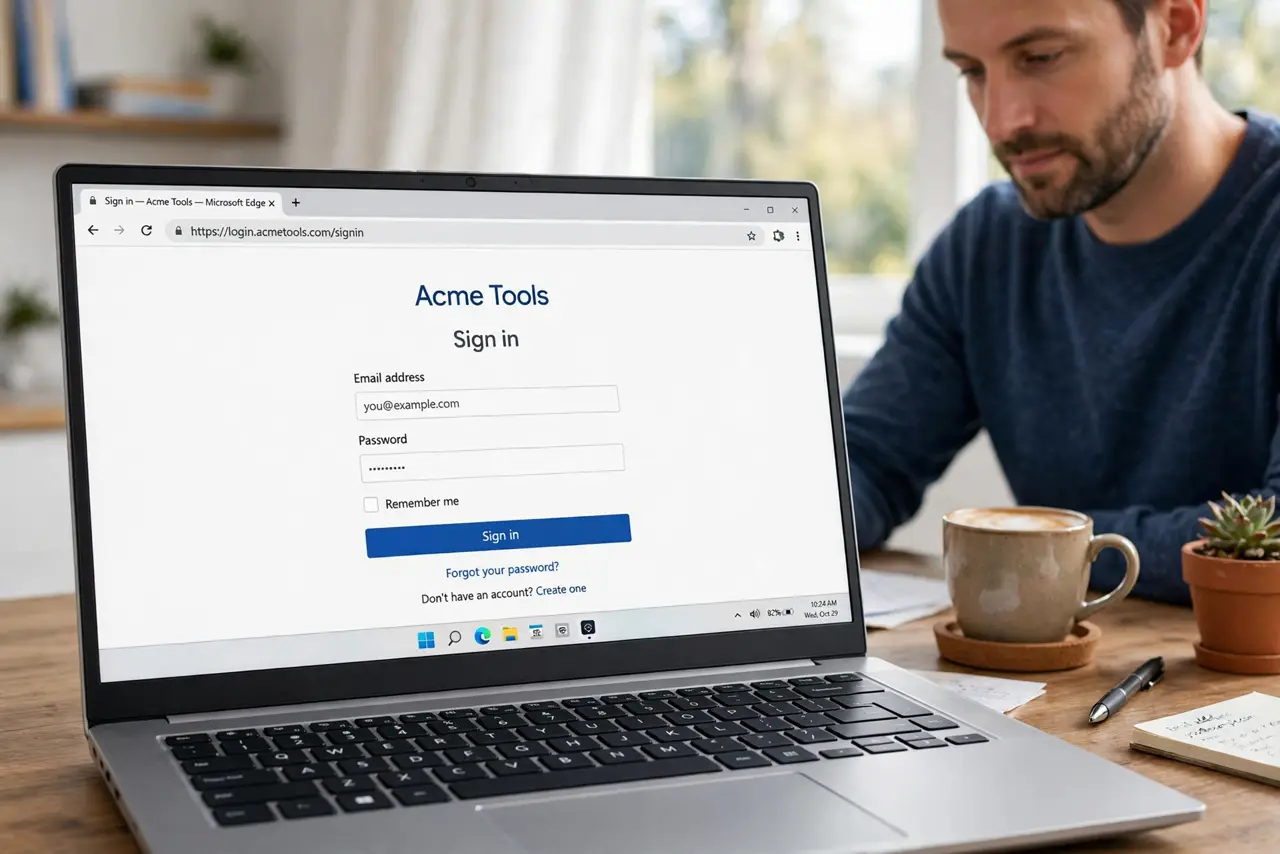
Quick fix: clear cookies for that site only, confirm the device clock is automatic and correct, and test the login in a private window. If it works there, an extension or stored data is causing the loop. Last, try another browser to confirm to confirm it.
Follow these steps
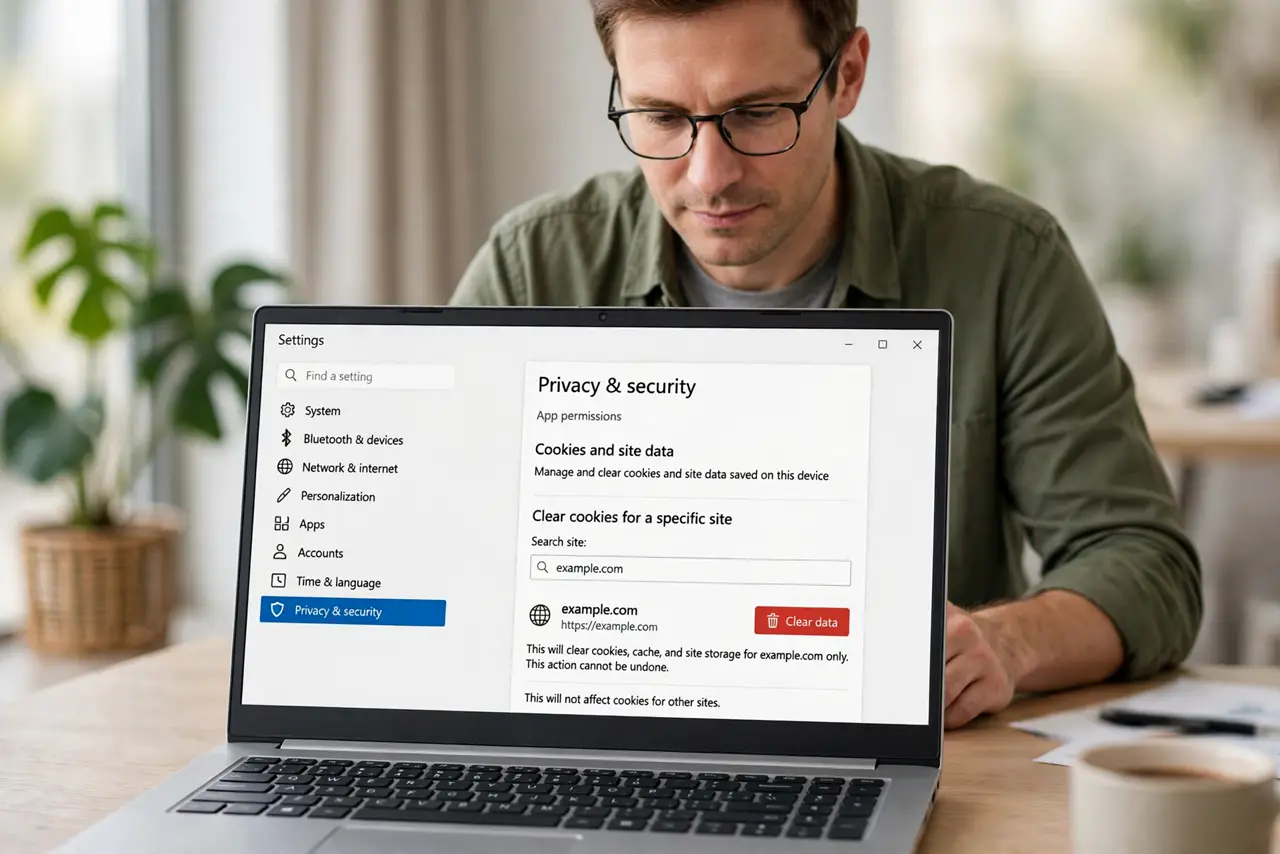
- Clear cookies for that site only. In browser settings, remove cookies and site data for that one address, then try signing in again. A damaged session cookie is the most common cause of a login loop.
- Test the login in a private window. Open a private window and sign in there. A successful login points to extensions or stored data in your normal window, not to your account.
- Disable content blockers for that site. Turn off ad blockers and privacy extensions for this site, then retry. A blocker that stops session cookies can loop the login forever.
- Check the device clock. Confirm the date, time, and time zone are set automatically and correct. Session cookies rely on time, and a wrong clock can make a fresh login look expired.
- Allow cookies for that site. In site settings, confirm cookies are allowed for this address. A global block, or a block for this site, prevents the session from sticking.
- Try another browser to confirm. Sign in from a different browser. A pass there confirms the first browser's settings were looping, and your account itself is fine.
What NOT to do
- Do not reset your password repeatedly for a loop. A loop is usually a cookie problem, and password resets will not fix it.
- Do not allow cookies for every site permanently. Allow them for the site you use, and keep the general setting stricter.
- Do not keep signing in dozens of times. After a few failures, clear the site data and test a private window instead.
- Do not sign in on a public computer to test a loop. Use your own device, so a test does not expose your account.
Frequently asked questions
Why does a site keep asking me to sign in?
It cannot read back the session it just set, usually because of a damaged cookie, a blocker, or a wrong device clock.
Will clearing site cookies sign me out elsewhere?
No, if you clear only that site. Other sites keep their own sessions.
Is my account broken when login loops?
Usually not. A successful login in a private window or another browser shows the account is fine.