2.4 vs 5 GHz? Plain Answer
Your router broadcasts two networks — one with 2.4G in the name, one with 5G — and nobody explained which to use. They are two radio bands with opposite strengths: 2.4 GHz reaches far and through walls but is slower and crowded; 5 GHz is fast but fades quickly with distance. Picking the right one per device is free speed. Here is the simple rule.
TL;DR / Quick Fix
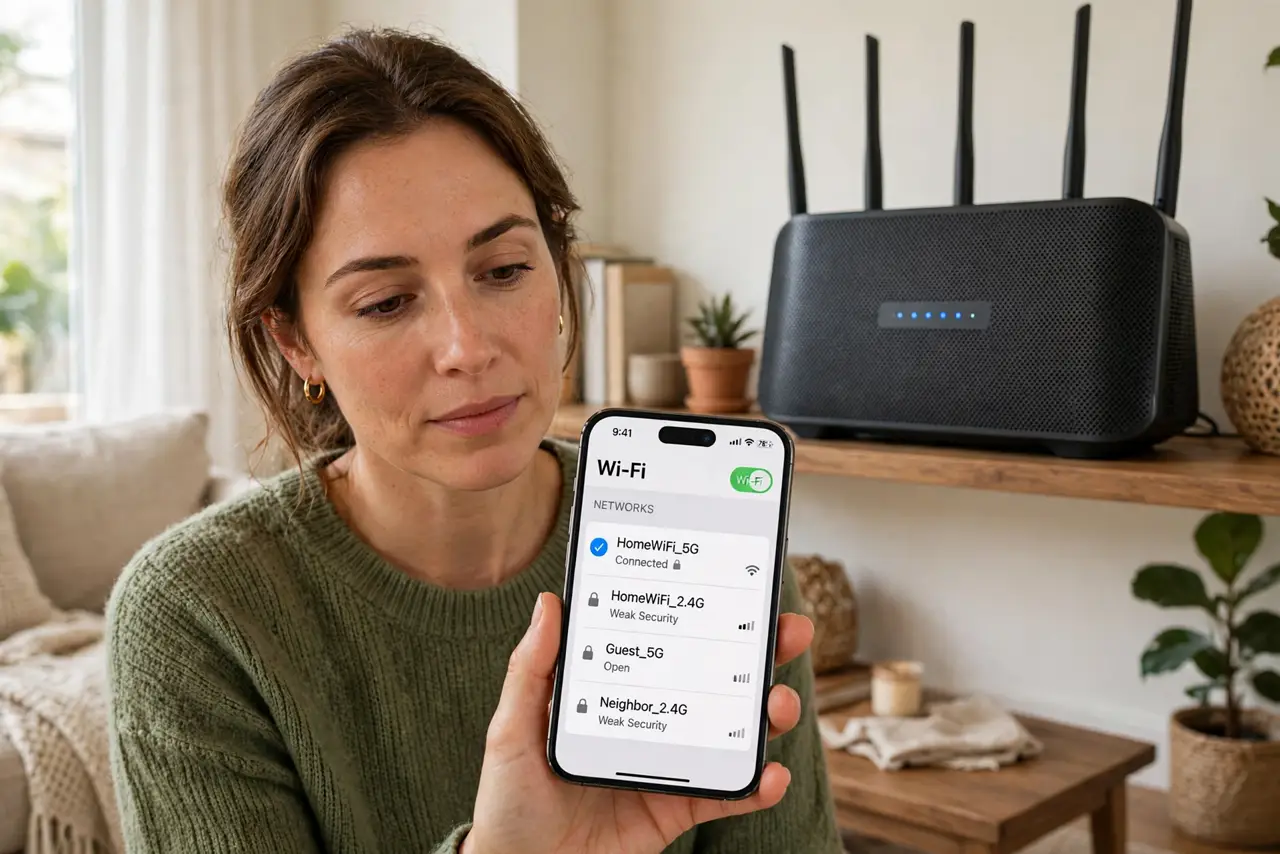
Quick fix: use 5 GHz for speed near the router — phones, laptops, streaming in the same room. Use 2.4 GHz for range — smart gadgets, garage gear, far rooms. If your router merges both into one name, let it steer automatically; split them only if a device picks wrongly.
Follow these steps
- Understand the tradeoff. 2.4 GHz travels farther and through walls but tops out slower and shares airspace with microwaves and Bluetooth. 5 GHz is much faster with less interference but fades after a wall or two. Range versus speed — that is the entire decision.
- Put speed-hungry devices on 5 GHz. Laptops, phones, and TVs near the router belong on 5 GHz — video calls and 4K streaming need its bandwidth. If the device shows both network names, pick the 5G one when you are in the same room as the router.
- Put far and simple devices on 2.4 GHz. Smart bulbs, thermostats, garage openers, and anything two rooms away work better on 2.4 GHz. Many smart home gadgets only support 2.4 GHz anyway — they were designed for range, not speed.
- Know about the merged single name. Many modern routers broadcast one network name and steer each device to the best band automatically. This usually works well — check your router placement first if speeds disappoint, since band choice cannot fix a bad location.
- Split the bands when steering fails. If a device stubbornly clings to slow 2.4 GHz next to the router, give the bands separate names (like Home-5G) in router settings and connect manually. Separate names also fix smart gadgets that choke during setup on merged networks.
- Don't obsess — coverage first. Band choice is optimization, not magic. A well-placed router on the 'wrong' band beats a badly placed one on the 'right' band. Get placement and channels right first.
What NOT to do
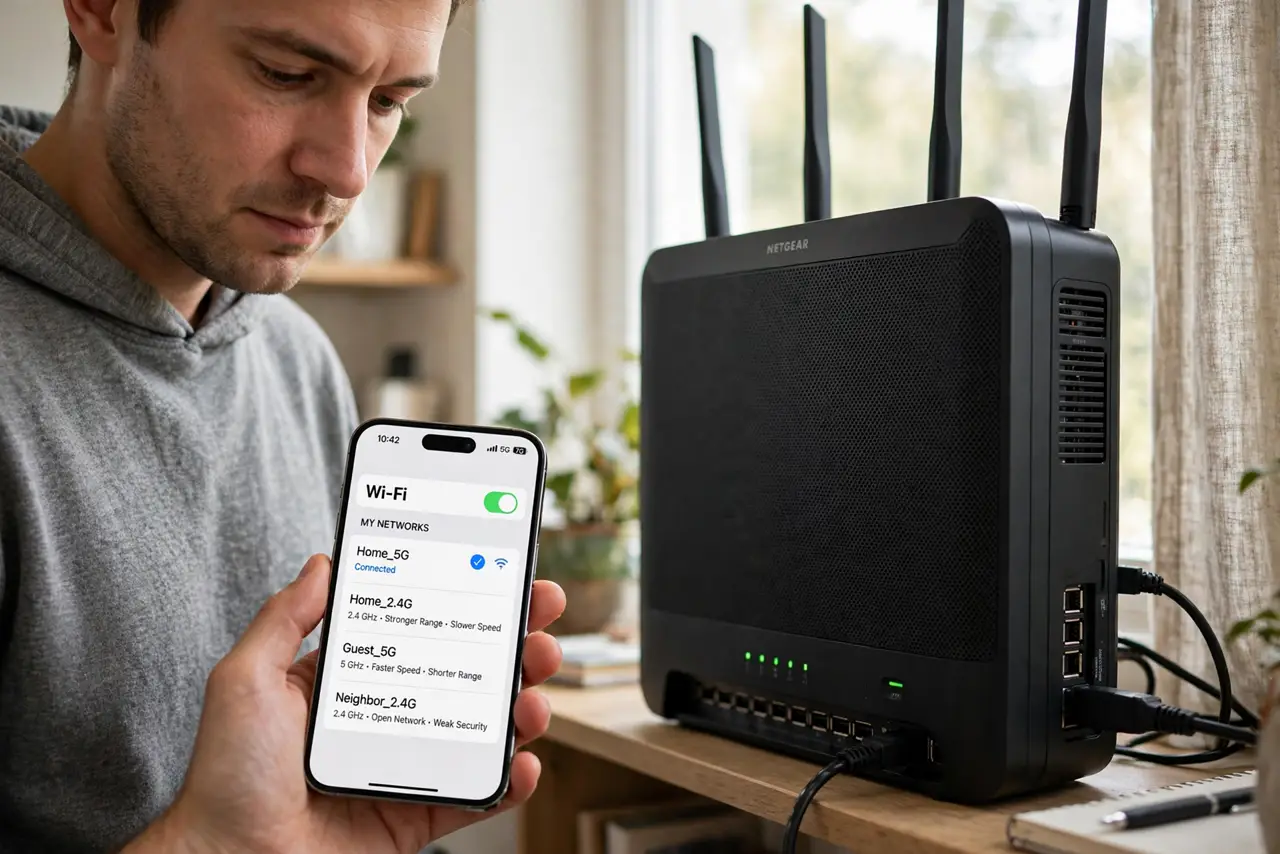
- Do not disable 2.4 GHz to 'force' everything onto 5 GHz. Your smart home gadgets likely need 2.4 GHz — you will break them, not speed them up.
- Do not expect 5 GHz through three walls. Its range is physics, not a setting — far rooms need 2.4 GHz or a mesh node.
- Do not rename bands identically and differently at random. Pick one strategy — merged with steering, or split with manual choice — and stick with it.
- Do not blame the band for ISP slowness. If both bands crawl at 3 AM, the internet plan or line is the problem, not the radio.
Frequently asked questions
Which is better for gaming?
5 GHz, when close to the router — lower latency and higher throughput. Far from the router, a stable 2.4 GHz connection beats a flaky 5 GHz one; stability matters more than peak speed.
Why do smart devices demand 2.4 GHz?
Their tiny radios and low data needs suit 2.4 GHz's range, and the chips are cheaper. It is a design choice, not a flaw — give them their 2.4 GHz network and they are happy.
What about 6 GHz / Wi-Fi 6E?
A third, even faster but shorter-range band on newer routers. Same logic applies: great in the same room, useless through walls. See the Wi-Fi 6E basics if your router offers it.