Fix AirPlay Discovery
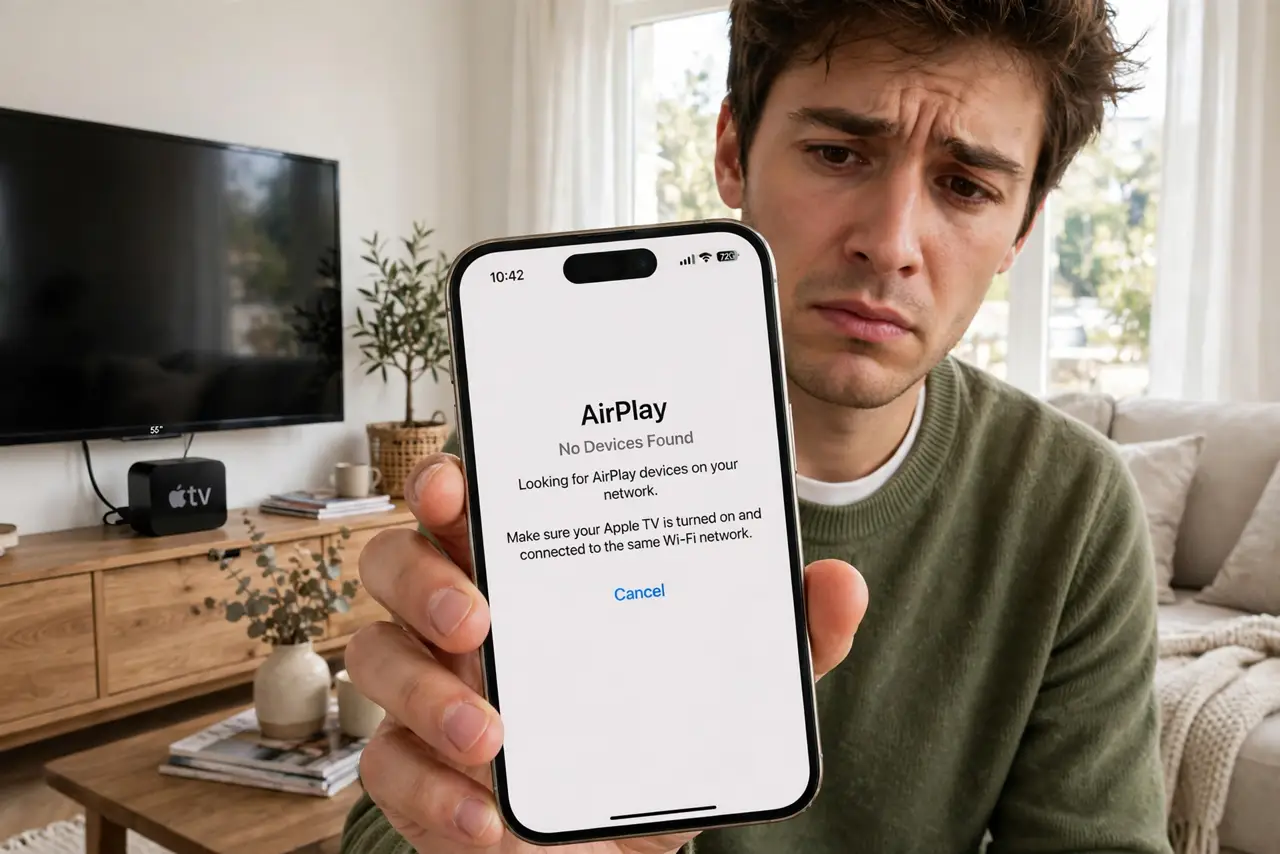
You tap the AirPlay button and your Apple TV or speaker is simply not there — though it was yesterday, and the Wi-Fi is fine. AirPlay discovery is fussy about network details: bands, isolation, and VPNs all break it silently. This guide fixes discovery in order of likelihood, from the thirty-second checks to the router settings. For the Chromecast version of this dance, see how to fix Chromecast discovery.
TL;DR / Quick Fix
Quick fix: put the iPhone and the AirPlay target on the same Wi-Fi band — discovery often fails across 2.4 and 5 GHz. Turn off any VPN on the phone, restart both devices, and check the router is not isolating clients. These cover nearly every case.
Follow these steps
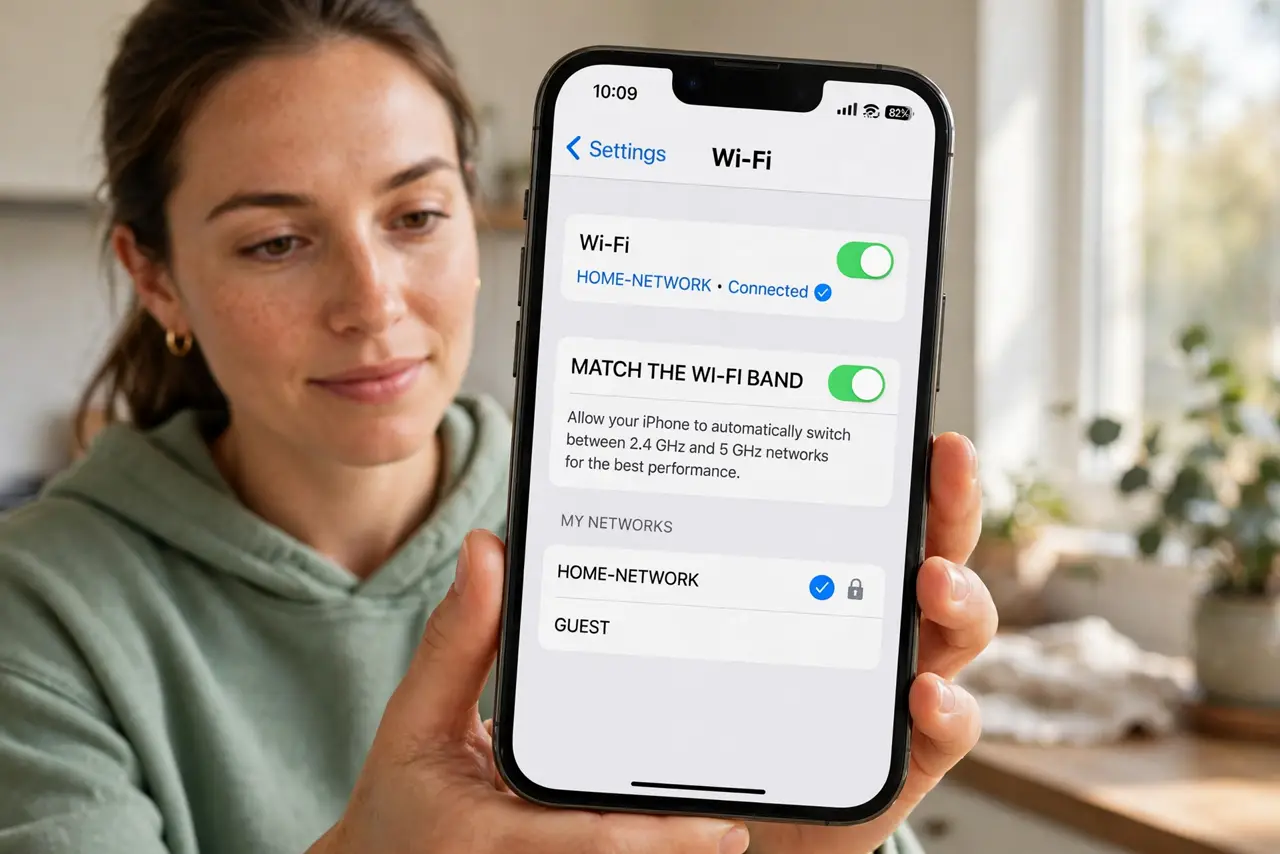
- Match the Wi-Fi band. Put your iPhone on the same band as the Apple TV or speaker. AirPlay discovery frequently fails when the phone is on 5 GHz and the target on 2.4 GHz — same-band fixes most cases.
- Disconnect the VPN. A VPN on the iPhone hides it from the local network, which kills discovery completely. Disconnect, AirPlay, reconnect — the standard dance.
- Restart both ends. Restart the iPhone and power-cycle the Apple TV or speaker. Stale discovery caches are the classic 'it worked yesterday' cause.
- Check client isolation. In the router settings, ensure AP/client isolation is off on your main network. Isolation is for guest networks; on the main network it breaks AirPlay.
- Update everything. Update iOS, tvOS, and the speaker firmware. Apple fixes discovery bugs regularly, and mismatched versions cause subtle failures.
- Re-add the device if needed. As a last resort, remove the Apple TV or speaker from the Home app and add it back. Fresh pairing resolves the stubborn cases.
What NOT to do
- Do not leave the VPN on and wonder why AirPlay fails. The VPN is the cause more often than anyone expects — disconnect first.
- Do not put AirPlay targets on the guest network. Guest isolation exists to prevent exactly this kind of device discovery.
- Do not ignore band steering weirdness. If the phone roams bands, discovery flickers — a fixed band during movie night helps.
- Do not factory-reset the Apple TV first. Network checks take minutes; a reset and re-setup takes much longer.
Frequently asked questions
Why does AirPlay vanish after working fine?
Usually the phone roamed to a different band or a VPN connected. Both are transient — the checklist restores it in minutes.
Can I AirPlay without Wi-Fi?
Peer-to-peer AirPlay works between recent Apple devices without a Wi-Fi network, but it is finicky — a real network is more reliable.
Does AirPlay work to non-Apple TVs?
Many smart TVs now support AirPlay 2. They follow the same discovery rules — same band, no isolation, no VPN.