Change Your Wi-Fi Channel?
Your Wi-Fi crawls every evening while the router insists the signal is strong. In apartments and dense neighborhoods, dozens of routers shout over each other on the same channel — and yours might be one of them. Switching to a quieter channel is free, takes five minutes in the router settings, and often fixes evening slowdowns. Here is how to pick the right one.
TL;DR / Quick Fix
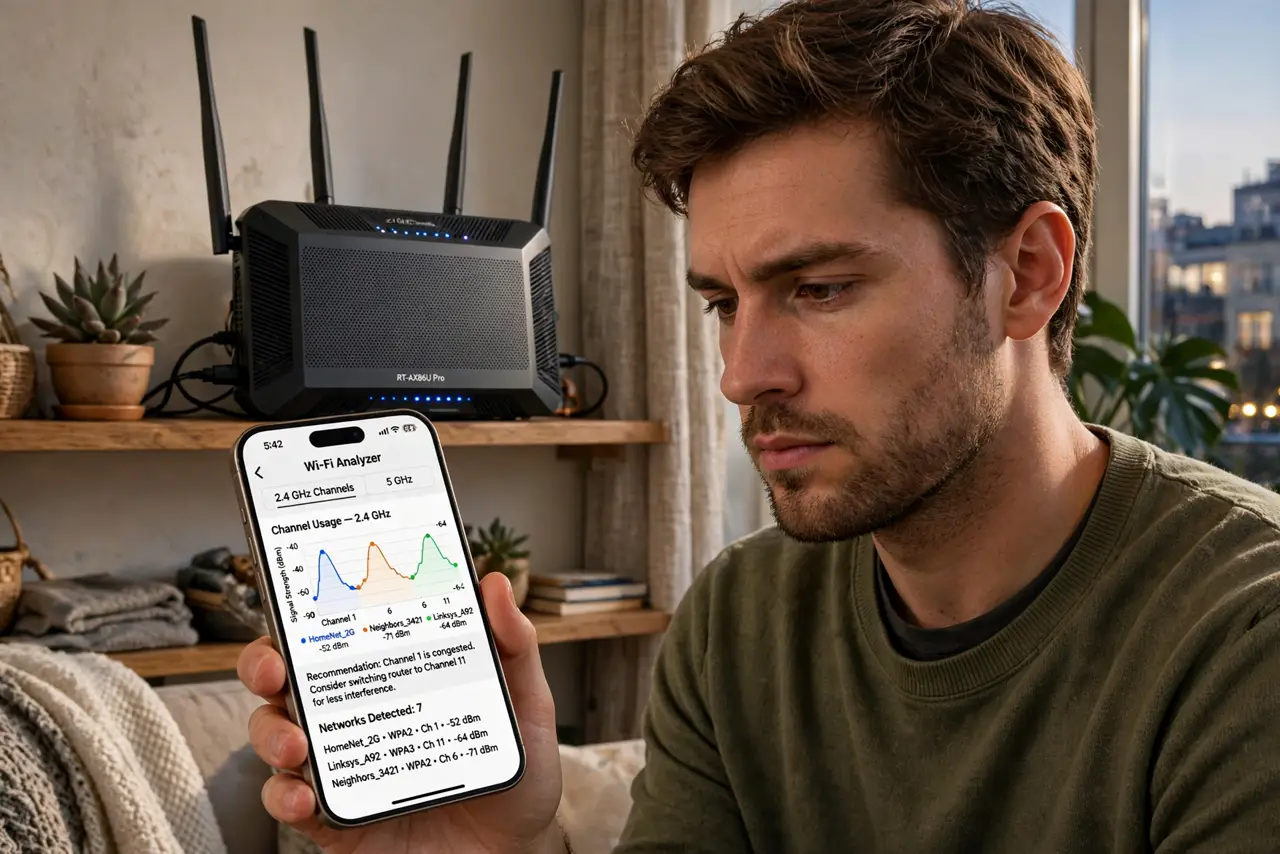
Quick fix: crowded Wi-Fi channels cause slowdowns even with strong signal, especially in apartments. Use a free Wi-Fi analyzer app to find the least-used channel, then change it in your router's wireless settings — channels 1, 6, or 11 on 2.4 GHz. Test speeds after; the evening crawl often disappears.
Follow these steps
- Confirm congestion is the problem. Slowdowns at peak evening hours with full signal bars point to congestion, not weak signal. If it is slow at 3 AM too, look elsewhere — placement or your internet plan. Apartment congestion follows a schedule; dead zones do not.
- Scan for the quietest channel. Install a free Wi-Fi analyzer app on your phone and stand where you use Wi-Fi most. It shows every nearby network and its channel — pick the emptiest among 1, 6, and 11 on 2.4 GHz. These three do not overlap, which is why the choice is limited to them.
- Log in to your router. Open a browser to your router's address (often 192.168.1.1 or 192.168.0.1 — check the sticker underneath). Log in with the admin password, not the Wi-Fi password. If you never changed it, change it now — default credentials are a security hole.
- Change the 2.4 GHz channel. Find Wireless Settings → 2.4 GHz → Channel, switch from Auto to your chosen channel (1, 6, or 11), and save. The router may reboot briefly. Auto sounds smart but often parks everyone on the same crowded channel — manual wins in dense areas.
- Check the 5 GHz band too. 5 GHz has many more channels and less crowding, so it usually needs no help — but verify it is enabled and your devices use it nearby. Also check the channel width setting: wider is faster but more interference-prone in apartments.
- Re-test and note what worked. Run speed tests at the same spot and time of day as before. Write down the winning channel — neighbors change routers and the best channel shifts over months. Re-scan if the evening crawl returns.
What NOT to do
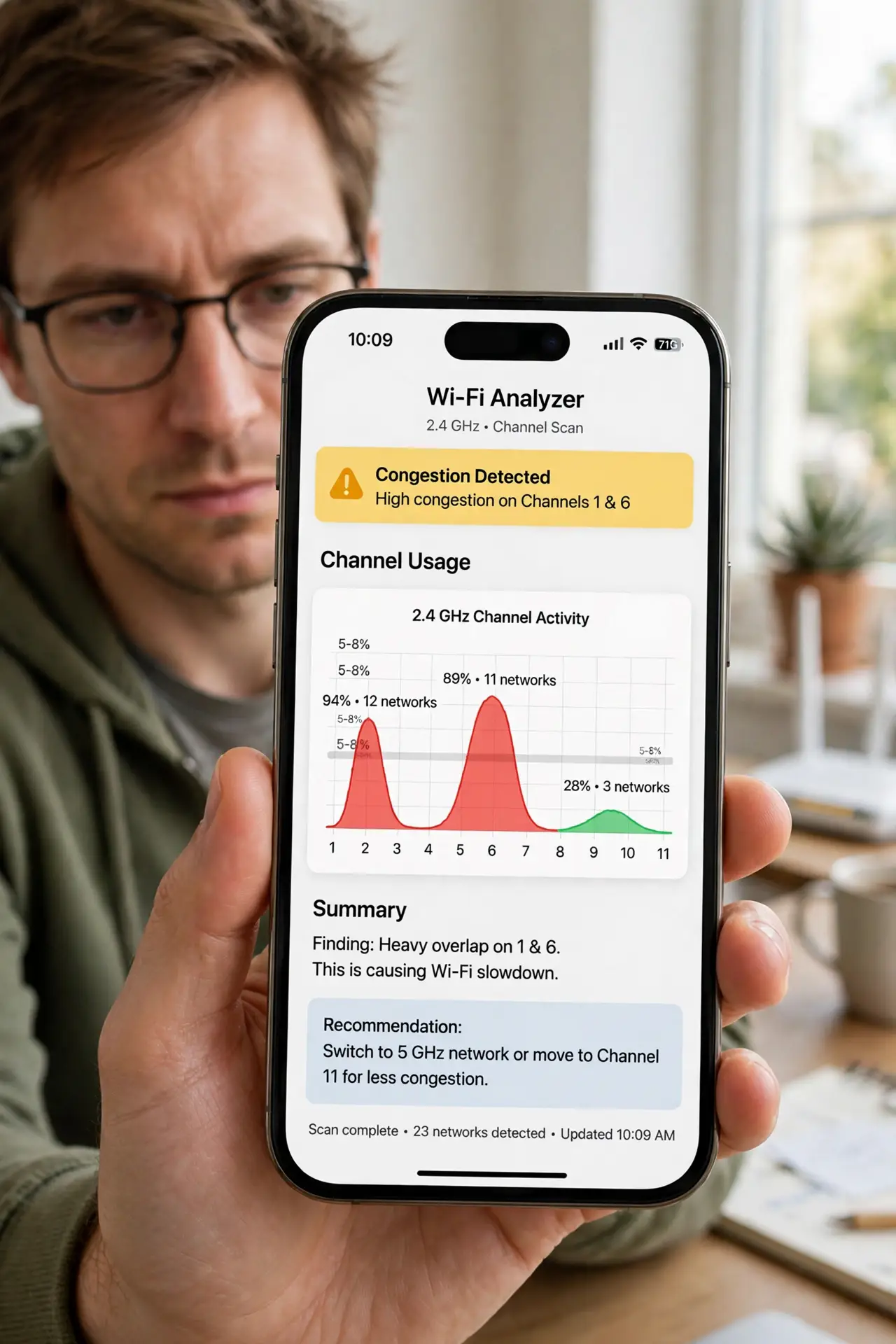
- Do not pick a random channel like 3 or 8. Overlapping channels interfere with 1, 6, AND 11 — a 'unique' middle channel is worse than sharing a standard one.
- Do not change both bands' channels at once. Change 2.4 GHz, test, then touch 5 GHz only if needed — otherwise you will not know what fixed it.
- Do not forget to save and reboot. Many routers need an explicit Save/Apply plus a restart; closing the tab without saving changes nothing.
- Do not use the ISP's remote admin app blindly. Some 'optimize' features just re-enable Auto channel — verify the channel stuck after any auto-optimization.
Frequently asked questions
What is the best Wi-Fi channel?
Whichever of 1, 6, or 11 is least used around you — it varies by location, which is why scanning matters. There is no universal best; there is only the quietest near you.
Will this help my 5 GHz network?
Rarely needed — 5 GHz has plenty of channels and shorter range means fewer competing networks. If 5 GHz is slow, placement or band steering settings are likelier culprits.
How often should I re-check channels?
Every few months, or when slowdowns return. New neighbors and new routers reshuffle the airwaves; a two-minute rescan keeps you on the quiet channel.