Wi-Fi Connects but No Internet? Fix It
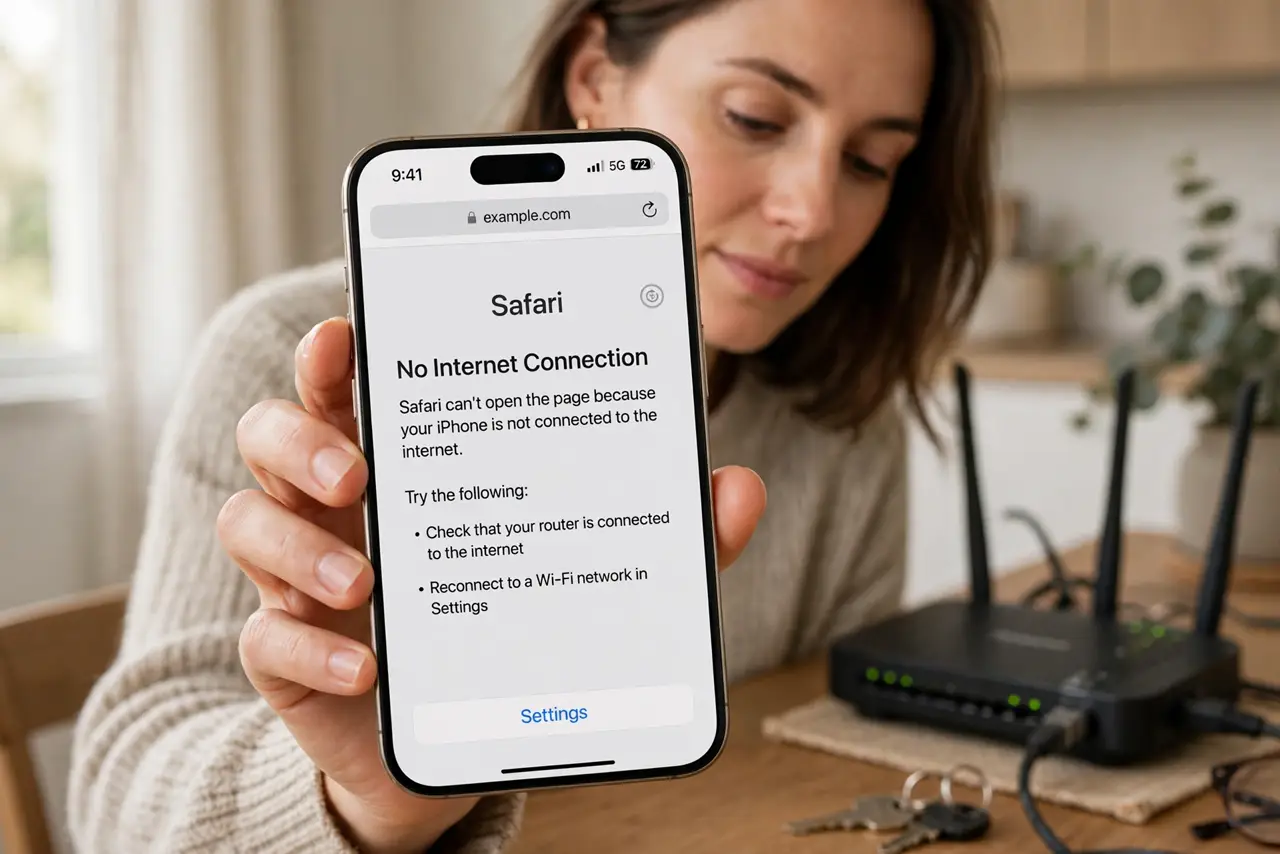
The phone shows full Wi-Fi bars, yet pages never load and apps say no connection. Connecting to Wi-Fi only joins the local network, and the router itself may have no internet to share.
TL;DR / Quick Fix
Quick fix: test a second device on the same Wi-Fi to see whether the outage affects everything. Then restart the router, forget and rejoin the network on the device, and check with your provider for a known outage. Write down what worked for next time.
Follow these steps
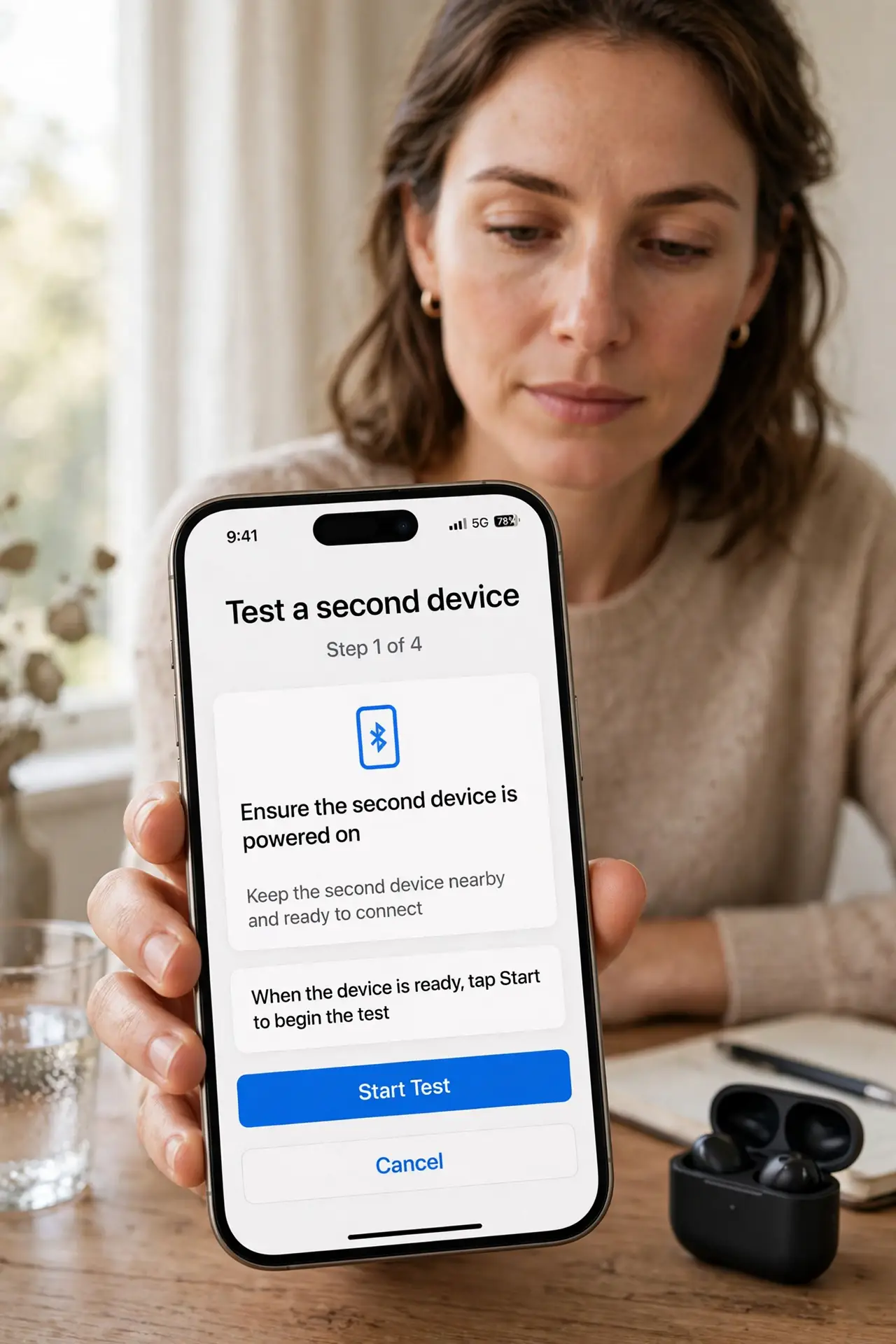
- Test a second device. Connect a second device to the same Wi-Fi and try a web page. If both fail, the router or line is at fault, not the first device.
- Restart the router properly. Unplug the router, wait thirty seconds, and plug it back in, then wait for its lights to settle. A proper restart reconnects the router to your provider.
- Forget the network and rejoin. On the device, forget the Wi-Fi network and join it again with the password. A stale device connection can show full bars with no working internet behind it.
- Check the router lights and cables. Look for the internet light on the router and confirm its cables are firmly plugged in. A loose cable or a red internet light means the router itself lost the line.
- Check for a provider outage. Check your provider outage page on mobile data, or ask a neighbor on the same provider. An area outage explains a sudden no-internet problem on every device.
- Contact your provider with details. If restarts and rejoins fail, contact your provider and report the router lights, the cables you checked, and that every device fails. Those details speed up their diagnosis.
What NOT to do
- Do not keep rejoining the same network repeatedly. One clean forget and rejoin is a test, while endless rejoins waste time and hide the pattern.
- Do not reset the router before a simple restart. A reset wipes your Wi-Fi settings, while a restart only reconnects the router.
- Do not assume full Wi-Fi bars mean internet. Bars only measure the link to the router, not the router link to the internet.
- Do not pay for a repair visit before checking for an outage. An area outage is free for the provider to fix, and a visit cannot fix it faster.
Frequently asked questions
Why do I have full bars but no internet?
Bars measure the link to the router only. If the router lost its internet line, devices still show full bars with nothing behind them.
Does restarting the router really help?
Yes. It reconnects the router to your provider and clears a stuck connection state.
How do I know if it is an outage?
Check the provider outage page on mobile data, or see whether neighbors on the same provider are also offline.