Map Your Wi-Fi Dead Zones
'The Wi-Fi is bad in the bedroom' is a feeling, not a diagnosis — and feelings lead to buying gadgets that fix the wrong room. A dead-zone map turns the feeling into numbers: walk the house with a free analyzer app, record the actual signal in each room, and you will see exactly where coverage dies and where it is merely weak. Then every fix — moving the router, adding an access point — targets the real problem. Learn to read the signal numbers first so the map means something.
TL;DR / Quick Fix
Quick fix: walk room to room with a Wi-Fi analyzer app, noting the signal reading in each spot — numbers reveal exactly where coverage dies. Sketch the weak rooms, then fix the worst one first by repositioning the router or adding an access point. Guessing wastes money; measuring does not.
Follow these steps
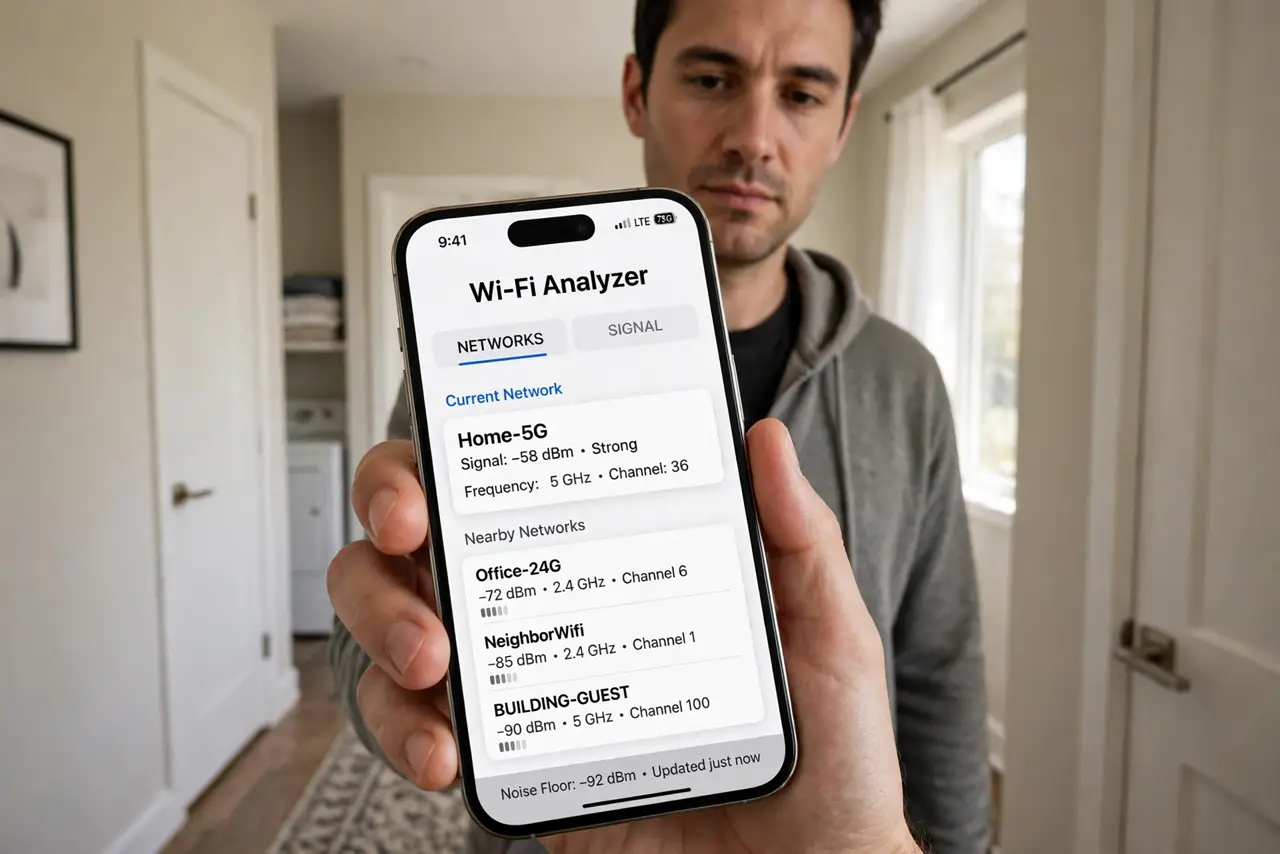
- Install a Wi-Fi analyzer app. Free analyzer apps on iPhone and Android show live signal strength in dBm as you move. Pick one with good reviews — you need numbers, not just bars.
- Walk every room slowly. Stand in each room for 20–30 seconds and note the reading near where you actually use devices — the couch, the desk, not the doorway. Signal changes with small movements, so be patient.
- Record readings on a floor sketch. Draw a rough floor plan and write the number in each room. Color the weak ones red — the map makes the pattern obvious in a way memory never does.
- Identify the pattern. Dead far bedroom plus weak hallway equals distance; dead spots behind a bathroom or kitchen equal walls and pipes; random dead corners equal interference. The pattern names the fix.
- Fix the worst zone first. One change at a time: move the router more central, or add an access point wired to the worst area. Re-measure after each change — the map proves what worked.
- Re-map after any fix. Walk the route again with the analyzer. Coverage should improve in the target zone without new dead spots elsewhere — if a new dead zone appeared, the fix needs adjusting.

What NOT to do
- Do not buy a mesh system before mapping. A map might show the router just needs moving — a free fix beats a 300-dollar guess.
- Do not measure only once, in one spot. Signal varies by position and time — a single doorway reading is not a map.
- Do not trust the phone's Wi-Fi bars. Bars are vague and uncalibrated — dBm numbers from an analyzer are the real measurement. See what RSSI means for the scale.
- Do not 'fix' a dead zone by cranking router transmit power. More power rarely reaches through the real obstacle — and it can worsen interference for neighbors.
Frequently asked questions
What counts as a dead zone?
Roughly: -30 to -50 dBm is excellent, -50 to -65 is fine, -65 to -75 is weak, and worse than -75 is effectively dead for real use. The map turns these numbers into geography.
Do 5 GHz and 2.4 GHz map differently?
Yes — map both. 5 GHz is faster but dies sooner through walls; 2.4 GHz reaches further. A room dead on 5 GHz may be fine on 2.4 GHz, which changes the fix.
How often should I re-map?
After any network change, and yearly otherwise. New furniture, new neighbors' routers, and new gadgets all reshape the map quietly.