Prioritize a Device? Basics
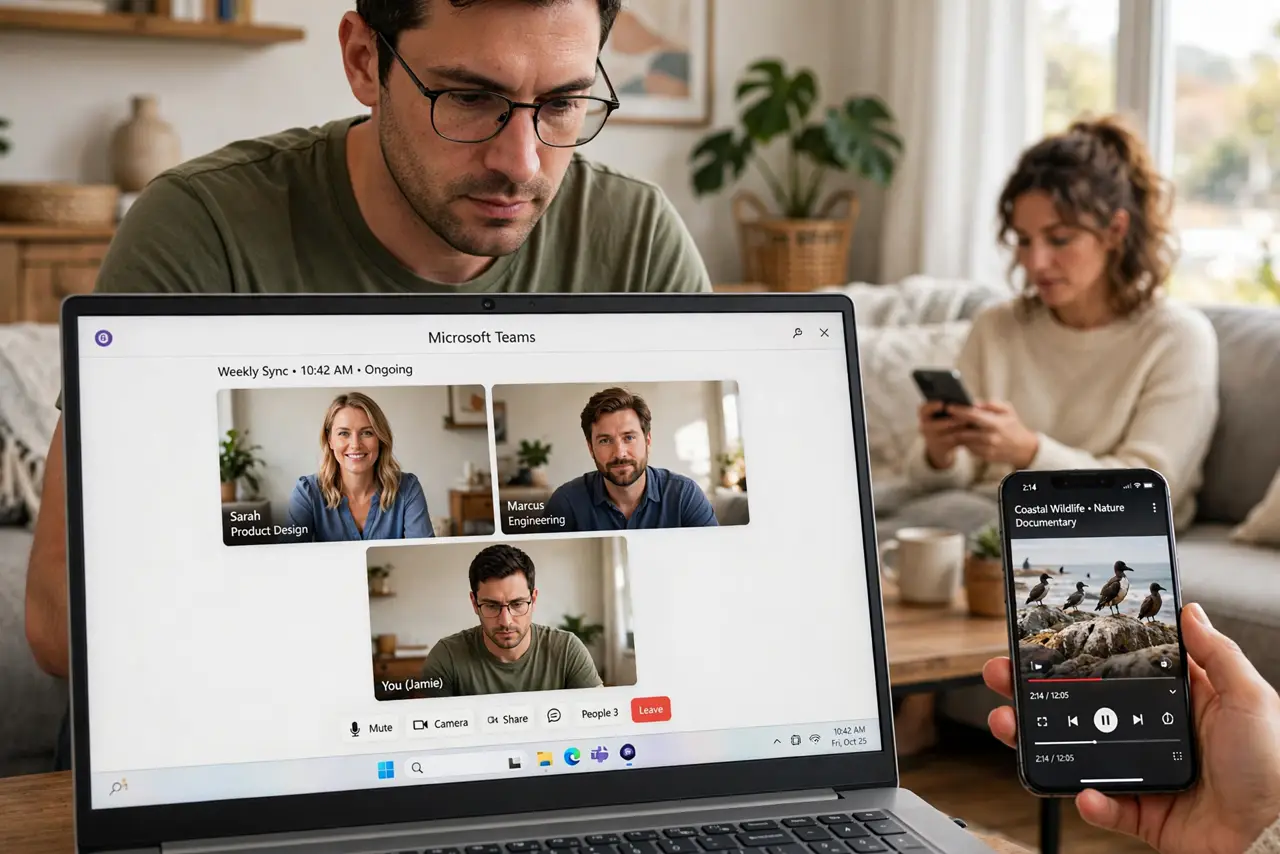
When the whole house is online, one device can hog the Wi-Fi and leave your video call stuttering. Most routers have a priority feature — often called QoS — that lets you put one device first in line for bandwidth. It does not create speed out of thin air, but it stops a background download from ruining your meeting. Here is how to set it up.
TL;DR / Quick Fix
Quick fix: log into your router's admin page and look for QoS, Device Priority, or Media Prioritization. Add your work laptop or streaming device and set it to High. Save and reboot the router. Your prioritized device gets first claim on bandwidth during congestion.
Follow these steps
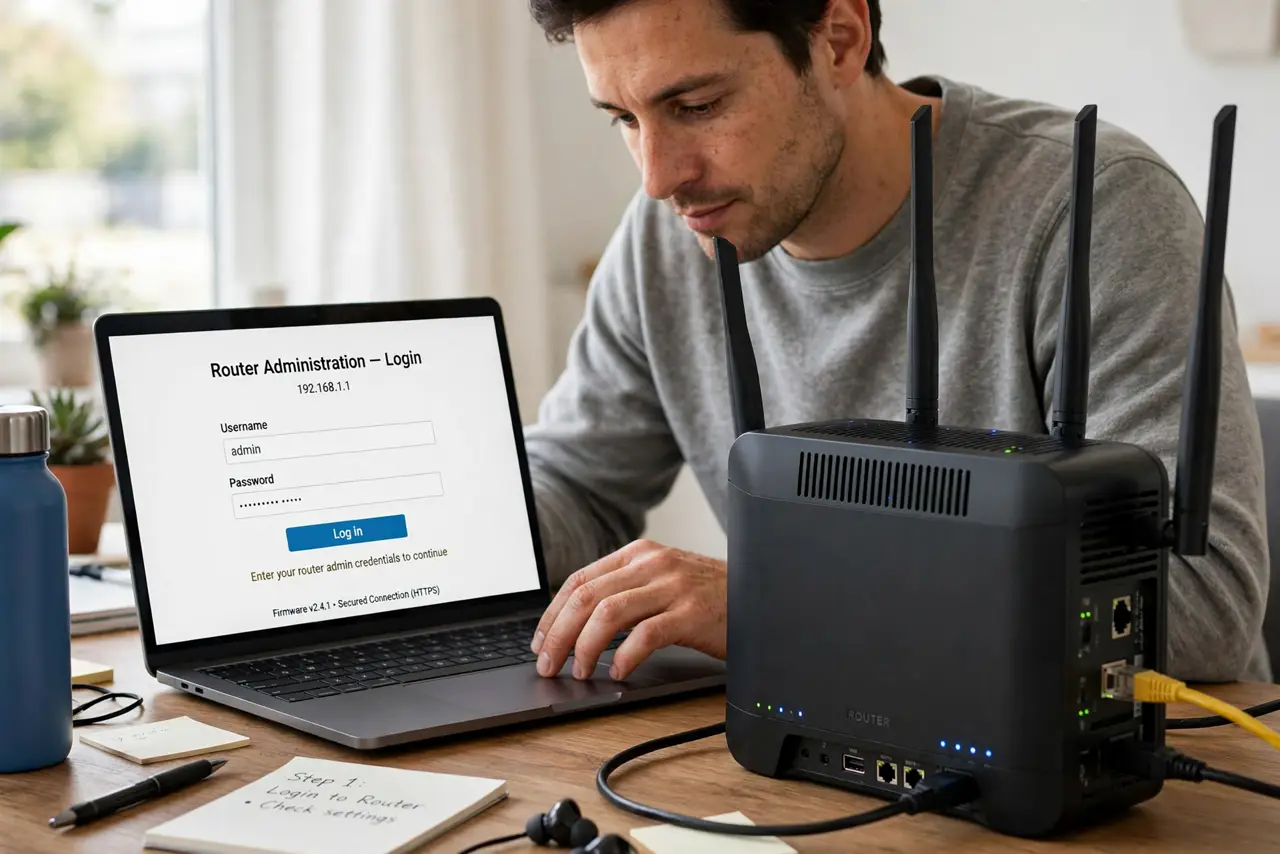
- Log into your router. Open a browser and enter your router's address — usually 192.168.1.1 or 192.168.0.1. Sign in with the admin password on the router's label. If you have never changed it, this is also the moment to fix that default password.
- Find the priority or QoS section. Look for QoS, Device Priority, Traffic Control, or Media Prioritization — the name varies by brand. It is usually under Advanced or Traffic settings. Some mesh systems put it in their phone app instead.
- Add your device to the list. Select your device from the connected-devices list — pick the work laptop or the TV, not the phone idly syncing photos. Set its priority to High. The router identifies devices by name or MAC address.
- Choose what to prioritize, if asked. Some routers prioritize by device, others by application — video calls and gaming first, downloads last. Application-based QoS is smarter when one person does everything on one laptop.
- Save and reboot the router. Apply the settings and restart the router so the new rules take effect cleanly. Test with a video call while someone else streams — the call should stay smooth now.
- Remove the rule when life changes. Priority rules are meant to be temporary. When the big project ends or the house empties, delete the rule so one forgotten setting does not starve everything else forever.
What NOT to do
- Do not expect priority to fix a slow plan. QoS divides the pie fairly — it cannot bake a bigger one if your internet is simply too slow.
- Do not prioritize everything. If every device is High priority, none of them is — pick one or two that truly matter.
- Do not leave stale rules in place. A rule set for last year's setup silently punishes today's devices.
- Do not confuse QoS with parental controls. Priority manages bandwidth; bedtime blocking is a different feature for a different job.
Frequently asked questions
Will prioritizing my laptop slow other devices?
Only during congestion. When bandwidth is plentiful, everyone gets full speed. Priority only matters when devices compete — then the prioritized one wins.
My router has no QoS option — now what?
Budget routers sometimes hide it or lack it entirely. A router upgrade is the real fix; scheduling big downloads for off-hours is the free workaround.
Is device priority the same as a faster plan?
No. Priority manages the speed you already pay for. If even the prioritized device struggles, the plan itself is the bottleneck.