Prioritize Your Console
Mid-match, the game freezes — someone started a 4K stream, the cloud backup kicked in, and your console lost the bandwidth war. Your router can play favorites: quality-of-service rules give gaming traffic first dibs on the connection, so the match stays smooth while everything else waits its turn politely.
TL;DR / Quick Fix
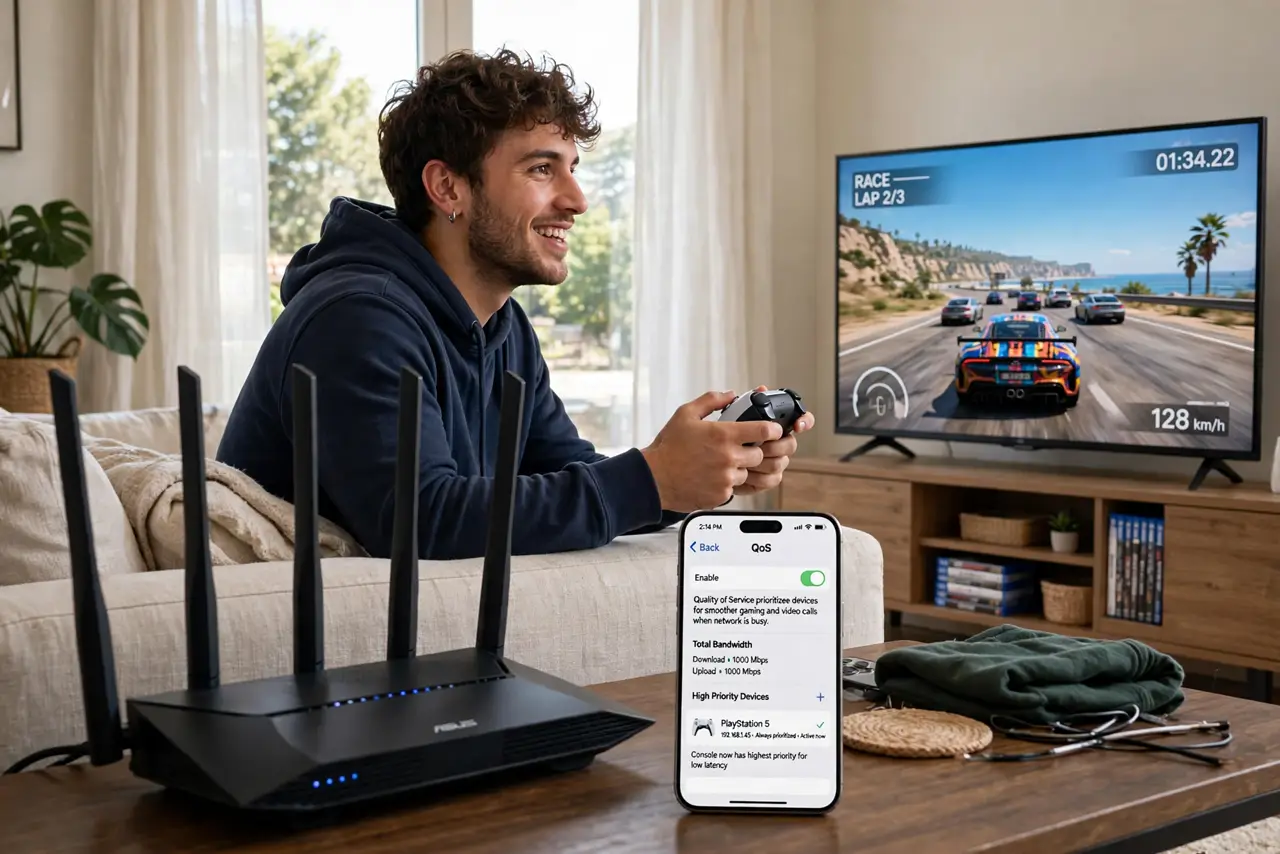
Quick fix: in your router settings, find QoS or traffic prioritization and set your console as the highest-priority device. Give gaming traffic priority over streaming and downloads. Test with a match while someone streams — the lag spikes should be gone.
Follow these steps
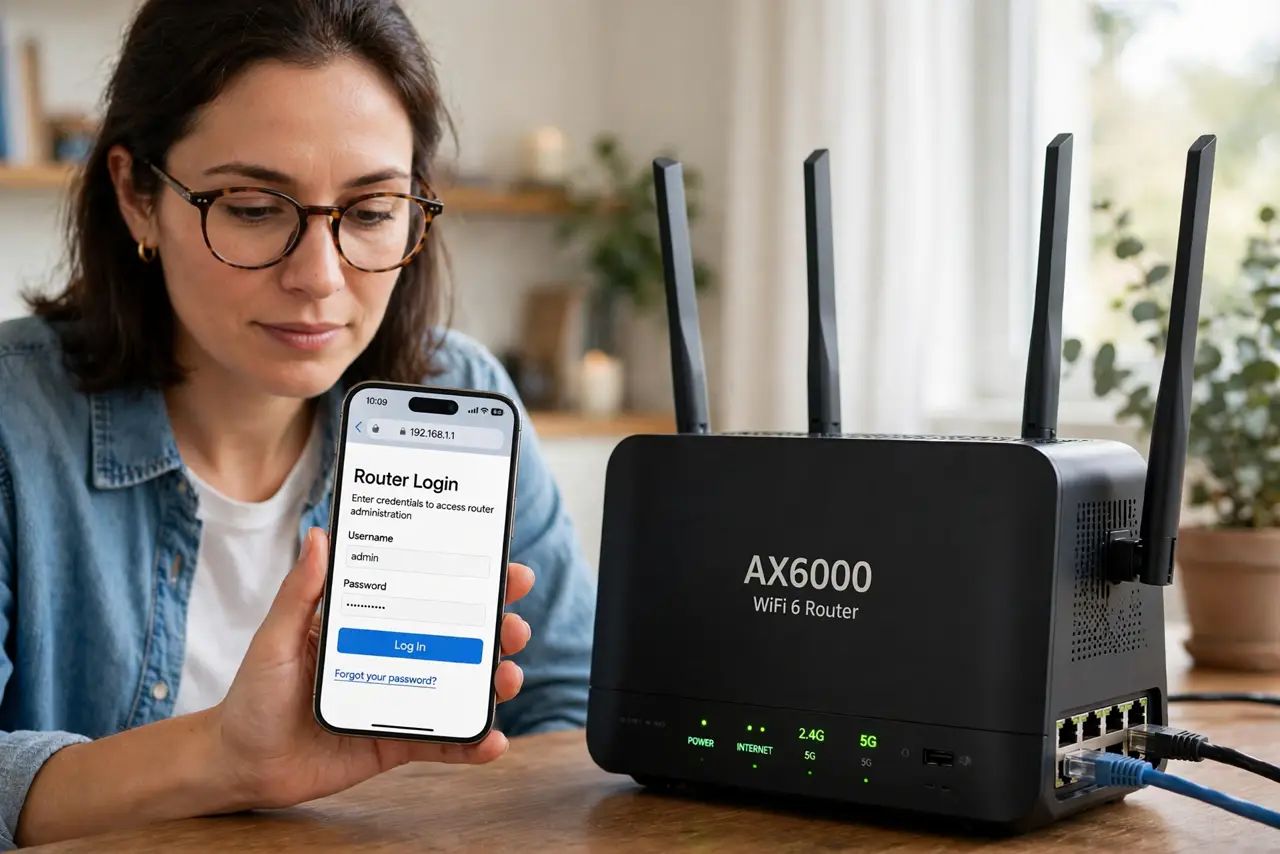
- Log in to your router. Open the router's app or web settings with the admin password. QoS lives under names like Quality of Service, Traffic Control, or Device Prioritization — check the advanced wireless or LAN sections.
- Find your console's identity. Look at the connected-devices list and identify your console — by name, or by its MAC address on the network settings screen. You need to point the priority rule at the right device.
- Create the priority rule. Add a QoS rule giving the console the highest priority, or drag it to the top of a device-priority list. Some routers offer a Gaming preset — take it if present.
- Deprioritize the bandwidth hogs. Set streaming boxes and cloud-backup PCs to normal or low priority. Prioritization is relative: gaming wins because something else politely waits, not because of magic.
- Prefer a wired connection. If the console sits near the router, run an ethernet cable — no QoS rule beats a wire. QoS matters most for Wi-Fi consoles competing with a busy household.
- Test under load. Play a match while someone streams video and a backup runs. If the game stays smooth, the rule works. If not, check the rule actually saved — some routers need a reboot to apply QoS.
What NOT to do
- Do not expect QoS to fix a slow plan. Prioritization divides the pie fairly; it cannot bake a bigger pie — 10 Mbps stays 10 Mbps.
- Do not prioritize everything. If every device is high priority, none is — pick the console and let the rest share normally.
- Do not forget the rule after rearranging. A new router or reset wipes QoS rules — re-create them after any network change.
- Do not game on congested 2.4 GHz. Move the console to 5 GHz or ethernet first; QoS cannot fix a crowded band.
Frequently asked questions
What is QoS?
Quality of Service — the router's traffic cop. It decides which device's packets go first when the connection is busy, so time-sensitive traffic like gaming wins.
Will this help my ping?
It helps ping stability under load — fewer spikes when others use the network. It cannot lower your base ping to the game server.
Do I need a gaming router?
No — most standard routers have usable QoS. Gaming routers add fancier interfaces, not fundamentally different prioritization.