Split 2.4 and 5 GHz
Your router broadcasts one network name for both its 2.4 GHz and 5 GHz bands, and your smart plug keeps failing to connect. Many smart devices only speak 2.4 GHz and get confused by the combined signal. Splitting the bands into two network names — one for each — fixes the picky devices and lets you steer everything else to the faster band.
TL;DR / Quick Fix
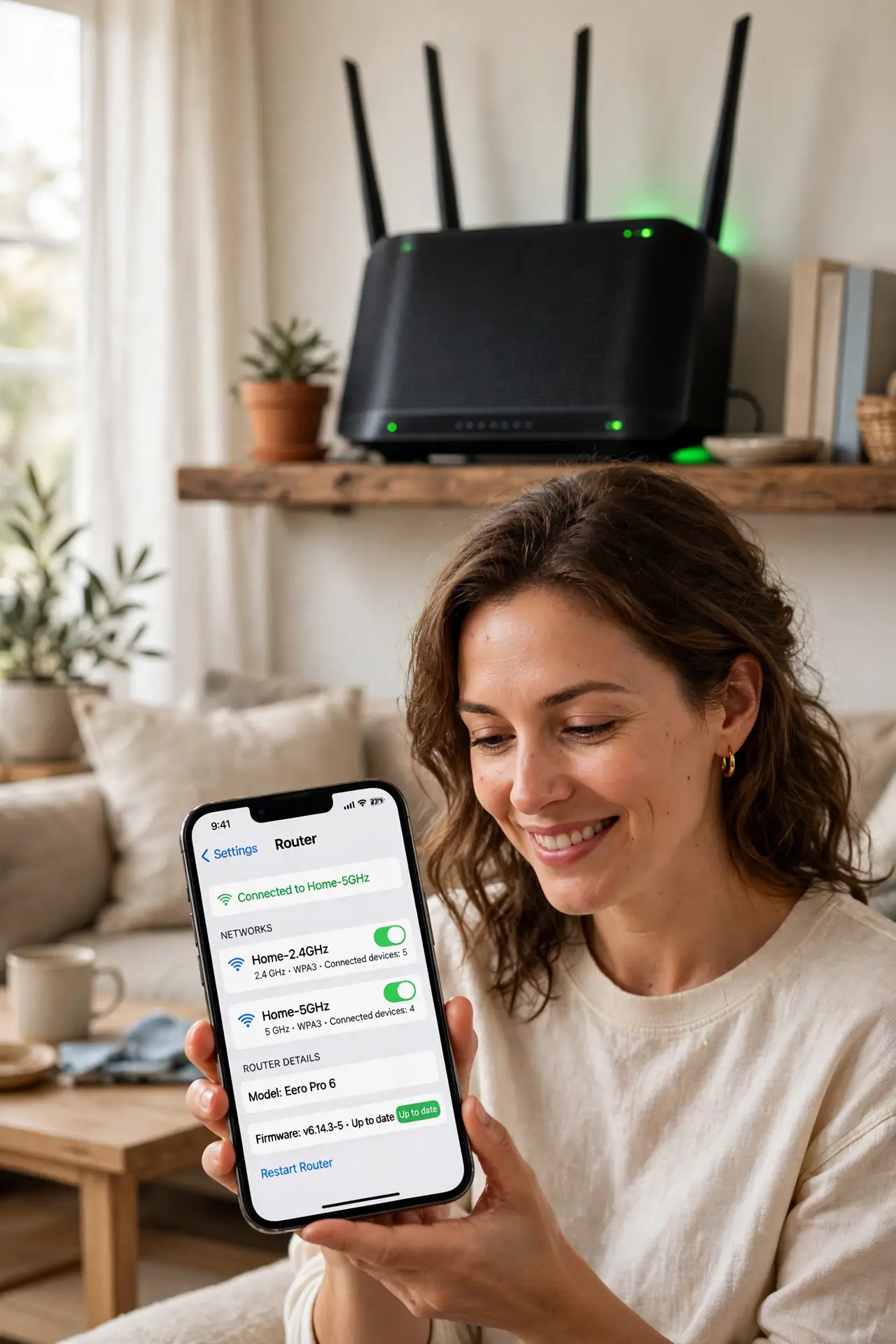
Quick fix: in your router settings, turn off the combined-band option and give the 2.4 GHz and 5 GHz networks different names. Connect smart home gadgets to the 2.4 GHz name and phones and laptops to the 5 GHz name. Reconnect each device once; everything remembers from there.
Follow these steps
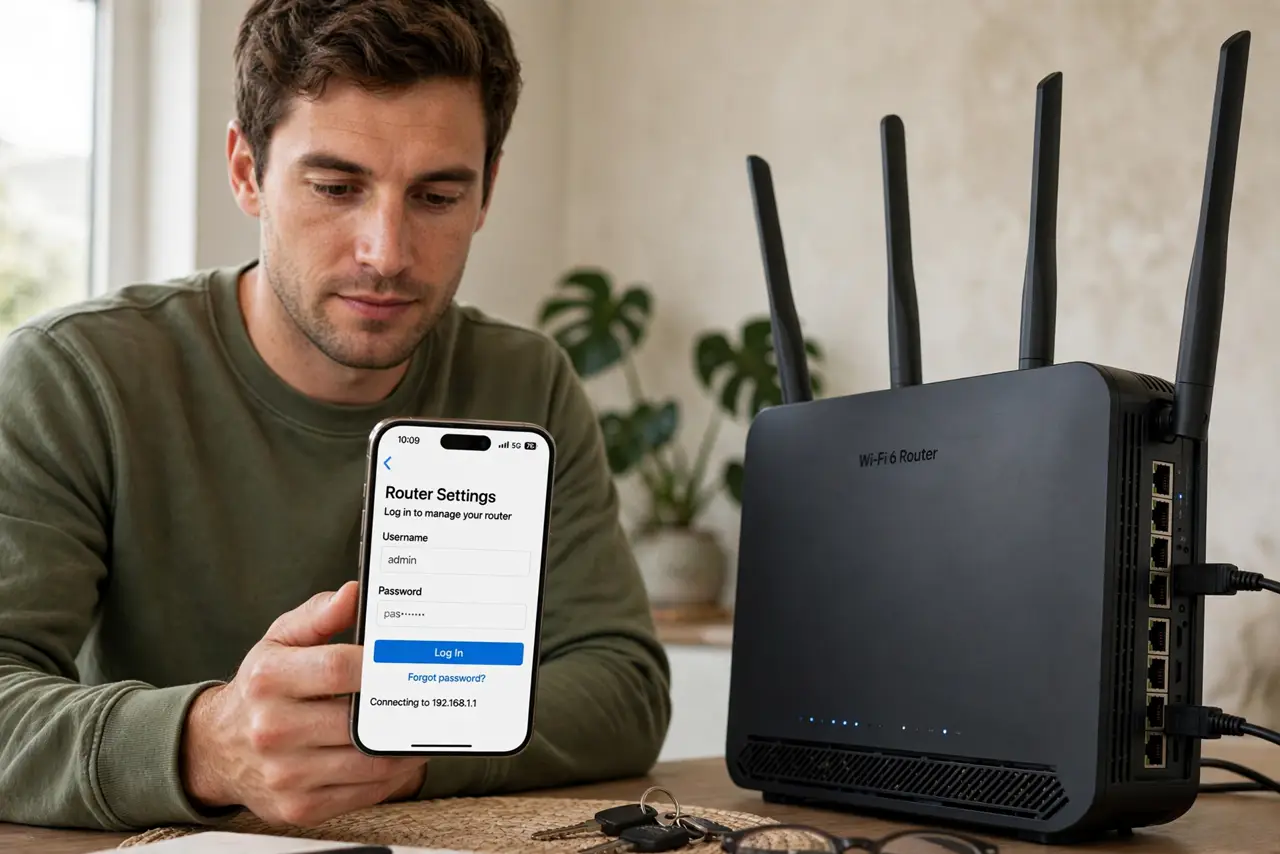
- Log in to your router settings. Open your router's app or type its address into a browser. You need the admin password — it is on the router's sticker if you never changed it. This is where all band settings live.
- Find the band or Smart Connect setting. Look for wireless settings mentioning combined bands, Smart Connect, or band steering. The exact name varies by brand, but it is always near the Wi-Fi name and password fields.
- Split the bands. Turn the combining option off. You will now see separate settings for 2.4 GHz and 5 GHz. This is the change everything else builds on — take a breath, it is reversible.
- Name them clearly. Give them distinct names like Home-2G and Home-5G. Clear names mean you always know which band a device joined, which makes future troubleshooting dramatically easier.
- Move smart devices to 2.4 GHz. Reconnect each smart plug, bulb, and camera to the 2.4 GHz network. These devices prefer the longer range of 2.4 GHz anyway — see the band tradeoff guide for why range and speed differ.
- Put phones and laptops on 5 GHz. Connect your fast devices to the 5 GHz name. It is shorter-range but much faster, which is exactly what streaming and video calls want.
What NOT to do
- Do not split bands and change passwords at the same time. One change at a time keeps troubleshooting possible if something breaks.
- Do not name both bands identically after splitting. Identical names defeat the purpose — devices will still roam unpredictably.
- Do not put everything on 2.4 GHz 'for range.' Your laptop on 2.4 GHz in the same room as the router is leaving real speed on the table.
- Do not forget to reconnect every device. Splitting creates effectively new networks; anything not moved stays on the old combined name until you switch it.
Frequently asked questions
Will splitting slow down my Wi-Fi?
No. Each band runs at its own speed regardless. Splitting just lets you choose which devices use which band instead of leaving it to the router's guesses.
Do I need to split if everything works?
No. If every device connects happily, leave the combined network alone. Splitting is a fix for picky devices, not a general upgrade.
Which band is better for gaming?
5 GHz, when you are reasonably close to the router — lower latency and more speed. Far away, a strong 2.4 GHz signal beats a weak 5 GHz one.