Set Up a Guest Network
Visitors ask for your Wi-Fi password and you hesitate — handing it over gives them access to your shared folders, printers, and smart home gadgets. A guest network is a separate Wi-Fi network for visitors: internet access, but isolated from your devices. Most routers can create one in five minutes. Here is the setup.
TL;DR / Quick Fix
Quick fix: log into your router and enable the guest network — give it a simple name and password. Guests get internet but can't see your computers, printers, or smart devices. Turn on bandwidth limits if offered. Disable it when guests leave, or leave it running permanently.
Follow these steps
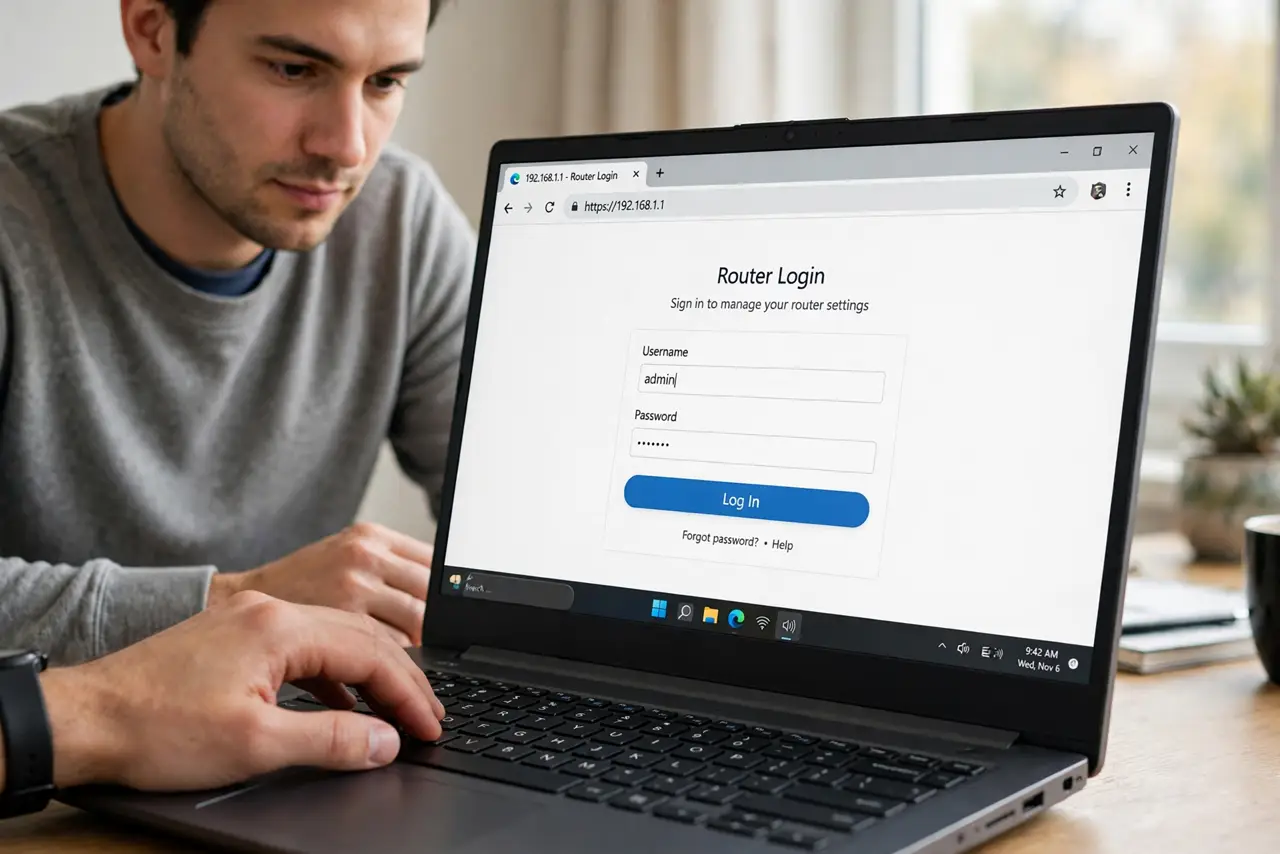
- Log into your router. Browse to the router's admin address (check the sticker underneath) and sign in. Look for Wireless, Guest Network, or Guest Access settings. The exact location varies by brand, but the feature is nearly universal now.
- Enable the guest network. Toggle it on for the 2.4 GHz band at minimum — guest phones need range more than speed. Many routers offer it on 5 GHz too; enabling both is fine. See the guest Wi-Fi setup guide for brand-specific paths.
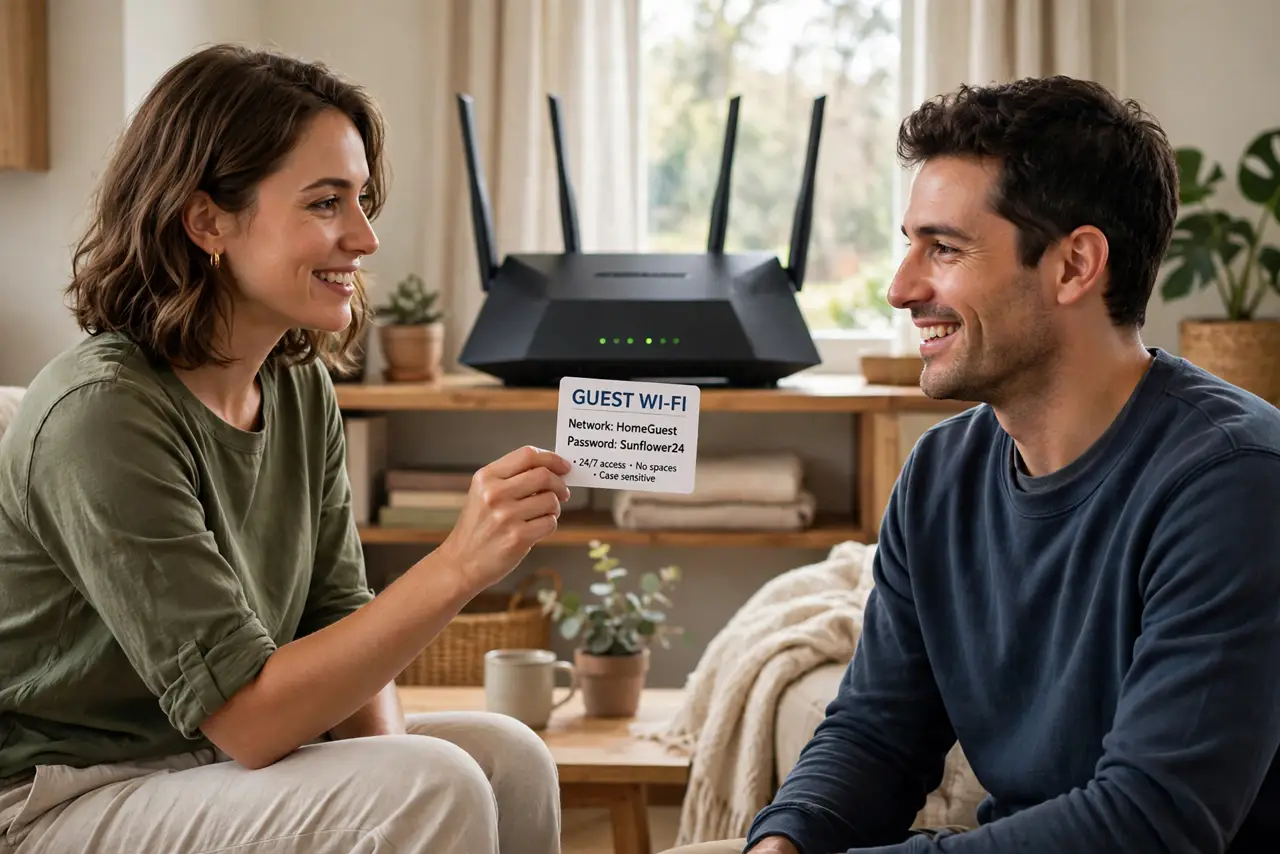
- Name and password it simply. Use an obvious name like 'Smith-Guest' and a password you can say out loud. This password can be simpler than your main one — guests are temporary and the network is isolated. Write it on a card for the fridge.
- Confirm client isolation is on. The key security setting: guest devices must not see each other or your network ('AP isolation' or 'client isolation'). This is what keeps a guest's infected laptop away from your files. It's usually on by default — verify.
- Set limits if available. Bandwidth caps keep one guest's 4K streaming from wrecking your video call. Time limits can auto-disable the network after the visit. Use what's offered; skip what's not.
- Know the printer caveat. Isolation means guests can't use your printer either — that's the point. If a guest needs to print, you'll share the file yourself. The guest-can't-see-printer guide explains this tradeoff in detail.
What NOT to do
- Do not give guests your main Wi-Fi password 'just this once.' Once shared, it's shared forever — the guest network exists to avoid exactly this.
- Do not leave the guest password as the default. Change it from 'guest123' or blank — an open guest network invites the whole street.
- Do not assume isolation without checking. A misconfigured guest network that's actually bridged to your LAN is worse than none — verify the setting.
- Do not forget IoT devices on the main network. If your smart gadgets share your main Wi-Fi, guests on the main network could reach them — another reason guests stay on guest.
Frequently asked questions
Can guests see my files?
Not on a properly isolated guest network — they get internet only. Your shared folders, NAS, and printers stay invisible. That's the entire purpose.
Should I leave it on all the time?
Yes, with a decent password — it's convenient and the isolation protects you. Or enable it per visit; both approaches are fine.
Will it slow my Wi-Fi?
Barely — an idle guest network costs almost nothing. Only active guest usage consumes bandwidth, same as any device.