Share Guest Wi-Fi via QR
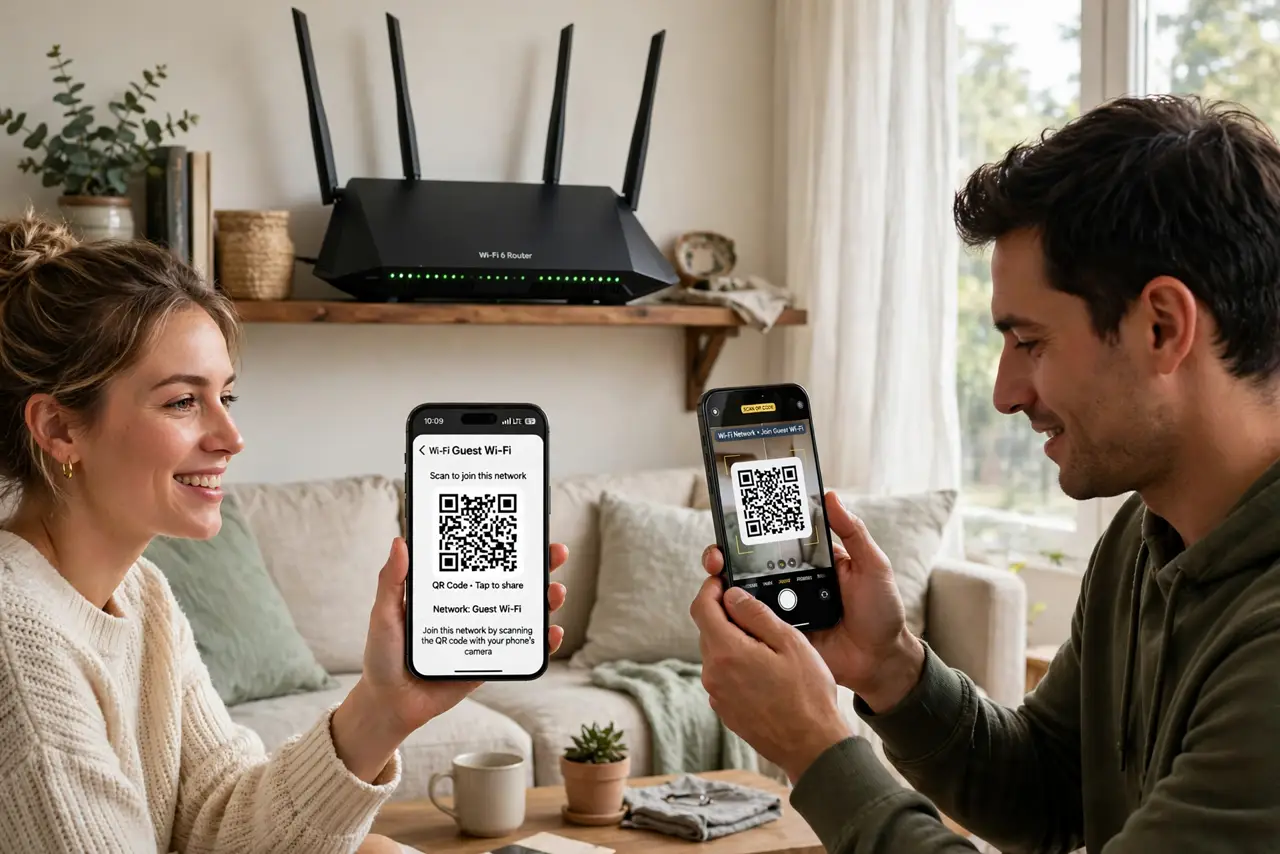
Guests arrive, ask for the Wi-Fi password, and you start dictating a 20-character jumble of letters and symbols while they mistype it twice. There is a better way: most routers and phones can generate a QR code that connects a guest to your guest network with one scan. No spelling, no typos, and your main password stays private.
TL;DR / Quick Fix
Quick fix: create a guest network in your router settings, then generate its QR code — many routers show one, or your phone can make one from the connected network. Guests scan the code and connect instantly. Never share your main network password; the guest network keeps visitors separate.
Follow these steps
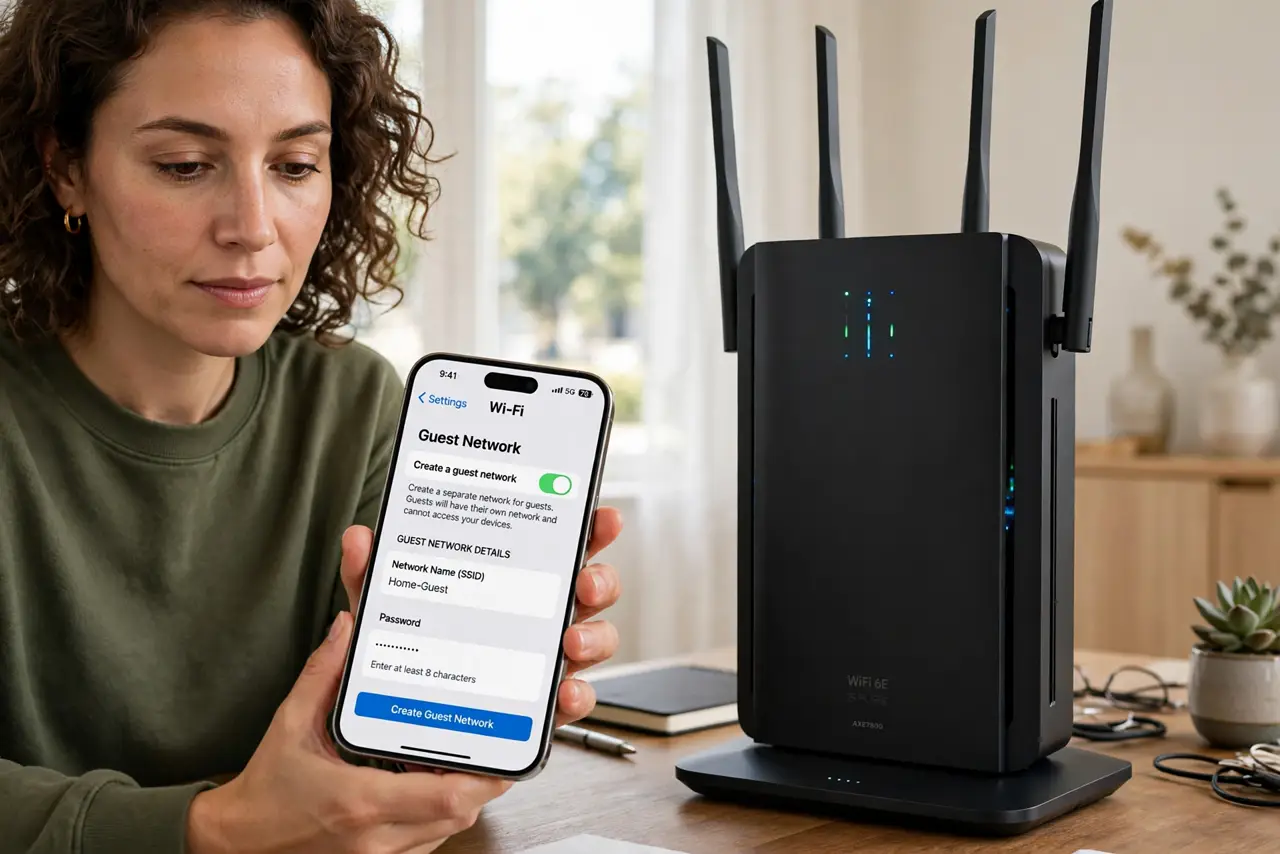
- Create a guest network first. Log in to your router's settings and enable the guest network. Give it a simple name like YourName-Guest. The whole point is keeping visitors off your main network, where your computers and smart devices live.
- Set a simple guest password. The guest password does not need fortress strength — it changes the risk model, not the network. Pick something memorable but not guessable, and avoid reusing your main Wi-Fi password.
- Generate the QR code. Many router apps show a QR code for the guest network directly. Otherwise, on iPhone or Android, share the connected network: the system builds a QR code guests can scan without revealing the password in plain text.
- Print it or keep it handy. Screenshot the QR code and print it, or frame it near the entrance. A printed code in the guest room beats digging through router menus every time someone visits.
- Test it with your own phone. Forget the guest network on your phone, then scan the code and connect. Confirm it joins the guest network — not your main one — and that it has internet access before guests arrive.
- Rotate the password occasionally. Change the guest password every few months or after a party, and regenerate the QR code. Old codes stop working, which quietly revokes access for everyone you no longer want on the network.
What NOT to do
- Do not share your main Wi-Fi password with guests. The guest network exists precisely so visitors never touch your private devices.
- Do not post the QR code publicly. A code taped to a cafe-style front window invites the whole street onto your connection.
- Do not skip the test scan. A QR code for the wrong network or an expired password creates an awkward troubleshooting session in front of guests.
- Do not enable guest network file sharing. Keep client isolation on so guest devices cannot see each other or your devices.
Frequently asked questions
Can guests see my computers on a guest network?
No, if client isolation is on — the standard default. Guest devices get internet only, with no path to your main network or its devices.
Do QR codes work for iPhone and Android guests?
Yes, both scan Wi-Fi QR codes with the stock camera app. No extra app is needed on modern phones.
My router app has no QR option. What now?
Connect your phone to the guest network, then use the phone's built-in Wi-Fi sharing to generate the code. It works regardless of router brand.