Why Gadgets Love 2.4 GHz?
Your smart bulb, plug, or camera refuses to connect while your phone is happily on Wi-Fi — and the culprit is almost always the 2.4 GHz band. Nearly all cheap smart home gadgets speak only 2.4 GHz, while your phone sits on 5 GHz during setup. This guide explains why gadgets love the old band and how to get them connected.
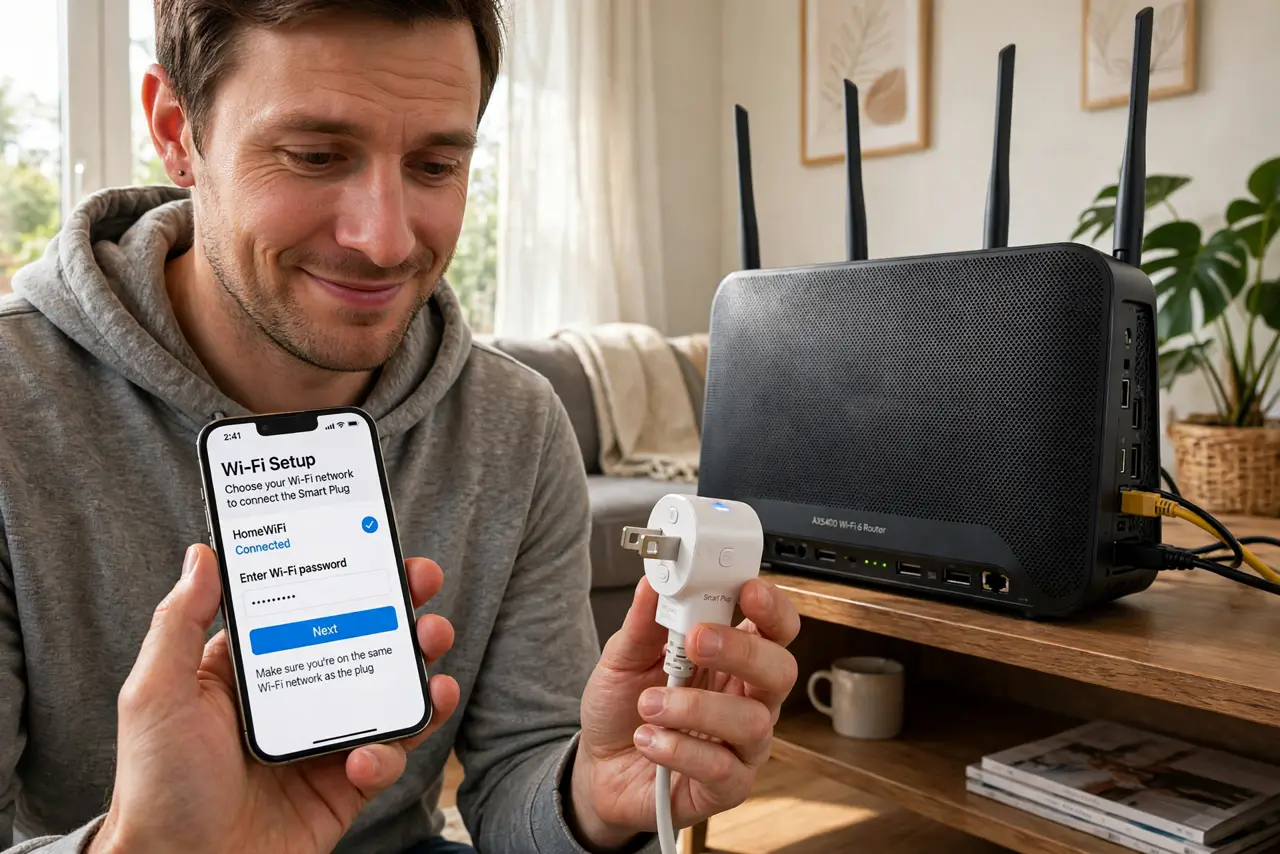
TL;DR / Quick Fix
Quick fix: most gadgets only speak 2.4 GHz Wi-Fi — it reaches farther through walls than 5 GHz. If a gadget will not connect, join your phone to the 2.4 GHz band during setup, or give each band its own network name. Once set up, the band no longer matters.
Follow these steps
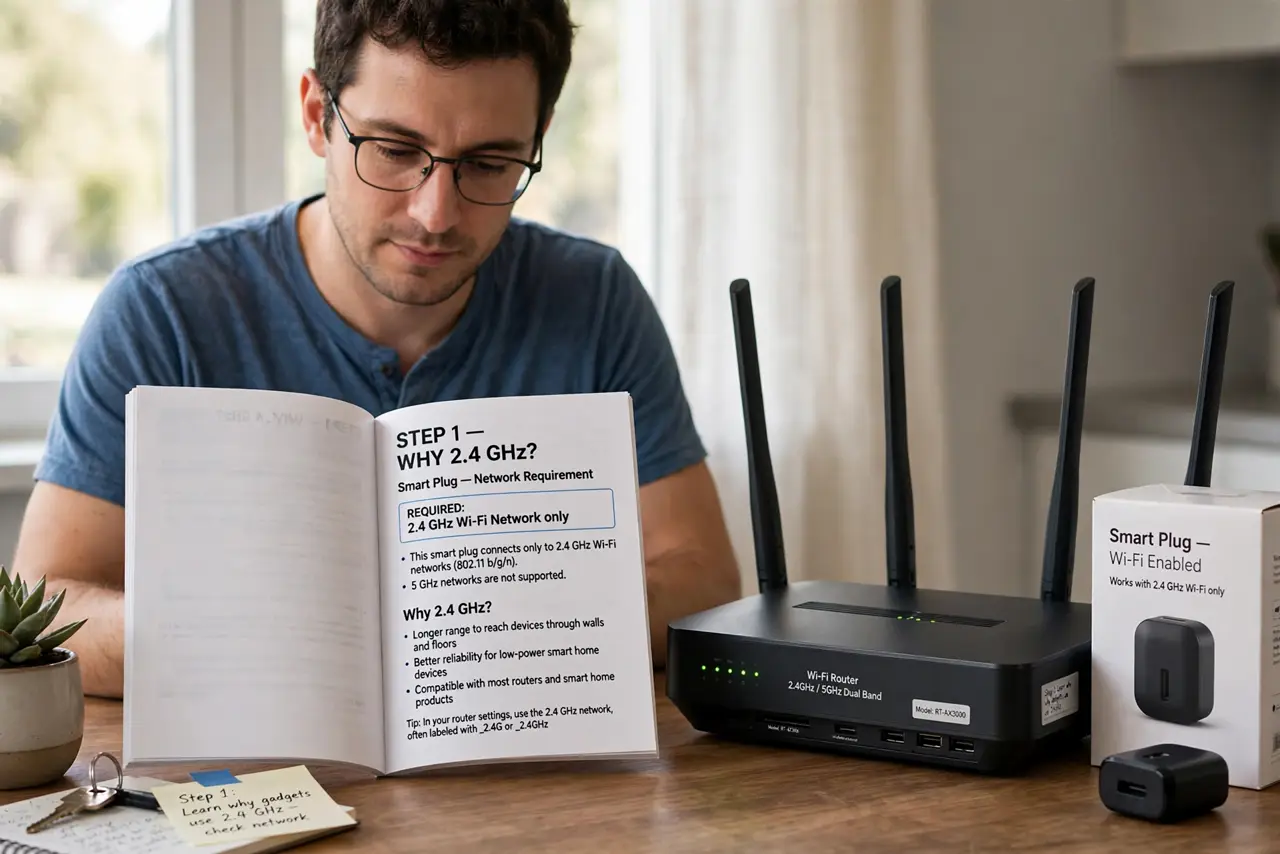
- Learn why gadgets use 2.4 GHz. The 2.4 GHz band travels farther and through walls better than 5 GHz, and its radios are cheap — perfect for a ten-dollar smart plug that just needs to phone home occasionally.
- Understand the setup trap. Many gadgets configure over your phone's connection — if the phone is on 5 GHz, the gadget cannot see the network it is being told to join. The phone and gadget must meet on 2.4 GHz during setup.
- Join 2.4 GHz during setup. Temporarily connect your phone to the router's 2.4 GHz network (or stand far enough that the phone drops to it), then run the gadget's setup. Once configured, the gadget remembers the network on its own.
- Split the bands if needed. Routers with Smart Connect merge both bands under one name, which confuses setup. Temporarily split them into separate names, set up the gadget, then merge back if you like.
- Know 5 GHz would not help anyway. Smart gadgets send tiny amounts of data — 5 GHz speed is irrelevant to them. Range and wall penetration are what matter, and 2.4 GHz wins both.
- Leave it alone afterward. Once connected, the gadget stays on 2.4 GHz happily forever. Do not 'upgrade' it to 5 GHz — it cannot see that band at all, and you will just break a working setup.
What NOT to do
- Do not assume the gadget is broken. Nine times out of ten, a 'dead' smart plug is a band mismatch during setup, not faulty hardware.
- Do not permanently disable 5 GHz. Splitting bands temporarily for setup is fine; killing 5 GHz for the whole house punishes every fast device you own.
- Do not place the gadget at the edge of range. 2.4 GHz reaches far, but a gadget barely clinging to signal drops constantly — keep it within solid coverage.
- Do not forget the gadget's app. Setup happens in the maker's app, not in Wi-Fi settings — open the app and follow its flow while on the right band.
Frequently asked questions
Why do smart devices not support 5 GHz?
Cost and physics: 2.4 GHz radios are cheaper and reach farther, which is what a sensor or bulb needs. 5 GHz speed is wasted on devices sending bytes, not video.
Will 2.4 GHz slow down my network?
No — gadgets sip tiny amounts of data. Your phones and laptops on 5 GHz are unaffected by a dozen smart plugs chatting on 2.4 GHz.
What is band steering?
The router's attempt to push devices to the best band automatically. It confuses gadget setup, which is why temporarily splitting the bands works.