Daisy-Chaining Mesh Nodes? Don't
Daisy-chaining means satellite B connects through satellite A instead of straight to the main node — a chain instead of a star. It happens by accident when nodes line up down a hallway, and each extra hop roughly halves the speed at the far end. Here is how to spot the chain and rebuild it as a star.

TL;DR / Quick Fix
Quick fix: don't daisy-chain mesh nodes — connect every satellite to the main node, not to each other, so no node relays another node's traffic. Each extra wireless hop roughly halves speed. If a satellite can't reach the main node directly, wire it with Ethernet or move it closer instead.
Follow these steps
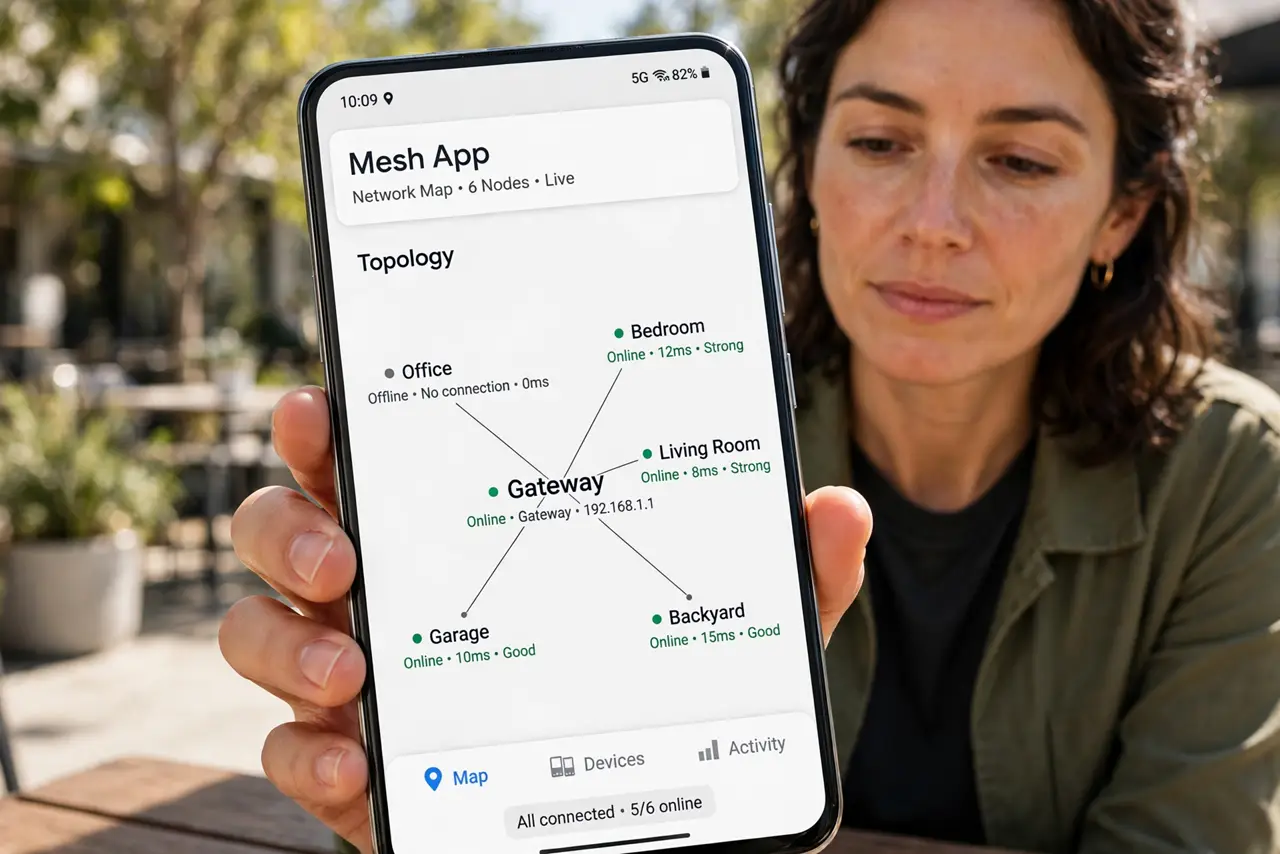
- Check the app's network map. Open your mesh app and look at the topology: lines showing which node connects to which. A chain — main to A to B to C — is the daisy-chain pattern; a star has every satellite linking straight to the main node.
- Understand why chains are slow. Every wireless hop re-transmits the same data on the same channel, so throughput roughly halves per hop. The far node in a three-hop chain can deliver a quarter of the main node's speed on a good day.
- Move the far nodes toward the main node. Shift the middle and far satellites so each can see the main node directly. Even a few feet can flip a chain into a star if it clears the key obstruction.
- Wire the stubborn ones. A satellite that simply cannot reach the main node wirelessly is the perfect candidate for wired backhaul — one cable turns it into a strong local source instead of a weak relay.
- Re-check the map after moving. Topology can take several minutes to settle. Wait, refresh the app, and confirm every satellite now shows a direct link to the main node before you call it fixed.
- Test speed at the far end. Run a speed test from the room the chain used to serve. A proper star should deliver most of the main node's speed there — if not, the satellite still needs a better spot.
What NOT to do
- Do not line nodes up down a long hallway. Hallway lines are how accidental chains are born — offset them toward the rooms they serve.
- Do not assume the app picks the best path. Mesh apps usually do, but a node that joined the chain first may cling to it — a restart of that node often triggers a re-evaluation.
- Do not add a fourth node to fix a chain. More nodes in a chain make it longer and slower; fix the topology instead of extending it.
- Do not ignore a chain because 'it works.' It works slowly — the far rooms are getting a fraction of the speed you pay for.
Frequently asked questions
Is daisy-chaining ever okay?
Only with wired backhaul, where hops cost nothing. Over wireless, a chain is always a compromise — acceptable temporarily, never the goal.
Why did my system form a chain by itself?
Nodes connect to the strongest neighbor they hear at setup time. If you powered them on one at a time down the hallway, each joined the previous one — power them on near the main node first, then move them.
How do I know which node is the bottleneck?
The app's per-node speed or link-quality readout. The slowest link in the chain caps everything downstream of it — fix or reposition that node first.