Test for Packet Loss
Pages half-load, game characters freeze, calls drop words — and the speed test claims everything is fine. Packet loss, where chunks of data simply vanish in transit, explains all of it. Testing for it takes two minutes with tools already on your computer, and the results point straight at the culprit.

TL;DR / Quick Fix
Quick fix: open a terminal and ping your router with 100 packets — any loss above 1% on Wi-Fi means a local problem; loss to distant servers means line trouble. Note when it happens: constant loss is hardware or interference, evening-only loss is congestion. Screenshot results before calling support.
Follow these steps
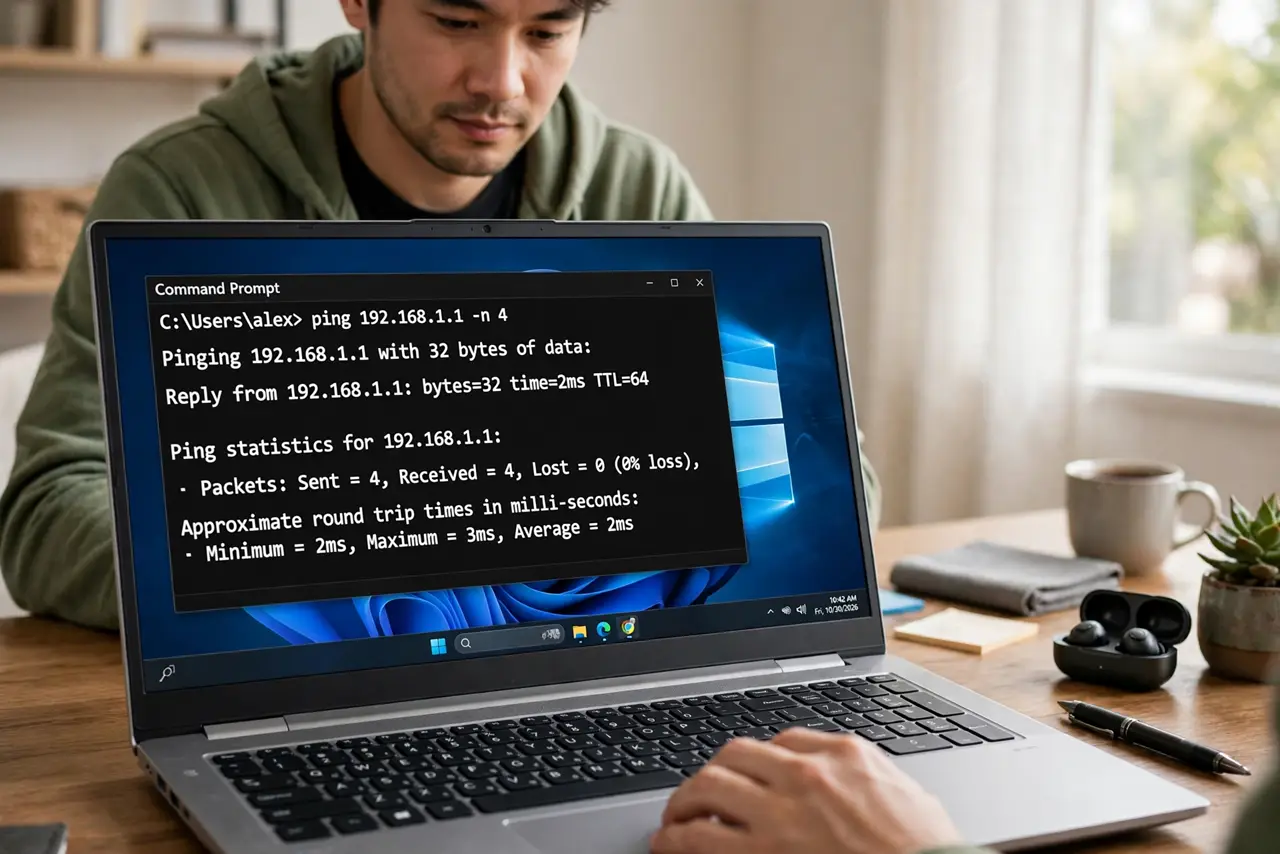
- Ping your router first. Open a terminal: 'ping -n 100 192.168.1.1' on Windows, 'ping -c 100 192.168.1.1' on Mac/Linux (use your router's actual address). This tests only your local Wi-Fi — the first and most informative split, as the router ping guide explains.
- Read the loss percentage. 0% is perfect; occasional single packets on Wi-Fi are normal noise. Sustained loss above 1–2% on the local ping means your wireless link is dropping data — interference, distance, or a struggling router.
- Ping something distant next. Ping a reliable public server with 100 packets. Loss here but not to the router means the problem is beyond your home — the line or the ISP's network.
- Note the timing pattern. Constant loss points to hardware or steady interference; loss only in the evening points to congestion; loss in bursts points to something cycling — a microwave, a failing device, a neighbor's schedule.
- Try 5 GHz as a comparison. Run the same 100-ping test on 5 GHz. If 2.4 GHz loses packets and 5 GHz doesn't, you've found both the problem and the fix in one test.
- Screenshot before calling support. ISPs act on documented loss: '3% packet loss to your gateway every evening this week, here are screenshots' beats 'my internet is bad' by a mile. Include wired-versus-wireless results.
What NOT to do
- Do not test with two pings and declare victory. Tiny samples miss intermittent loss — 100 packets is the minimum for a meaningful percentage.
- Do not test over Wi-Fi and blame the line. Local wireless loss is your domain; only wired-or-router-clean results implicate the ISP.
- Do not panic at 0% one minute and 2% the next. Wi-Fi is a shared, imperfect medium — brief blips are normal; sustained patterns are the problem.
- Do not forget the cable. A damaged Ethernet cable causes packet loss too — if wired tests show loss, swap the cable before calling anyone.
Frequently asked questions
What causes packet loss on Wi-Fi?
Interference, weak signal, congested channels, or an overloaded router — anything that corrupts or collides frames. The 5 GHz comparison test usually identifies which.
Is some packet loss normal?
On Wi-Fi, tiny amounts — a fraction of a percent — are normal background noise. Sustained multi-percent loss is not normal anywhere.
Why do games suffer more than browsing from packet loss?
Browsing just retransmits quietly; real-time games and calls can't wait for retransmits, so every lost packet shows up as a freeze or a dropped word.